NVIDIA App’s latest update adds a local server that lets AI assistants change graphics settings and control gameplay recording. VideoCardz found the feature already switched on after updating to version 11.0.9.565, and reports that other users have seen the same behaviour. If you don’t use an AI agent to manage your PC, you can turn it off in the app’s settings.
NVIDIA’s release notes confirm the new Model Context Protocol, or MCP, support, which connects compatible assistants to the app through natural-language requests. The company lists Hermes, OpenClaw, and Perplexity as examples. An assistant can use that connection to find installed games, apply optimal graphics settings, or enable ShadowPlay recording, replacing several manual steps with a conversational request.
How to disable NVIDIA App’s AI-agent connection
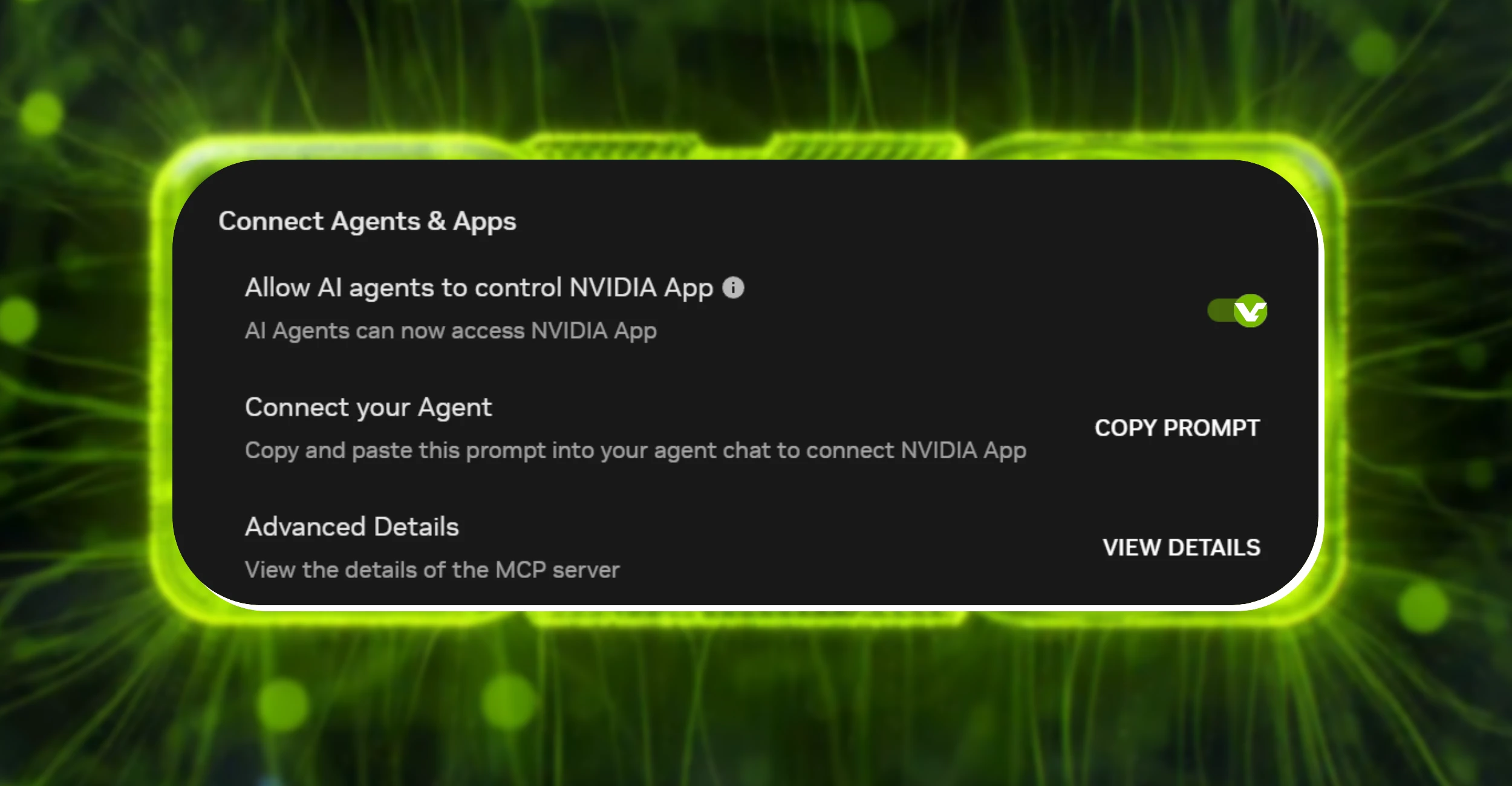
You can disable the connection without uninstalling NVIDIA App. VideoCardz gives the following route for the updated interface:
1. Open NVIDIA App and select Settings. 2. Open Features and scroll to Connect Agents & Apps. 3. Switch off Allow AI agents to control NVIDIA App. The toggle changes from green to grey.

NVIDIA’s release notes call the section “AI Agents and App Connections”, so look for the AI-agent connection controls if the heading differs on your installation. According to the documentation cited by VideoCardz, switching off the master toggle stops the persistent MCP server from running. You can use the same menu to enable it again if you later set up a compatible assistant.
What the local server can access
The connection reaches beyond choosing a graphics preset. VideoCardz lists controls for screenshots, instant replay, recording, RTX Dynamic Vibrance, and the performance statistics overlay, alongside read-only access to driver information and detected games. Supported laptops also expose Battery Boost and Whisper Mode settings, which puts power-related controls within an agent’s reach.
For gaming-laptop owners, including those considering machines such as the Lenovo Legion Pro 7i Gen 10, those laptop-specific options are worth checking before connecting an assistant. The available functions depend on the system and feature involved. Some return information, while others can change settings or start a recording.
The server runs locally at the loopback address 127.0.0.1, using port 13508 by default. An enabled server doesn’t automatically connect an external AI service to your PC. However, VideoCardz explains that an agent using a cloud service could send information it retrieves to that service, depending on how the agent works.
This is a separate control path from the graphics technology behind updates such as DLSS 5’s faster model for Hogwarts Legacy. If you prefer to manage graphics and recording yourself, switching off the agent connection keeps that choice straightforward. Check the toggle after updating rather than assuming it remains disabled.
Does this mean NVIDIA has installed an AI model on my PC?
The feature described here is an MCP interface for compatible assistants. It provides a way for an agent to communicate with NVIDIA App; it isn’t itself the language model that interprets your requests.
Has NVIDIA confirmed that the feature is enabled for everyone?
The automatic activation is VideoCardz’s observation, supported by other user reports it cites. NVIDIA’s release notes confirm MCP support but don’t explain the default-on behaviour.