Why did OneDrive Photos appear on Windows 11?
OneDrive Photos is appearing because Microsoft is distributing a separate Store app to some Windows 11 PCs, although the precise rollout route has not been documented.
Windows Latest reported that the app appeared on systems without users manually installing it, apparently following routine Windows or Microsoft Store updates. Microsoft has not published a dedicated announcement or support page explaining the rollout, so it remains unclear which PCs receive the app or whether a particular update triggers it.
The app is distinct from the built-in Microsoft Photos application. It acts as an image viewer for local media and OneDrive-stored photos, while offering organisation features associated with Microsoft’s cloud photo service.
Installing another image viewer without an explicit opt-in is poor disclosure, particularly when Windows already has a photo application. Face detection and people tagging are also established features in Microsoft Photos and OneDrive. The substantive change is the arrival of a separate app and a fresh permission prompt, rather than a new face-search technology.
What does the face-analysis prompt mean?
The prompt asks for permission to analyse photos so OneDrive Photos can group and find images according to the people shown in them.
Granting permission enables face detection, grouping, and people-based search across the photo library available to the app. Users who do not need those features should decline the request when it appears; ordinary image viewing does not require a searchable index of the faces in a photo collection.
Microsoft has not released dedicated privacy documentation explaining whether OneDrive Photos performs this analysis on the PC, through OneDrive’s cloud infrastructure, or using a combination of both. Existing Microsoft photo products use different approaches, so their behaviour cannot safely be assumed to describe this separate app.
If permission has already been granted, open OneDrive Photos and inspect its Settings or Privacy area for controls labelled People, face detection, face grouping, or photo organisation. Exact control names are not yet formally documented. If no suitable option appears, signing out of OneDrive within the app or uninstalling it provides a clearer boundary.
How can you uninstall OneDrive Photos or change the default viewer?
OneDrive Photos can be removed through Windows 11’s installed-app controls when its Uninstall option is available.
Open Settings → Apps → Installed apps, search for OneDrive Photos, open its menu, and select Uninstall. Users can first confirm whether it is present by searching for OneDrive Photos from the Start menu or checking the Installed apps list.
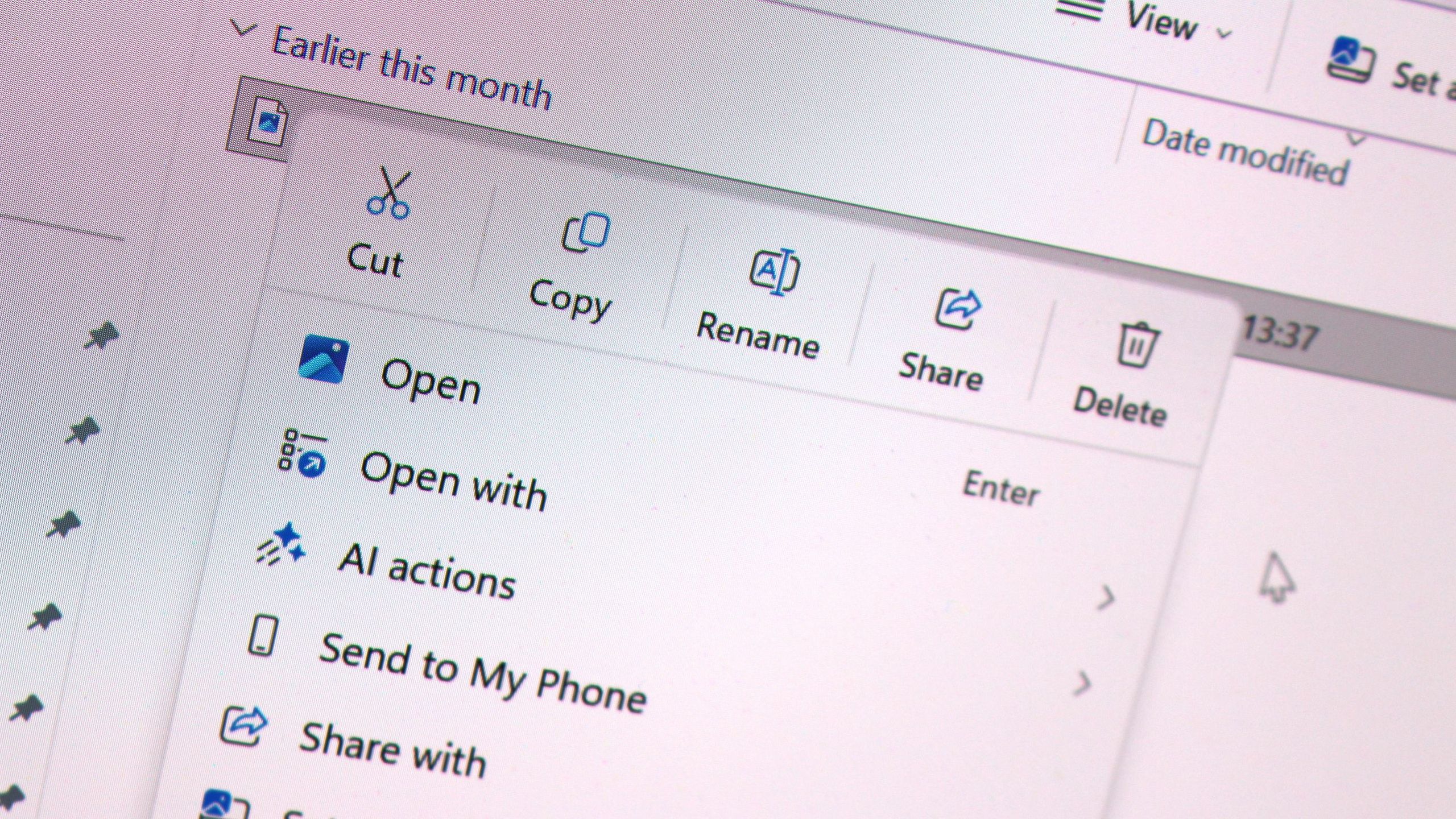
Changing the default viewer is the less disruptive option if the main problem is that images open in the unwanted app. Right-click an image, choose Open with → Choose another app, select the preferred viewer, and choose the option to use it consistently for that file type.
Windows also manages defaults by file extension under Settings → Apps → Default apps. Check common formats such as .jpg, .png, and .heic separately because changing one association may not affect the others.
If Windows does not offer an Uninstall command, decline the face-analysis permission and replace the app’s file associations instead. Avoid unverified PowerShell removal commands until the package identity and consequences have been properly documented.