Windows 11’s August 2026 update (KB5121003) has switched on the Low Latency Profile CPU boost for app launches, and before-and-after tests on the same PC show apps opening noticeably faster. Windows Latest confirmed the change after installing the update.
Low Latency Profile works by spiking the CPU to near-maximum frequency for one to three seconds the moment you open something, then letting it drop back to idle. Microsoft calls the concept “race to sleep”: the processor does the heavy lifting in a short burst and reaches a deeper idle state sooner than it would grinding along at a moderate clock speed.

The feature rolled out to most Windows 11 PCs in June, but only covered shell elements: the Start menu, Search, the notification centre and similar flyouts. Microsoft’s May changelog had described the scope as:
[General Performance] This update accelerates app launch and core shell experiences such as Start menu, Search, and Action Center.
App launch did not work then, as Windows Latest found in its first test back in May. The August update finally turns it on.
What the Windows 11 update changes
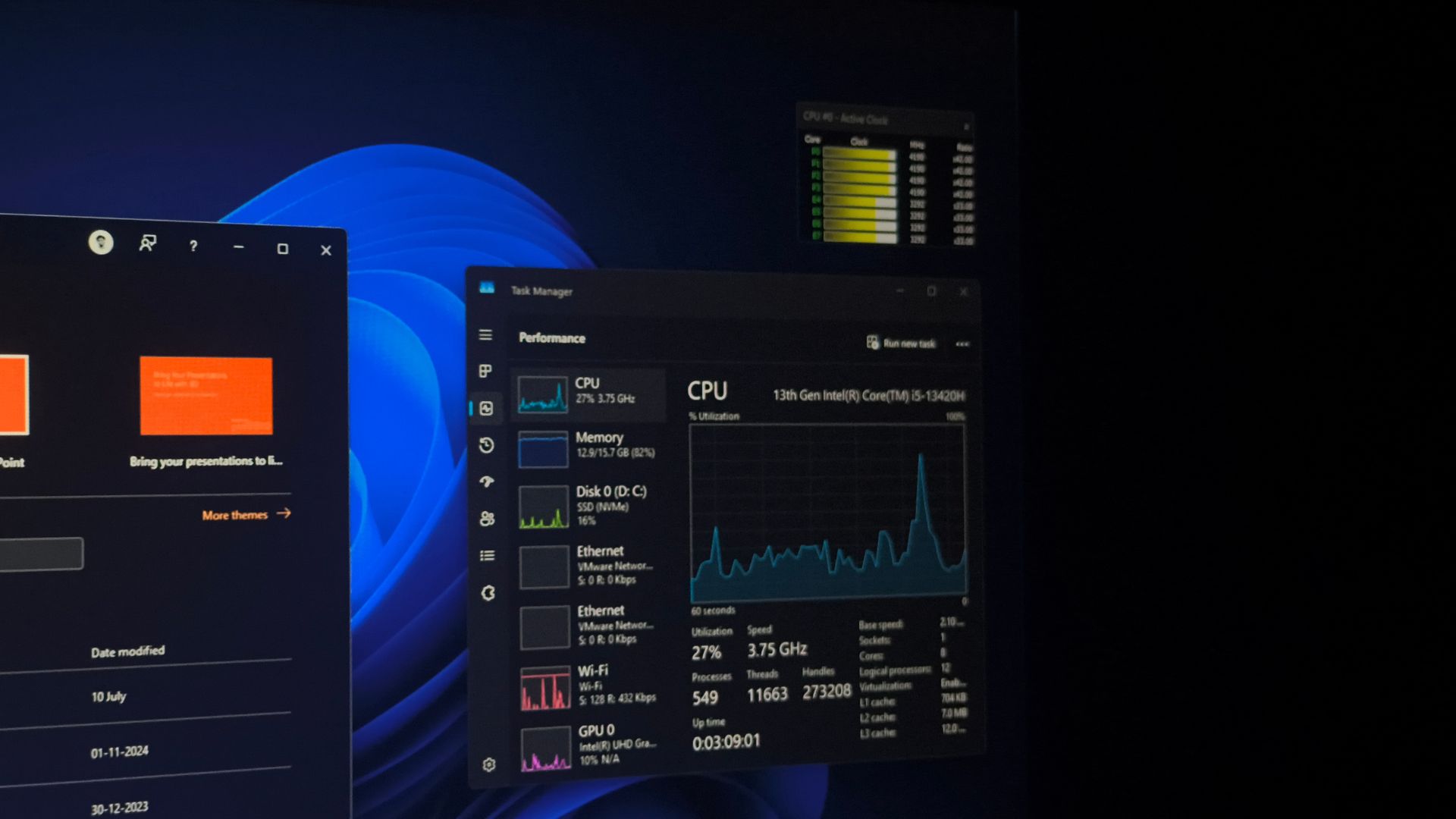
On a Core i5-13420H test laptop, Windows Latest opened Notepad, the Epic Games Store, Calculator, Chrome, the Weather app, PowerPoint and VLC before and after the update. After it, P-cores spike toward their 4.6GHz maximum and E-cores climb past 2GHz the moment an app opens, and every app in the test launched faster — including the Weather app, which is not known for restraint.
The mechanism is not a gimmick: macOS and Linux have used the same race-to-sleep scheduling for years, as Microsoft VP Scott Hanselman argued when the feature drew criticism in May. Windows Latest’s repeated battery and thermal tests found no measurable impact. The spike lasts seconds and raises frequency, not sustained load, so your laptop’s fans are unlikely to file a complaint.
How to check if your Windows 11 update included it
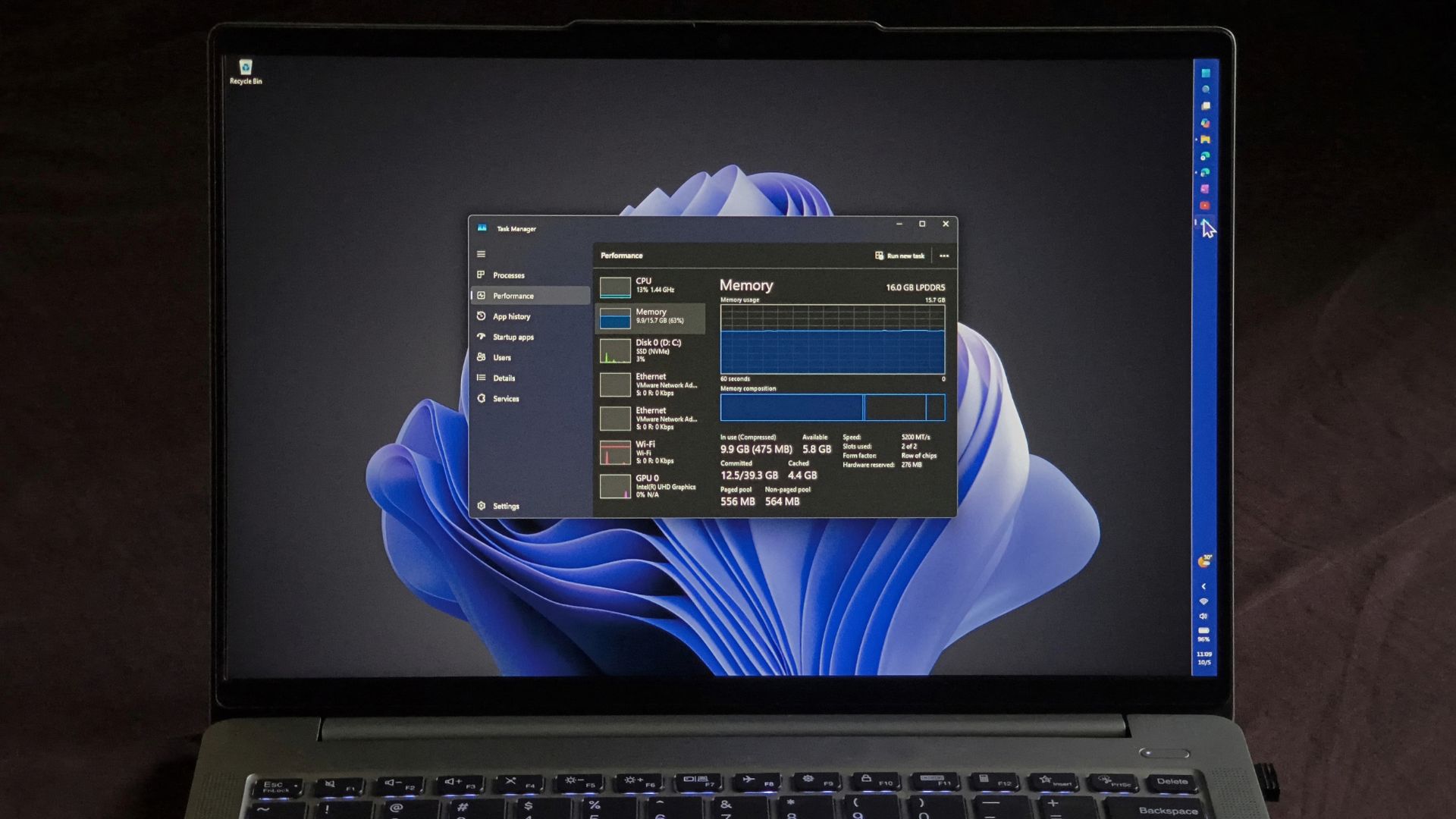
The feature is rolling out gradually through Controlled Feature Rollout, so not every PC gets it the moment the update installs. The simplest check is HWiNFO, or Task Manager’s Performance tab — watch clock speed, not utilisation — while launching an app: a frequency spike toward maximum means you have it. Those who would rather not wait can force it on with the third-party tool ViVeTool, running vivetool /enable /id:58989092 in an administrator Command Prompt and restarting.
The app-launch boost is one piece of Microsoft’s wider performance push this year. The company has promised optimisation for 8GB machines by the end of 2026, and it is migrating Windows 11’s legacy UI to the lighter WinUI framework. Windows 11’s 8GB RAM problem has Microsoft promising a fix, and the native-apps migration is part of the same plan.
The update is rolling out worldwide through Windows Update, UAE PCs included, with no regional differences.
Will Windows 11’s Low Latency Profile drain my battery or overheat the PC?
No. The boost lasts one to three seconds and raises clock speed rather than sustained load, and Windows Latest’s before-and-after tests found no measurable difference in battery life or thermals. The ‘race to sleep’ design also returns the CPU to a deeper idle sooner, which keeps the power impact neutral.
How do I know if my Windows 11 PC has the Low Latency Profile app boost?
Open HWiNFO or Task Manager’s Performance tab and watch CPU clock speed while launching an app. A spike toward maximum frequency as the app opens is the boost at work. The feature arrives gradually through Controlled Feature Rollout, so it can appear days or weeks after you install the August update.
Can I force-enable Low Latency Profile on Windows 11?
Yes, using the third-party tool ViVeTool. Download it from its official GitHub releases page, extract it to C:\ViVeTool, then run ‘vivetool /enable /id:58989092’ in an administrator Command Prompt and restart the PC. Microsoft is rolling the feature out broadly anyway, so waiting is the lower-risk option.