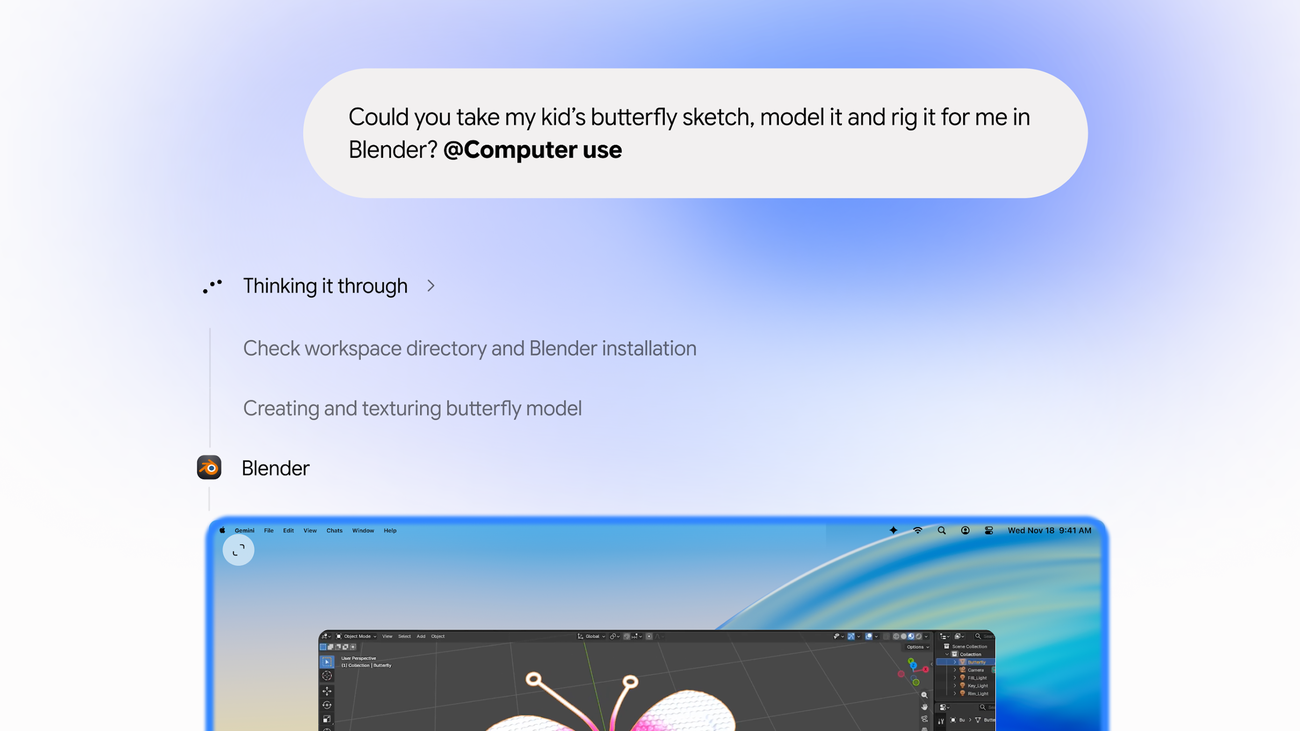
Google now lets you import chat history from another AI assistant into Gemini and bring along a summary of your preferences.
If you’ve spent months in ChatGPT, you can search, reference, and continue old conversations in Gemini without explaining how you like to work again. The preferences summary and the chat archive are separate: you paste one into Gemini and upload the other.
Google puts it plainly in its post introducing the import: “Switch to Gemini without starting from scratch.” The post doesn’t name the countries where imports are live, so check Gemini’s settings for the import option before exporting your chats.
How to bring your chats into Gemini
- Open Gemini’s import settings and copy Google’s prompt.
- Paste the prompt into your previous AI assistant to generate a summary of your preferences.
- Paste the assistant’s response into Gemini.
- Export your chat history as a ZIP file from your previous provider’s account settings.
- Upload the ZIP file in Gemini’s settings to continue your old conversations.
The transfer is free, but you need to be 18 or older and have personalisation enabled in Gemini. Google’s import page accepts only ZIP archives up to 5 GB and says compatibility and availability vary.
What moves over, and what stays behind
Only the text of your chats transfers. Images and files generated in your previous app don’t come with it, and you can’t import project files or attachments.
Imported conversations appear under Chats in the left-hand menu, marked with a special icon. You can delete an individual conversation from that menu or remove an entire batch using the trash icon next to the import in Settings.