
Corsair Galleon 100 SD Review: Stream Deck Keyboard for Gamers and Creators
The Corsair Galleon 100 SD fuses a full‑size gaming keyboard with a built‑in Stream Deck, MLX Pulse switches and 8,000Hz polling. We test its design, sound, software, and whether this $349 all‑in‑one actually beats buying a separate keyboard and Stream Deck.

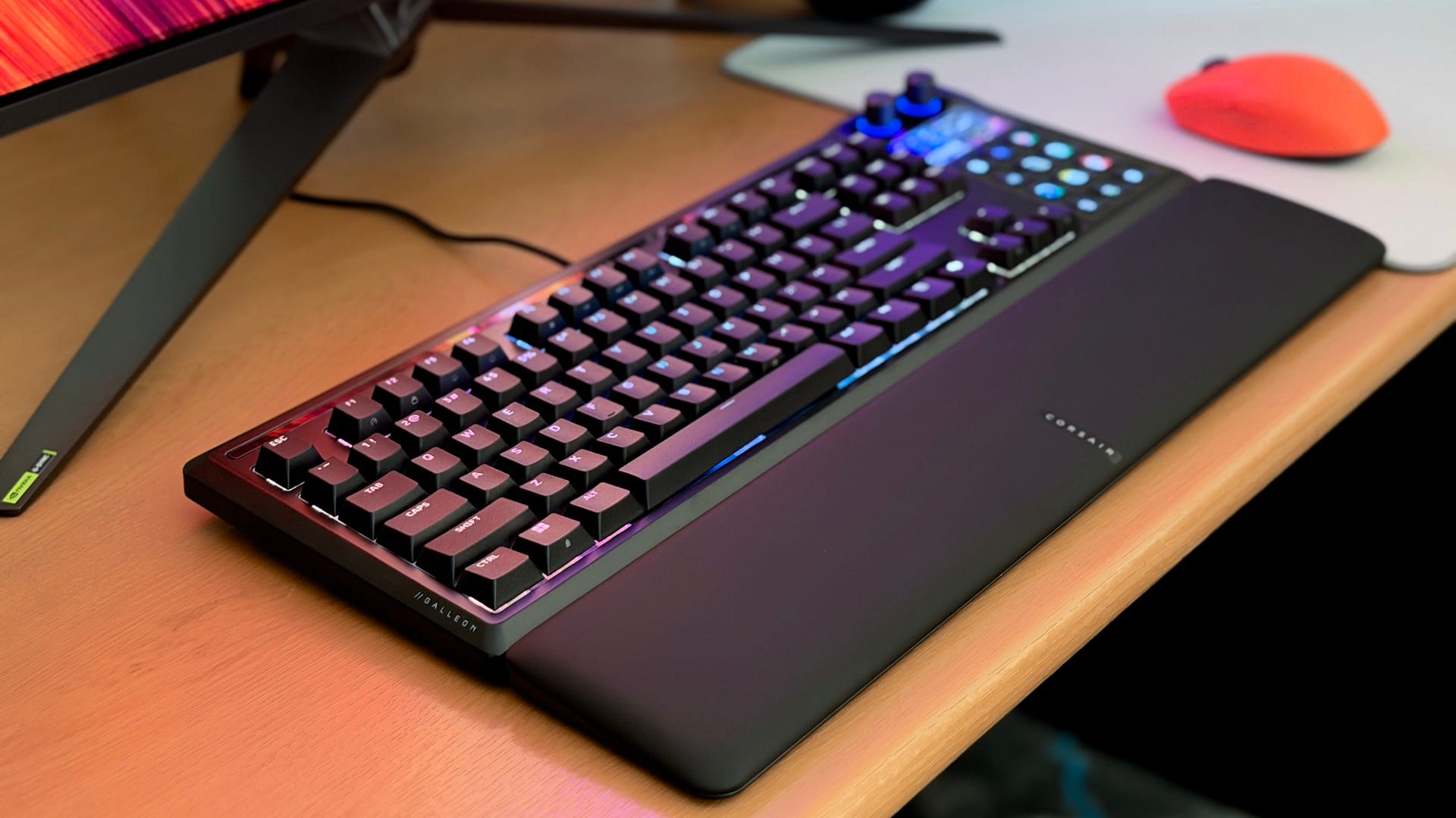
The Corsair Galleon 100 SD is a premium mechanical gaming keyboard with a built‑in Elgato Stream Deck, priced at $349 (around AED 1,437). It combines Corsair’s MLX Pulse linear switches, 8,000Hz polling support, and hot‑swap sockets with 12 LCD macro keys, a 5‑inch display, and dual knobs for streamers and content creators. In this Corsair Galleon 100 SD review, we test the design, sound, software, and whether this all‑in‑one Stream Deck keyboard is worth the price over buying a separate keyboard and Stream Deck
The Galleon 100 SD is a full-sized mechanical keyboard where the numpad has been swapped out for 12 programmable LCD keys, a 5” colour display, and two rotary knobs - all powered by Elgator’s Stream Deck software. On the keyboard side, you get Corsair’s MLX Pulse Linear switches, an 8,000Hz polling rate, hot-swappable sockets, and FlashTap SOCD support.
The obvious audience is streamers and content creators who would have a Stream Deck sitting on their desk anyway, but there’s a broader play here too. Corsair picked up a CES 2026 Innovation Award for this thing, and they are positioning it as the ultimate all-in-one input device for anyone with macro-heavy workflows - gaming or otherwise.
Now, the price. The Galleon 100 SD costs $349 (AED 1,437), and there’s no getting around the fact that that’s a lot of money. You could grab a nice TKL or 65% keyboard for AED 400-600 and a standalone Stream Deck for around AED 450 and still have change left over (and lots of mouse space, hey). So the real question isn’t whether the Galleon 100 SD is a good keyboard or a good Stream Deck - which it wholeheartedly is - it’s whether merging the two into one device is worth the premium over buying them separately.
Corsair Galleon 100 SD Specs and Features
| Corsair Galleon 100 SD — Key Specifications | |
|---|---|
| Layout | Full-size (TKL + Stream Deck module replacing numpad) |
| Switches | Corsair MLX Pulse (Linear, pre-lubed, 45g actuation force, 2.0mm actuation, 3.6mm total travel) |
| Hot-Swap | Yes (3-pin and 5-pin) |
| Keycaps | Double-shot PBT, shine-through legends |
| Mounting | Gasket mount |
| Sound Dampening | 6 layers of foam |
| Polling Rate | Up to 8,000Hz (default 1,000Hz) |
| Stream Deck Display | 5-inch (1280×720) LCD, 4 widget zones |
| Stream Deck Keys | 12 programmable LCD keys (3×4 grid) |
| Knobs | 2 programmable rotary knobs (clickable, notched) |
| Backlighting | Per-key RGB + top light bar |
| Construction | CNC-milled aluminum top case, plastic bottom case |
| Connectivity | Wired (USB-C), USB-C passthrough port |
| Cable | 2× braided USB-C to USB-A (1.8m each) |
| Onboard Memory | 8MB |
| Wrist Rest | Magnetic detachable, leatherette + memory foam |
| Dimensions | 448 × 159 × 42mm |
| Weight | 1.392 kg / 3.07 lbs |
| Software | Corsair Web Hub (keyboard) + Elgato Stream Deck app |
| Price | $349.99 / AED 1,437 |
Specs and Features
The Galleon 100 SD makes a strong first impression. It is a hefty keyboard - weighing in at 1.39kg -, and it sits firmly on the desk without budging. The top plate is CNC-milled aluminium finished in a smooth matte black, while the bottom case is plastic. Beveled edges and the key’s name printed in small, tasteful lettering along the left edge give it a restrained, premium look.
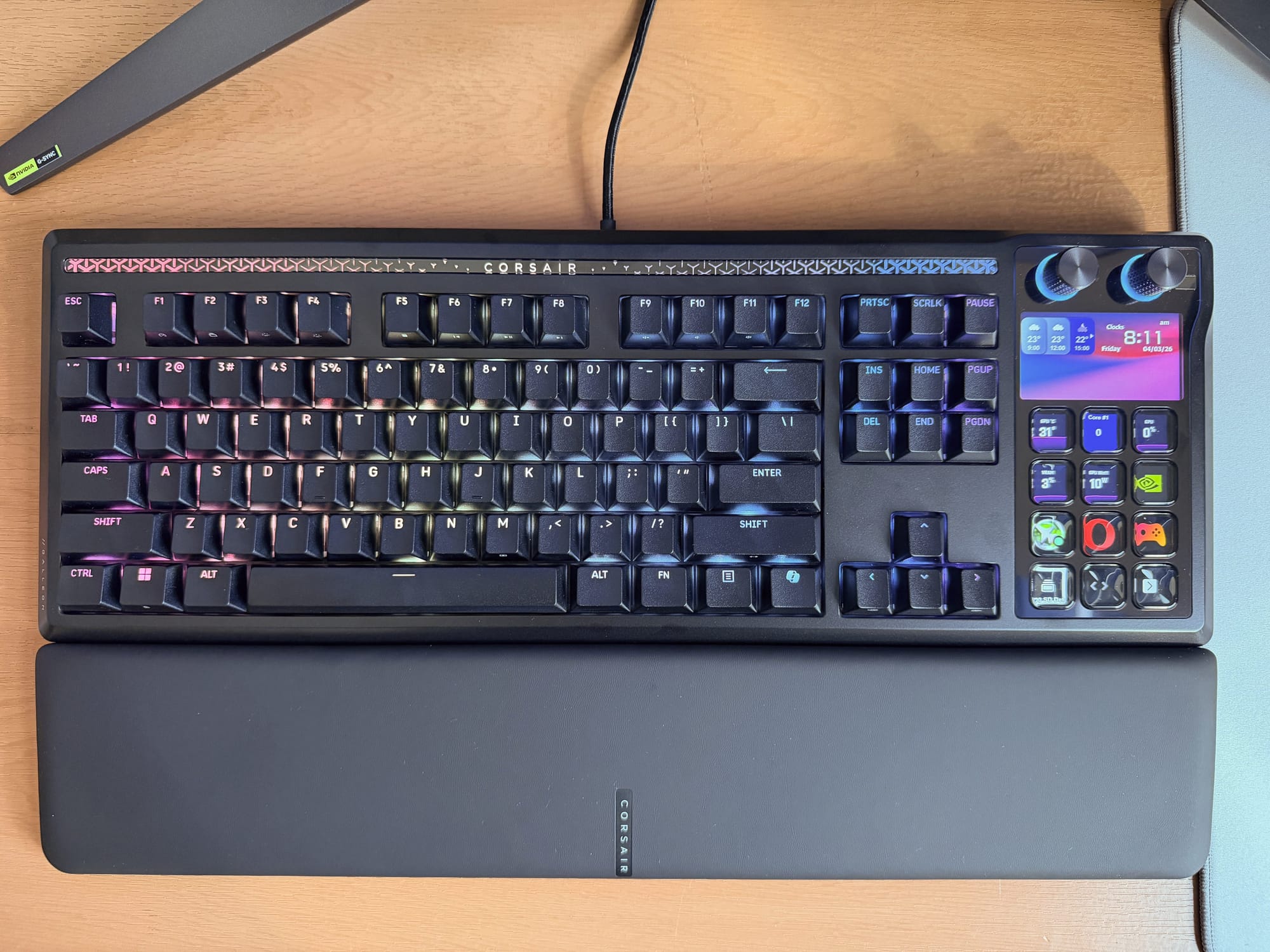
What took me by surprise was the overall footprint. I had assumed that a full-size keyboard with a Stream Deck module tacked on would be unwieldy, but the Galleon 100 SD is actually more compact than most traditional full-size keyboards. Yes, it takes up more desk space than a TKL and you do lose some mouse-moving real estate, but it is not the desk-hogging monster the name ‘Galleon’ might imply. The dimensions come in at 448mm wide by 159mm deep, and 42mm thick at its highest point (including the knobs).
One annoyance worth mentioning: the matte coating on both the top and bottom of the keyboard is a fingerprint and smudge magnet. In a well-lit room, every touch shows, and you will find yourself wiping it down more often than you would like. So stay off those sandwiches when using this!
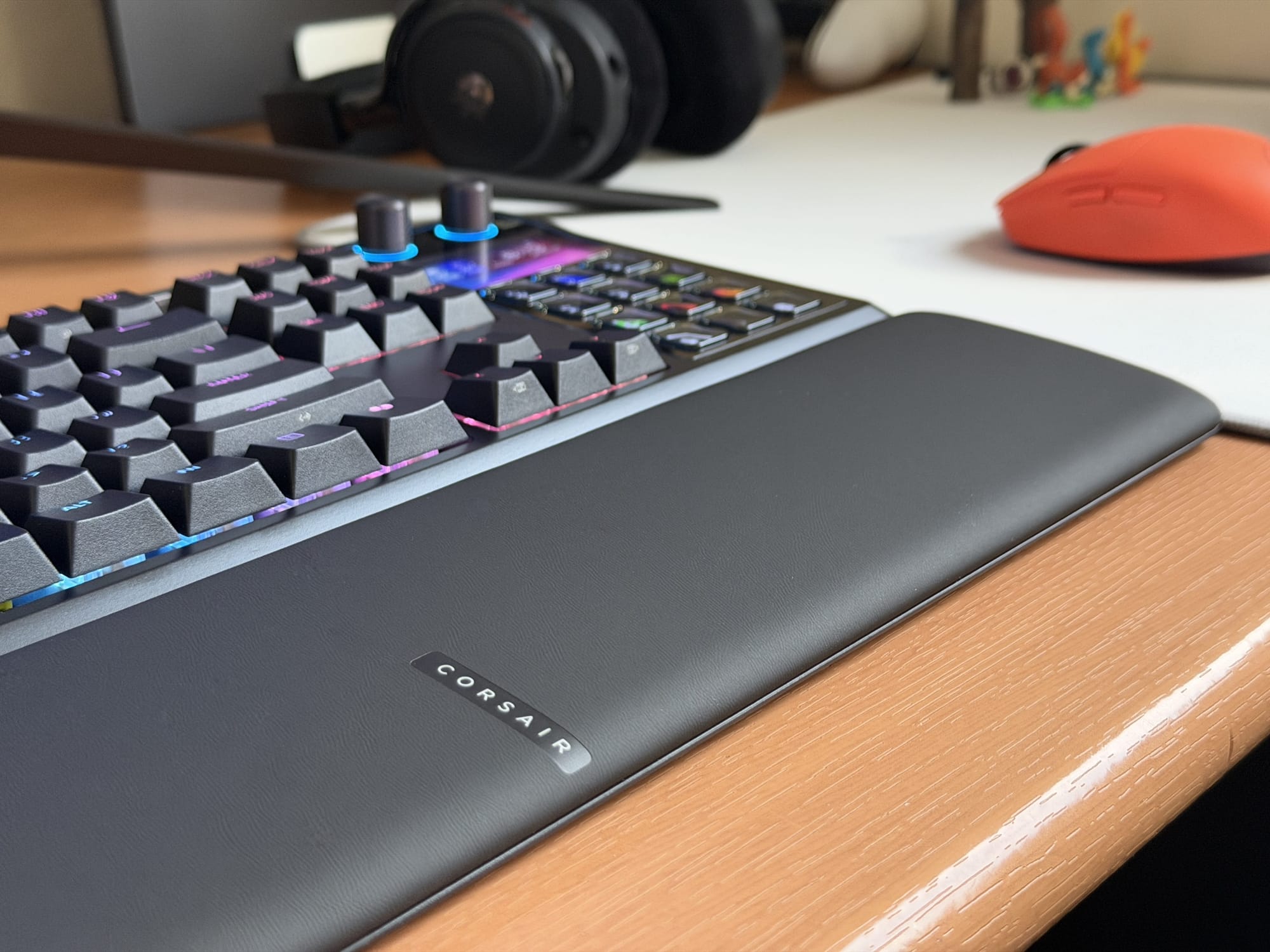
The keyboard comes with a detachable magnetic wrist rest, and it is one of the better ones I have used with a gaming keyboard. It is covered in a soft leatherette material with memory foam padding underneath. It is firm enough to actually support your palms without sinking in, but soft enough to be genuinely comfortable during long sessions. The magnetic attachment is well-implemented too - it snaps on securely and stays put during typing, but detaches easily with a light pull when you want to remove it. No fuss.
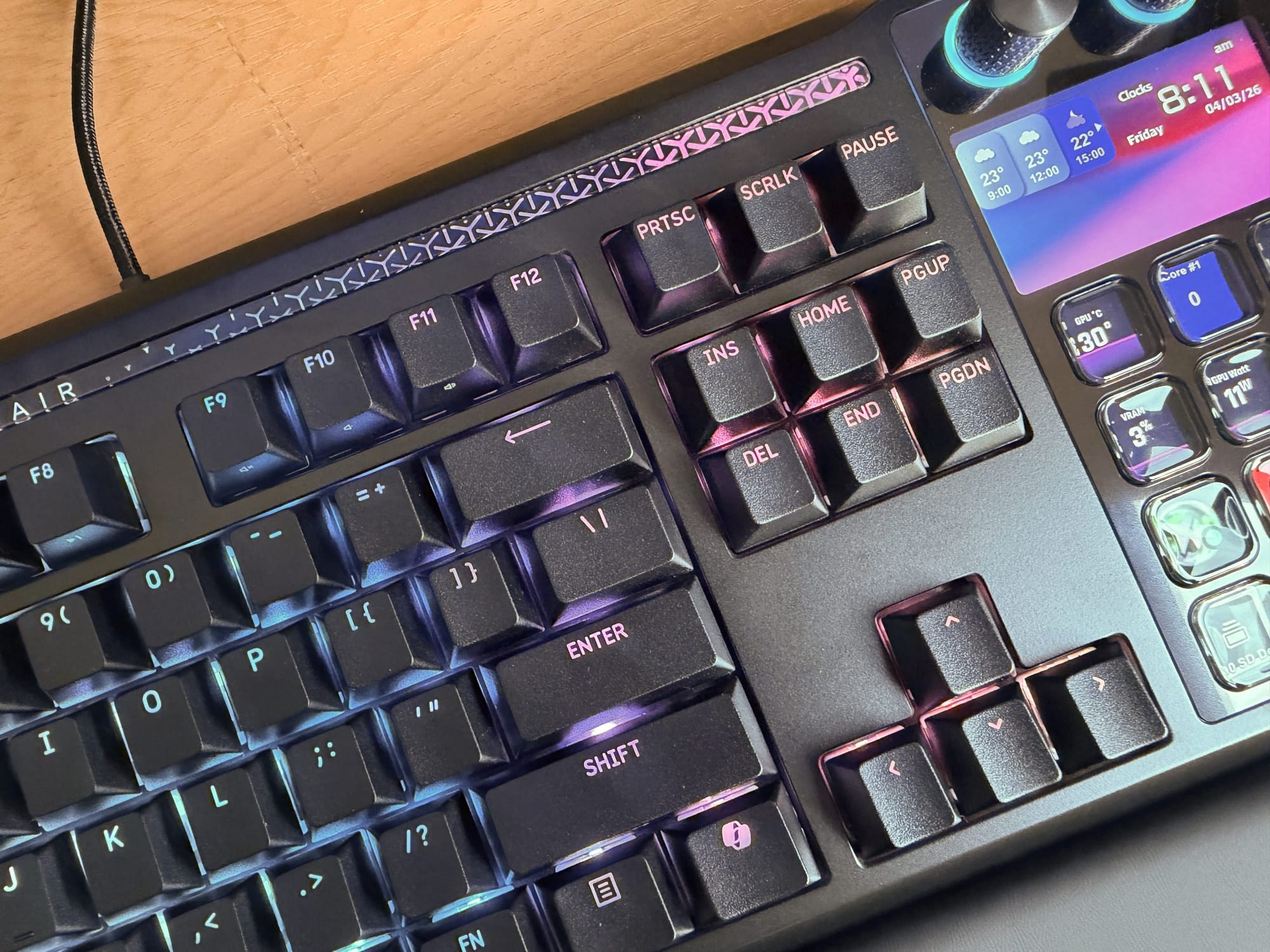
The keycaps are double-shot PBT with shine-through legends for the RGB backlighting. They have a subtle textured finish that provides a bit of grip, and they feel pleasant enough to type on. They are not the thickest or most premium PBT keycaps you will find at this price point, but they are solid and do not seem prone to collecting finger oils, which is a plus.
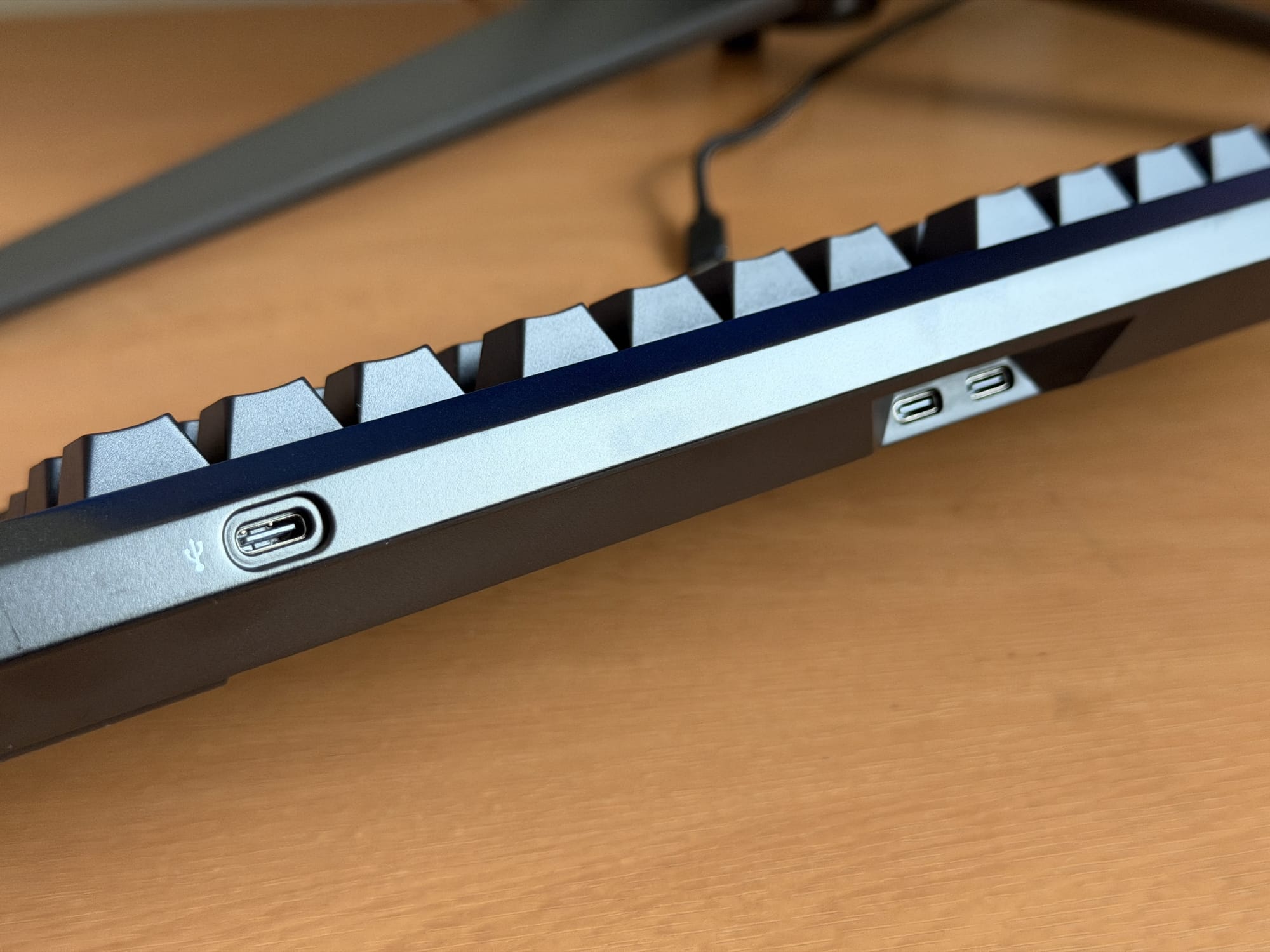
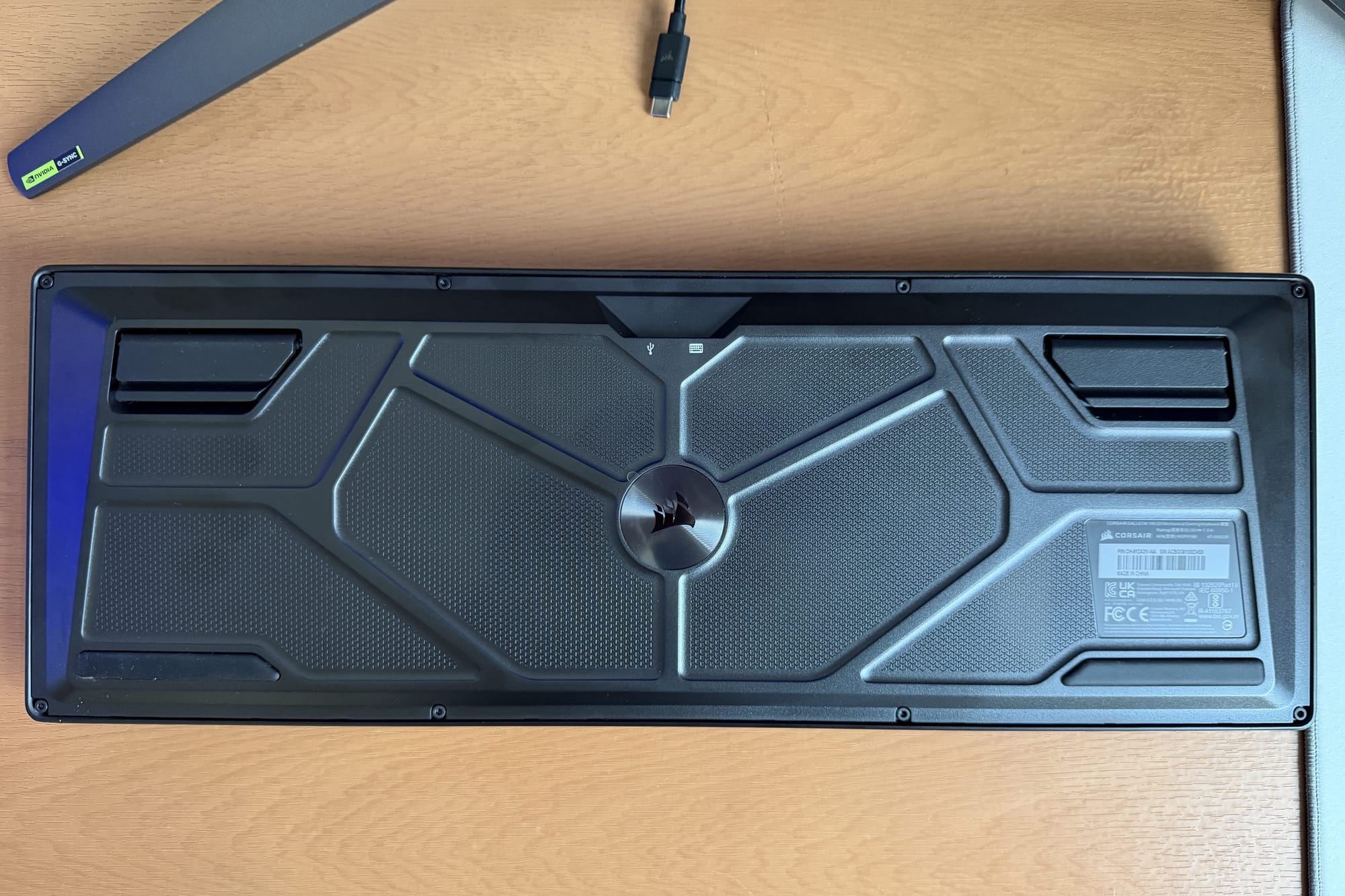
Along the top edge of the keyboard, you will find three USB-C ports. Two of these are input ports - one for power and data, the other to supply power for the third port, which serves as a USB passthrough. You don’t have to plug in two cables to power the keyboard, which is something I feared and absolutely dislike on any device, so if you don’t need the passthrough functionality, you can simply attach a single cable to power the keyboard and the Stream Deck.
Stream Deck Keyboard Experience
LCD Keys, Display and Knobs
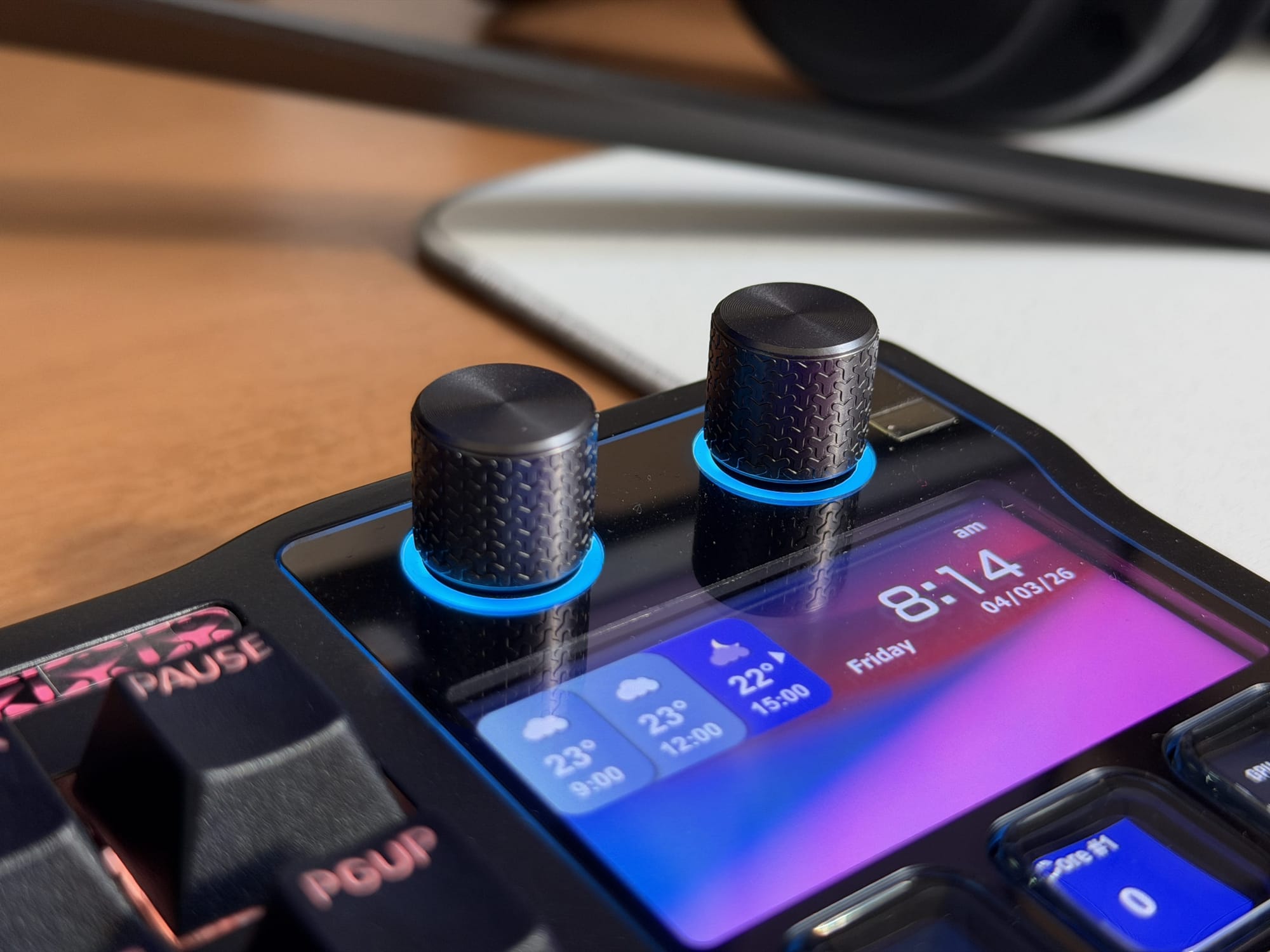
The right side of the board is where the Stream Deck module lives. You get two machined metal knobs at the top - textured on the sides, notched, and clickable. Below them sits the 5” (1280x720) colour display, divided into four widget zones. And below that, 12 LCD keys arranged in a 3x4 grid.
Usability Issues With Text Labels
The display itself is vibrant and sharp. You can show all sorts of information on it - weather, system stats, Spotify playback, volume levels, favourite apps, time - and it is all legible from a normal seated position.
While the icons on the keys are bright and easy to read, if you have any text labels on them (which are usually placed at the bottom of each key’s display), you will struggle to read them when the keyboard is lying flat (because of the bubble-like casing of the keys). You essentially have to crane your neck directly over the keyboard to make out the text. If you rely purely on icons, this is not an issue, but if you have set up custom commands and need to read text labels, it is a legitimate usability problem.
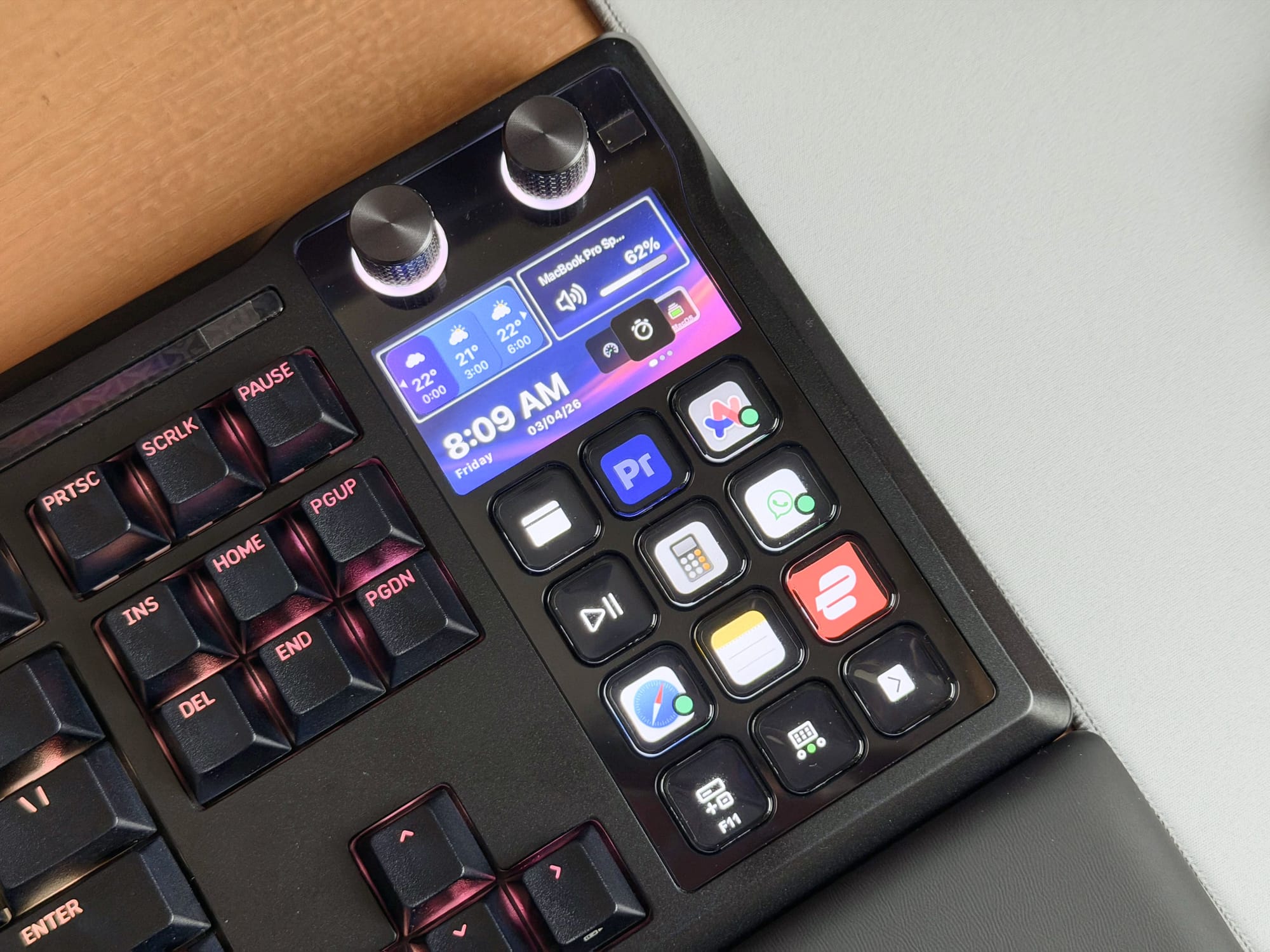
The keys themselves are another mixed bag. They are squishy and lack precise tactile feedback. You can lightly tap the bottom portion of a key, and it will register, but you get physical confirmation that the press went through. Pressing the centre of the key gives you some tactile response, but it is inconsistent. For launching apps or triggering a command, this is fine. But for anything that requires rapid, repeated presses - like using the keys as a numpad for data entry - it is frustrating because you are never quite sure if your press registered.
Corsair Web Hub and Stream Deck Software
The Corsair Galleon 100 SD requires two separate pieces of software to fully configure: Corsair Web Hub for the keyboard side and the Elgato Stream Deck app for the Stream Deck module.
Corsair Web Hub (Keyboard Settings)
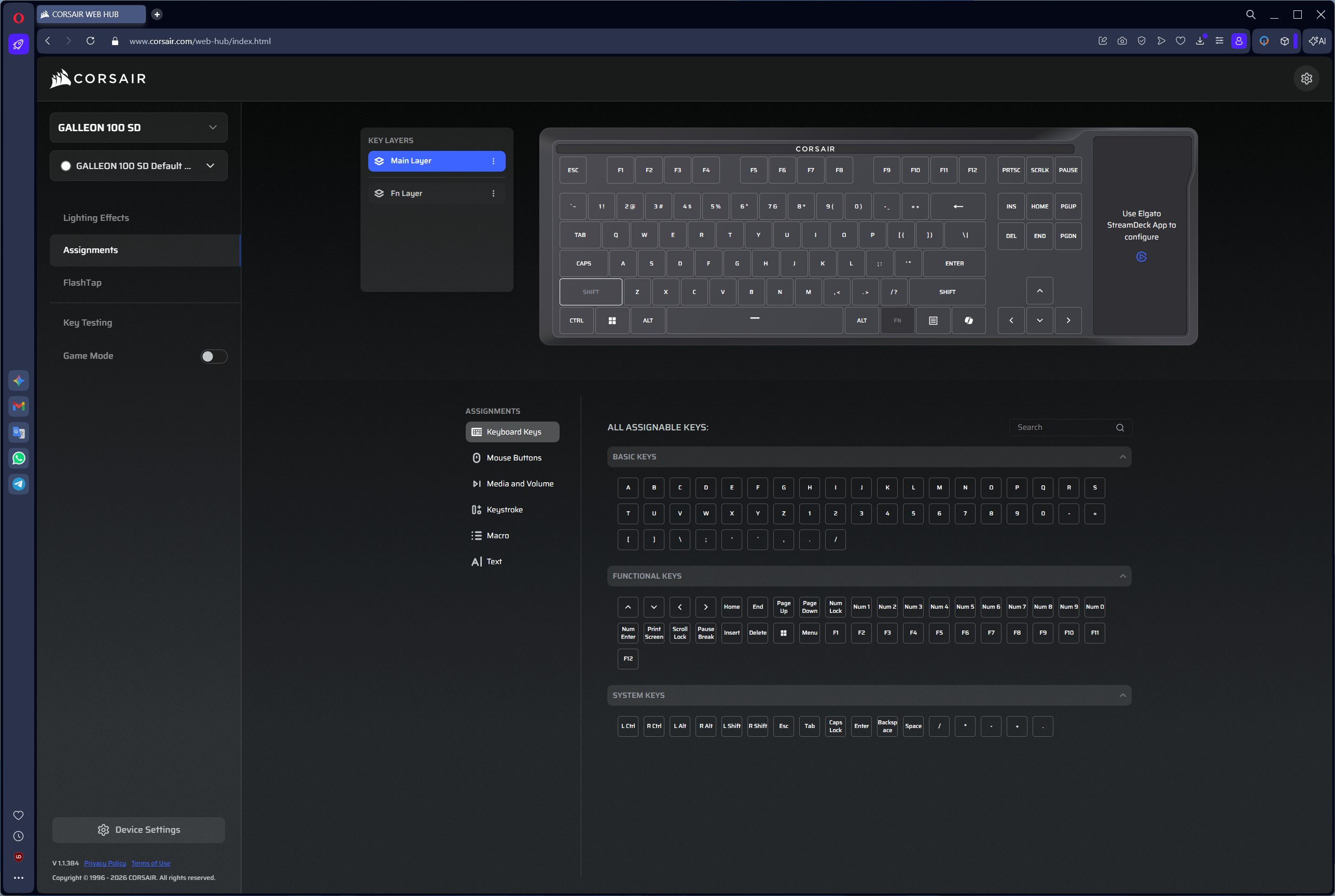
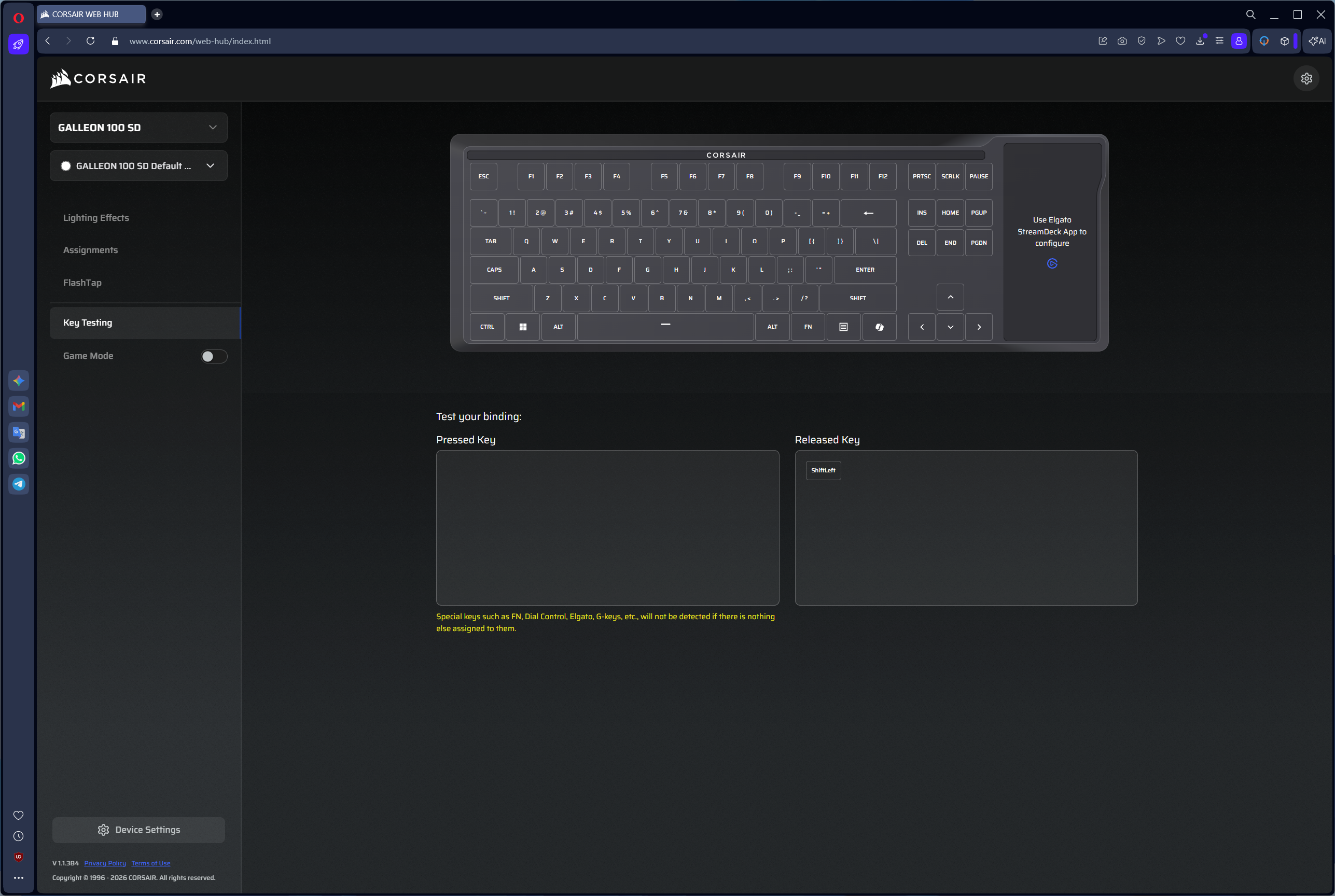
Corsair has been moving away from its legacy iCUE software in favour of the new Corsair Web Hub - a browser-based configuration tool that requires no installation. In theory, this is a clean and lightweight approach. You open a webpage, connect your keyboard, make your changes, and those settings are stored on the keyboard’s 8MB of onboard memory. No background processes needed after setup. You can even take the keyboard to a different PC, and your settings come with it.
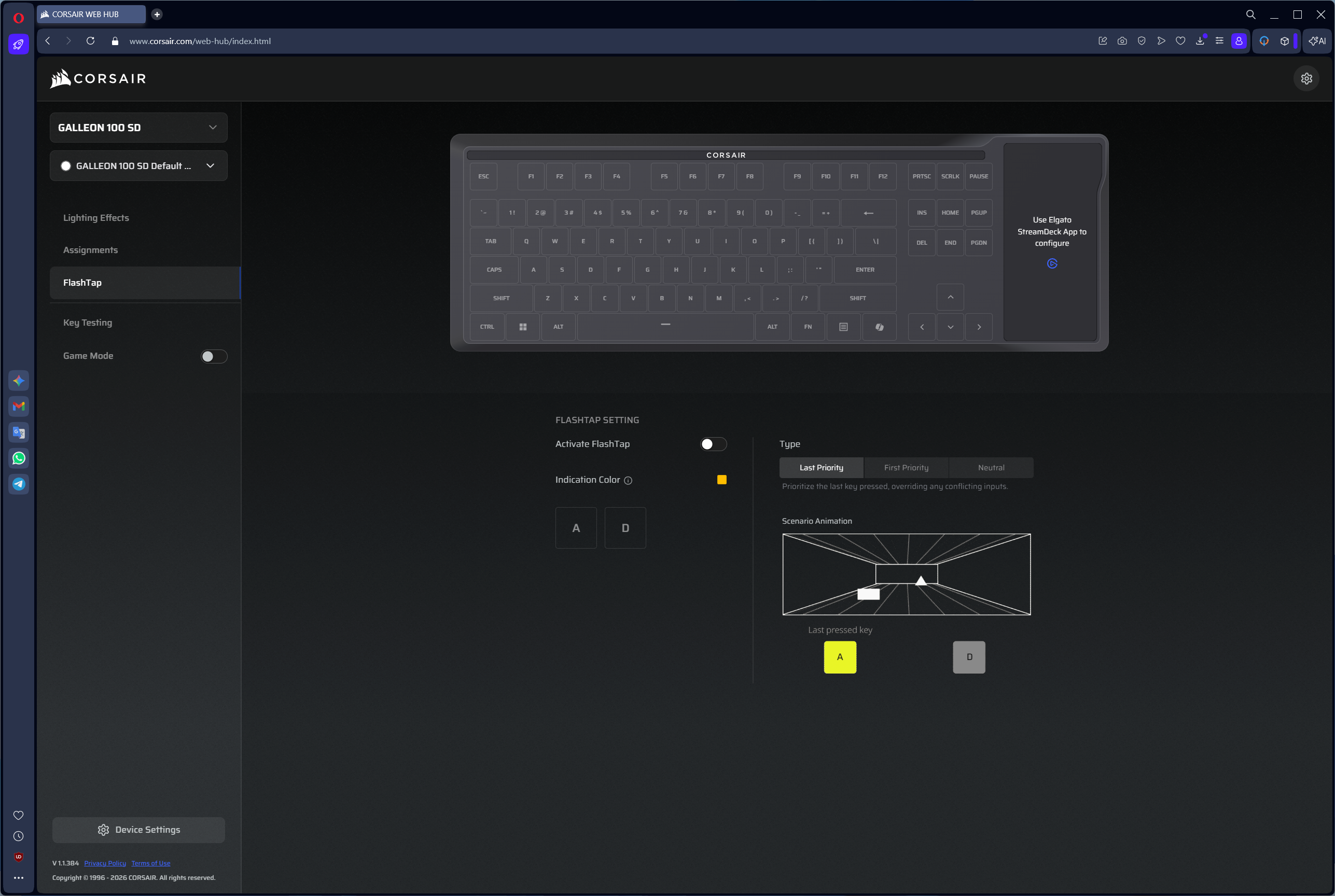
In practice, the Web Hub is frustratingly unreliable. Out of roughly 20 attempts to connect across multiple browsers, I managed to get it working maybe four times. The main page would load, I would authorise the keyboard, and nothing - the interface would just sit there, refusing to load anything else. When it did work, I was able to adjust per-key RGB lighting, choose from preset effects (Rainbow, Wave, type-reactive, and several others), reassign keys, configure FlashTap, and change the polling rate. The presets all look good, and the light bar across the top of the keyboard adds a nice ambient touch.
But the fact that connecting is such a coin flip undermines the entire experience. Want to change your RGB pattern? Good luck getting the Web Hub to cooperate. And since there is no keyboard shortcut or onboard method to cycle through lighting presets, you are stuck with whatever you last configured until the software decides to work again.
Elgato Stream Deck App (Shortcuts and Macros)
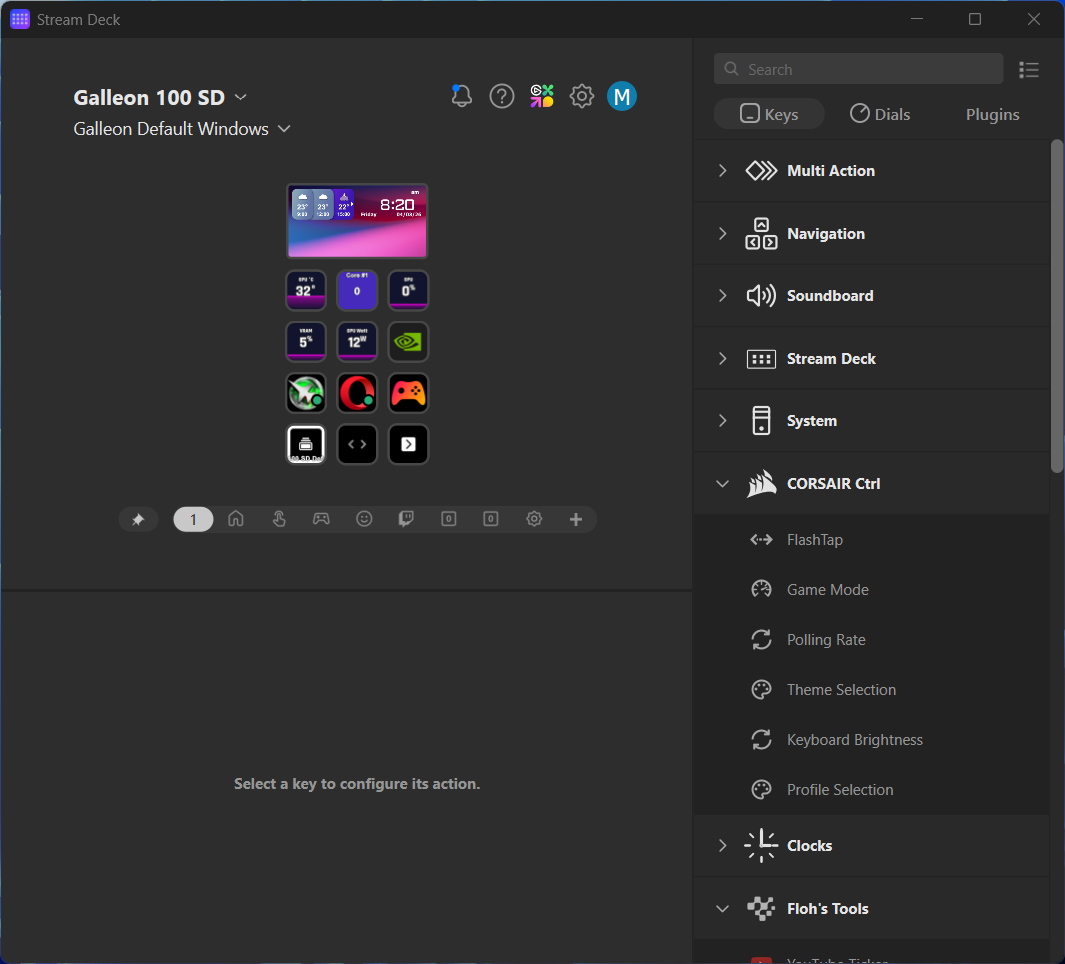
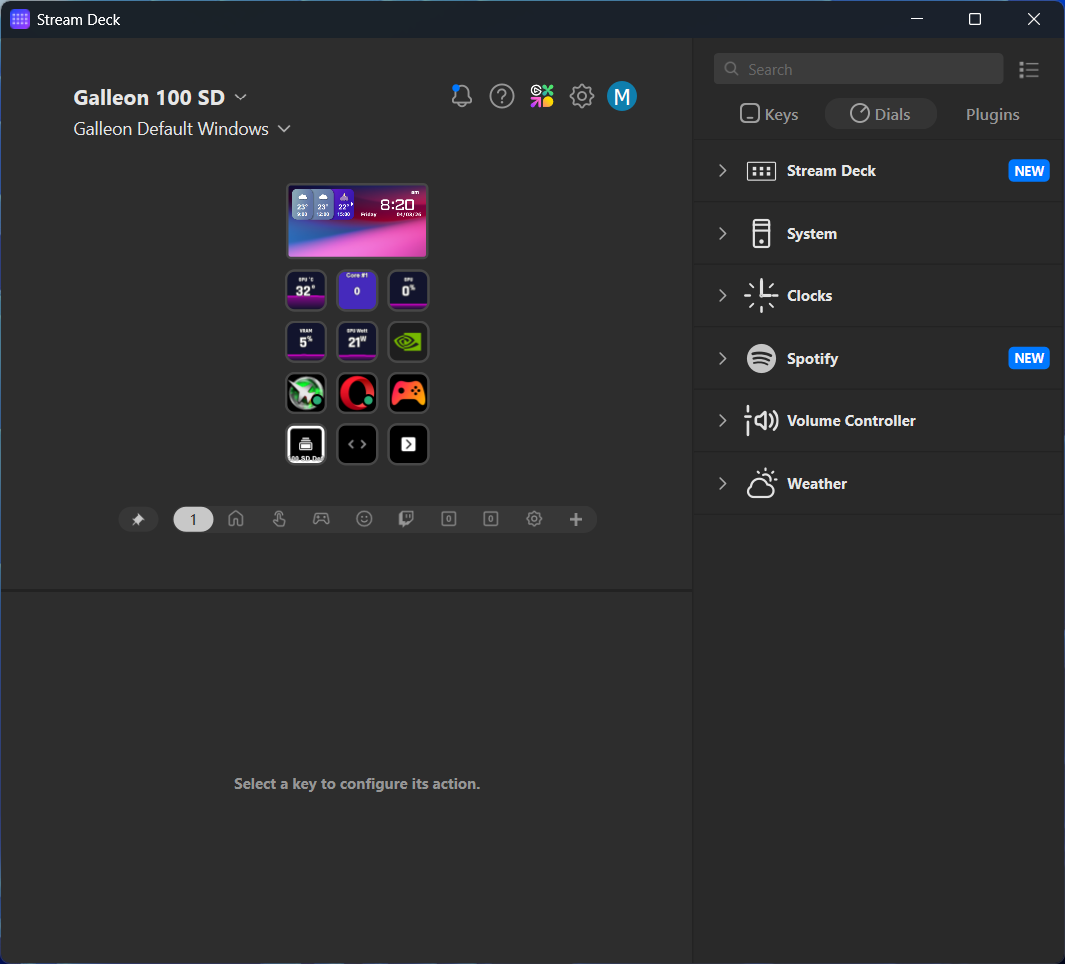
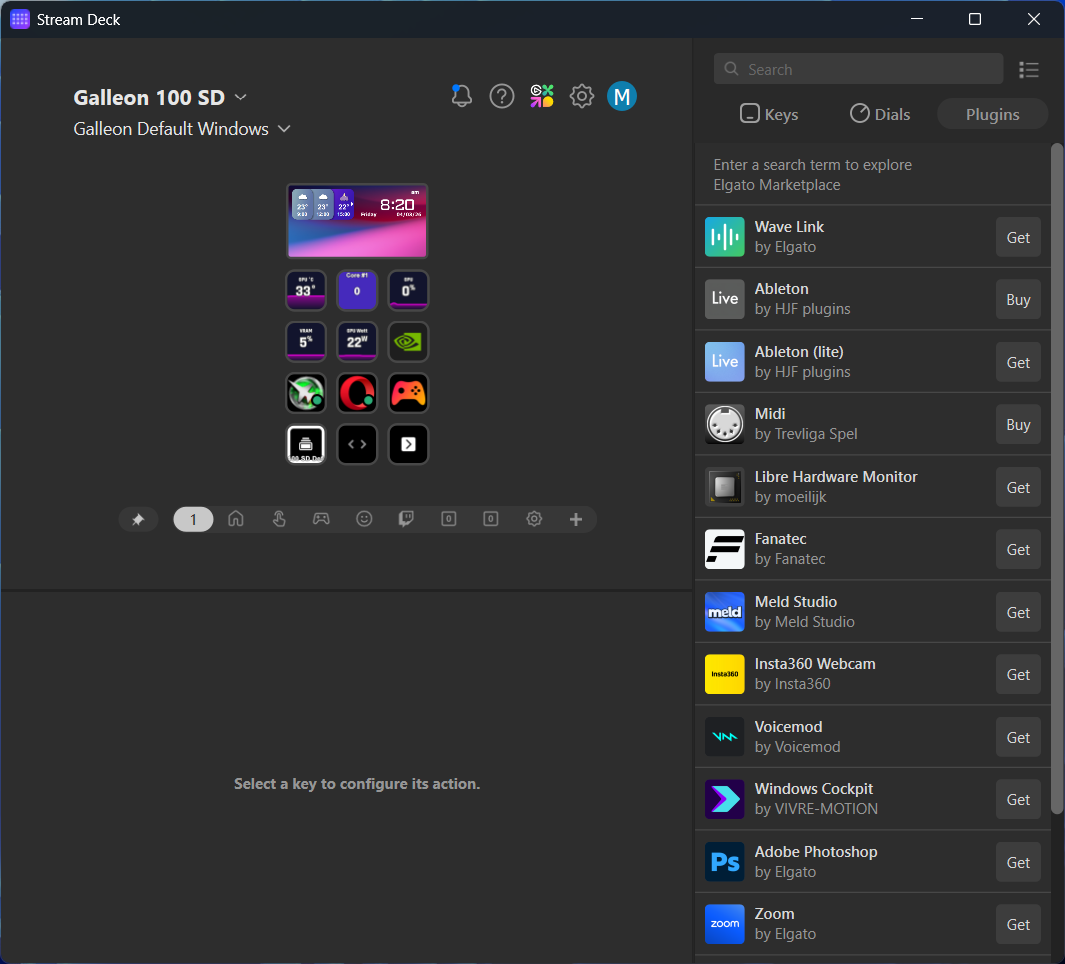
The Stream Deck side of the equation is handled by the Elgato Stream Deck software, and thankfully, this is a much more polished experience. You get a drag-and-drop interface for assigning actions to each of the 12 LCD keys, full control over the four display widget zones, and access to the Elgato Marketplace for third-party plugins and pre-made profiles.
The level of customisation available is extensive. You can set up multi-action macros, create folders and pages of shortcuts, assign app-specific profiles that switch automatically when you change applications, and configure the rotary knobs for different functions. The Marketplace offers ready-made profiles for popular games and streaming tools, though some of the most specialised ones (like profiles for Arc Raiders, Star Citizen or Premiere Pro) come at an additional cost and can be quite expensive (anywhere from AED 18 to AED 50).
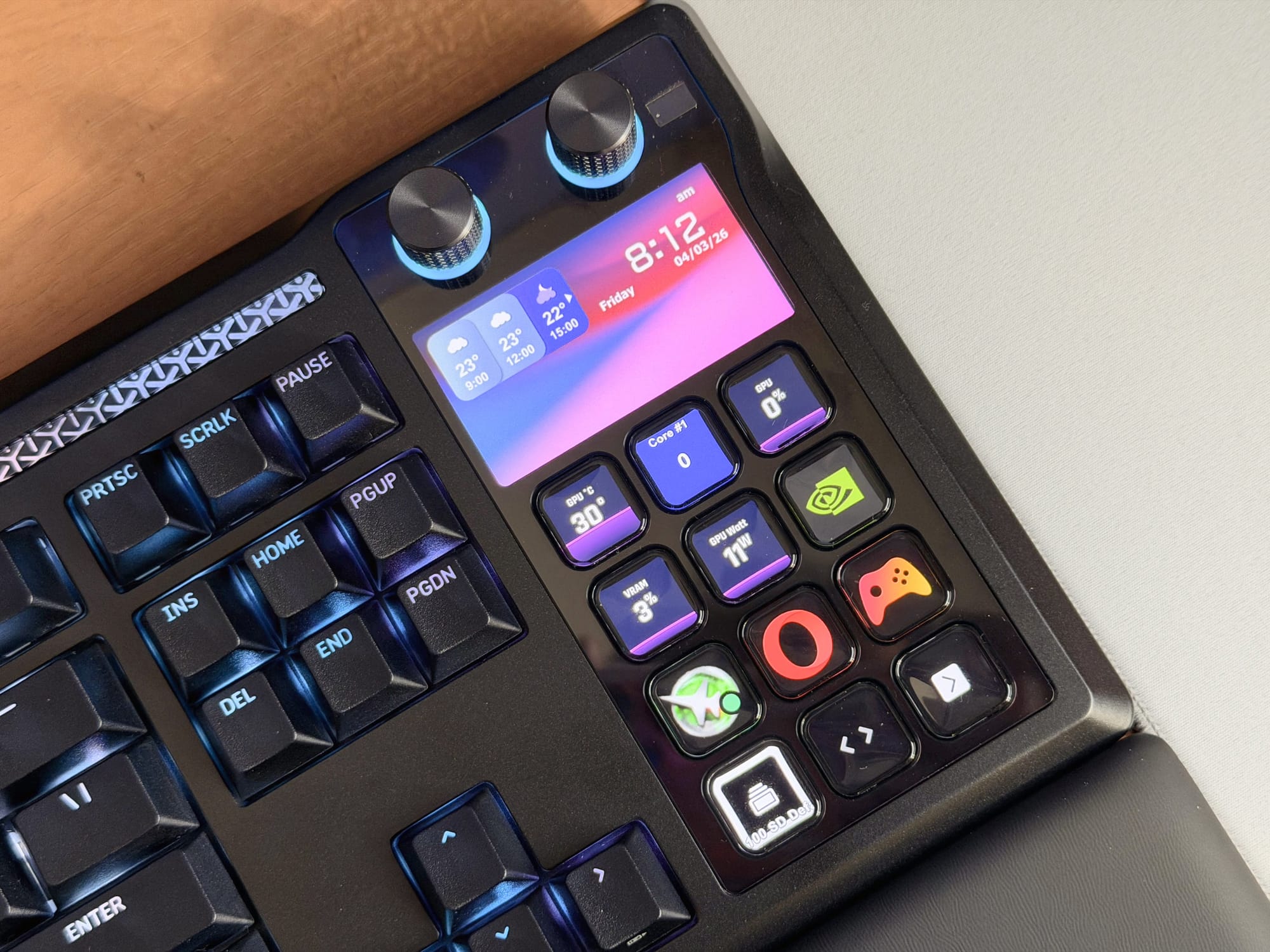
For me personally - and this was my first time using any Stream Deck product - the most surprising revelation was how useful the Stream Deck is for non-streaming workflows. On my Mac, I set up a page with my most-used apps on the LCD keys and downloaded a separate profile that converts all 12 keys into a numpad. On Windows, I dedicated the top row of the keys to GPU and CPU monitoring (temps and usage), while the rest handle frequent app shortcuts.
The Stream Deck software needs to be running in the background for the LCD keys and display to function beyond their hardware-level defaults. Without it, you get a stripped-down layout with basic media controls, polling rate toggles, Game Mode, and a prompt to download the software - functional but limited.
MLX Pulse Switches, Sound and Typing Feel
I will admit, I went into this expecting the Galleon 100 SD to sound like a typical mainstream gaming keyboard - thin, clacky, and rattly. I was wrong.
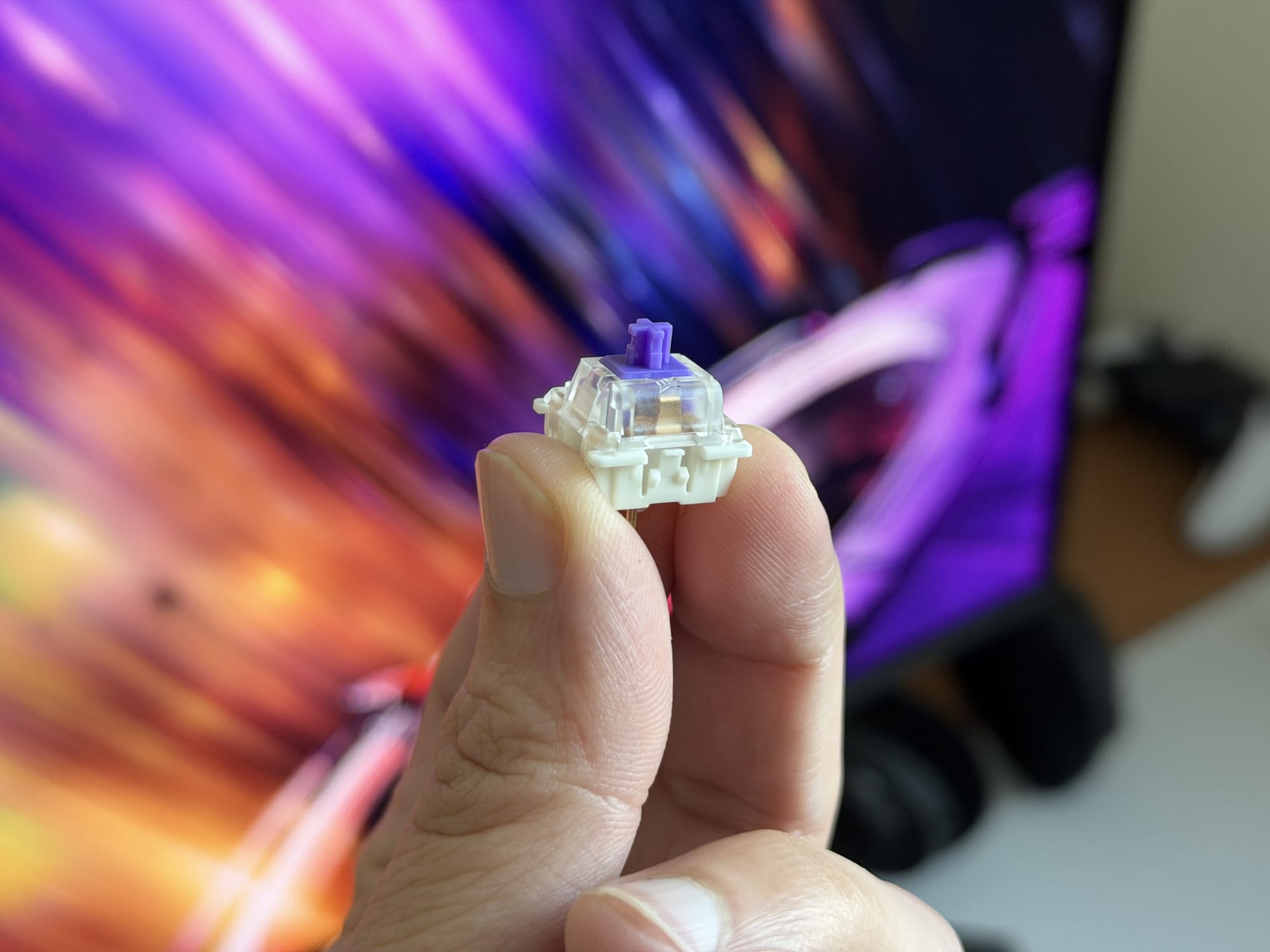
The keyboard uses Corsair’s in-house MLX Pulse switches, which are linear mechanical switches with a 45g actuation force, a 2.0mm actuation point, and 3.6mm of total travel. They come pre-lubed from the factory and are designed to produce what Corsair calls a “thocky” sound profile.
And they deliver. The typing experience on the Galleon 100 SD is surprisingly satisfying. Keypresses are smooth, with no scratchiness or friction, and the bottom-out sound is rich and full without being loud.
Corsair has packed six layers of sound-damping foam into the case, and the entire switch plate uses a gasket-mount system. The combination works well - there is virtually no case ping, and the board has a soft but stable feel when typing.
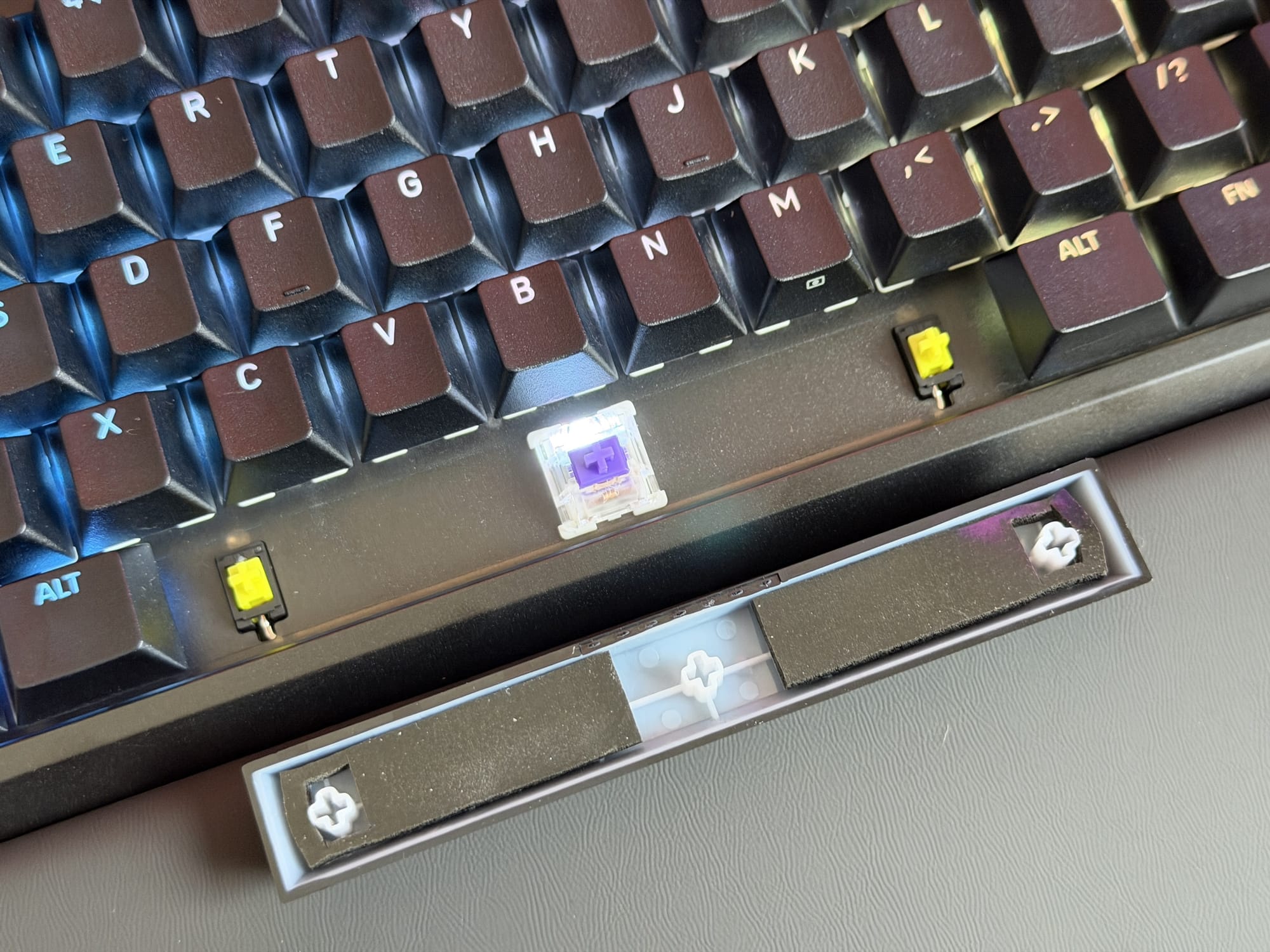
The stabs deserve a special mention because they are legitimately good. The spacebar, shift keys, enter key, and backspace all sound clean and consistent. There is a very faint hint of rattle on one or two of the larger keys if you listen closely, but it is so minor that it does not stand out during normal typing or gaming. For a major brand gaming keyboard - where stabs are often an afterthought - this is quite impressive work from Corsair. Maybe acquisition Drop (RIP) is finally paying off.
The PCB supports hot-swapping with both 3-pin and 5-pin mechanical switches, so if the MLX Pulse switches are not to your taste, or you want to install a nice thocky tactile switch, you can swap in your preferred alternatives. It is a nice option to have, although I would like to see Corsair offer more switch options with this keyboard. Or at least, along with Hall Effect or TMR switches with Rapid Trigger support.
Gaming Performance and FlashTap SOCD
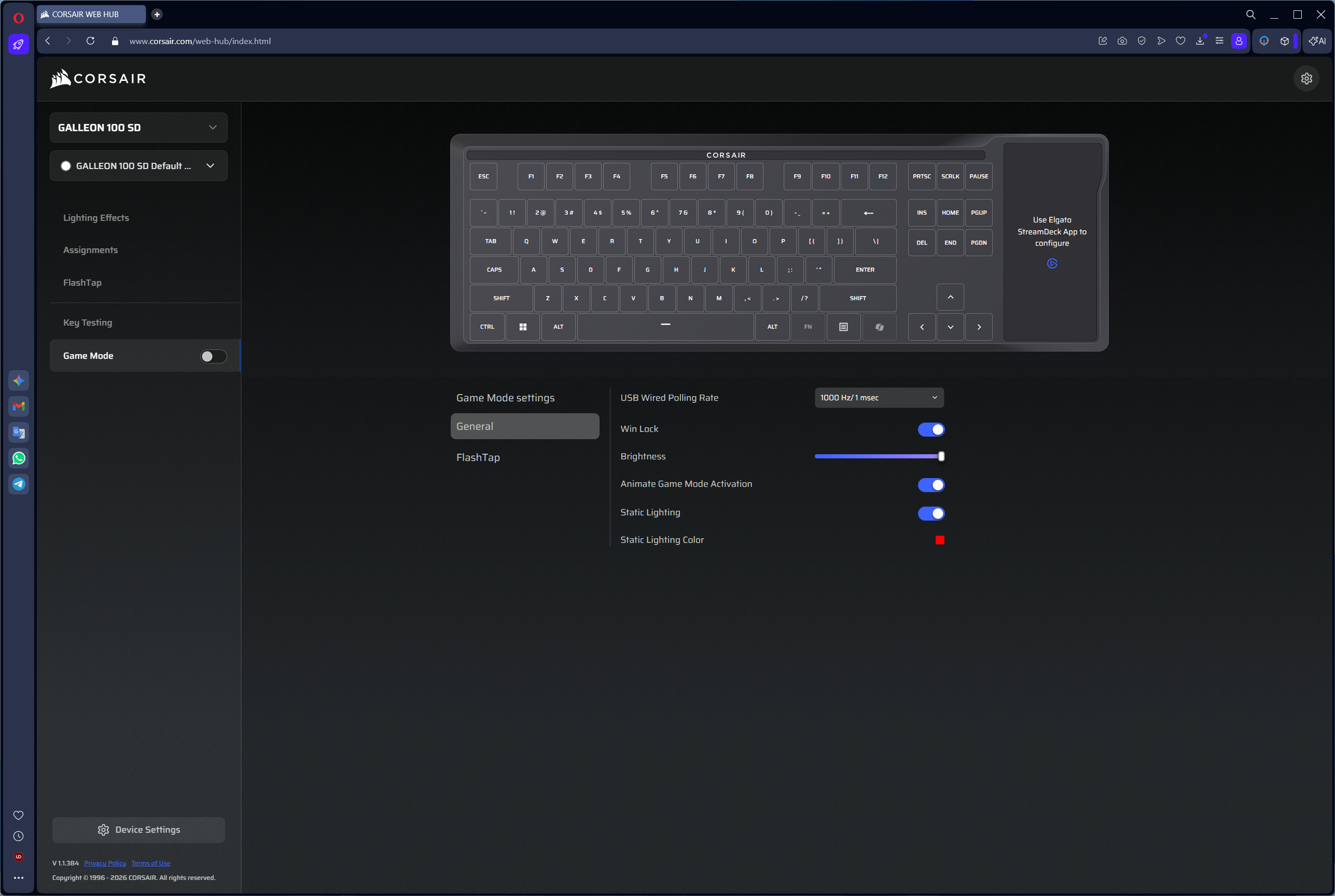
On the performance front, the Galleon 100 SD comes equipped with Corsair’s AXON chip, supporting polling rates of up to 8,000Hz. The keyboard ships at the default 1,000Hz, which is what I used for both daily work and gaming. While the option to crank it up to 8K is there for competitive players who want every possible edge, the real-world difference between 1K and 8K - to me - is virtually imperceptible and is not worth the extra CPU usage to facilitate that. My performance as Jeff in Marvel Rivals ain’t getting any better with faster polling rates.
Game Mode is available and can be toggled to disable the Windows key and other potentially disruptive shortcuts during gameplay. It works as expected - nothing fancy, but it does the job. It also changes the RGB to red, but that can be configured in the Web Hub.
FlashTap is Corsair’s implementation of SOCD (Simultaneous Opposite Cardinal Direction) handling, a feature that has become increasingly important in competitive FPS games. When you press two opposing directional keys simultaneously - say, A and D - FlashTap determines how that input is processed. You can set it to prioritise the last key pressed, which enables techniques like counter-strafing and jiggle peeking without conflicting inputs.
Corsair Galleon 100 SD: Price and Value
Corsair nailed the hardware here. The build quality is excellent, the MLX Pulse switches and sound dampening deliver a typing experience well above what you would expect from a mainstream gaming board, and the Stream Deck integration is surprisingly useful - even if you never stream. The knobs feel great, the display is sharp, and the stabilisers are among the best I have seen from a major brand.
Where it faults is the software - the Corsair Web Hub’s connection issues are a real problem at this price, and the LCD keys feel imprecise to press with text that’s hard to read at flat angles. At AED 1,437, the value proposition comes down to whether integration matters to you.
Should You Buy the Corsair Galleon 100 SD?
Personally, as someone who isn’t a fan of full-size keyboards and prefers having more mouse space to work with, the Galleon 100 SD is a cool product but not the ideal solution for my desk. I would rather pair a compact 65% or TKL board with a standalone Stream Deck that I can position wherever I want - and you could do exactly that for roughly the same money, or cheaper. I would have loved to see a detachable Stream Deck module that you could slot into either side of the keyboard or pull out entirely. That kind of flexibility would make this concept far more compelling.
Written by

Subscribe to our newsletter
Subscribe to our newsletter to get the latest updates and news









Member discussion