
I Installed Bazzite To Get Rid of Windows, But I Came Crawling Back
I installed Bazzite for a console-like Steam Game Mode PC. It’s brilliant… until NVIDIA drivers, 4K glitches, and the Proton tax sent me back to Windows.


December 8, 11.40am. The fans on my desktop PC were lightly humming while its LED lights dimmed and brightened as it shifted colors. The December’s subdued sun was peaking through the drawn curtains, gently illuminating an otherwise dark room. I stared at the screen, eyes glazed over, the soft muscle inside my skull deep into its own self-destructive thought.
BLONG! A notification jolted me right back to my senses. I sighed. It was Windows and it wanted to schedule a restart for an update it performed without asking for my permission. I clicked “not now”.
BLONG! It asked me again, insistent like a child wanting attention. Not now.
BLONG! It asked again. NOT NOW.
BLONG! It said, angry. Restart me now or else!
December 12, 6.40am. I watched in sheer disgust, disheartened and angry and dejected and hopeless as Geoff Keighley revealed his final game at The Game Awards 2025. And no, it wasn’t Half Life 3 as was heavily rumoured. Oh no, it was yet another generic first-person hero shooter nobody cares about.
That’s it. I decided: if Father Gabe refuses to acknowledge the pleadings of his children, then maybe a sacrifice has to be made. And maybe that sacrifice has to come from me. Maybe I need to install Bazzite, getting rid of Windows, as an offering because that’s what he wants, right? To use Linux, to use his Protons, to commit to Steam?
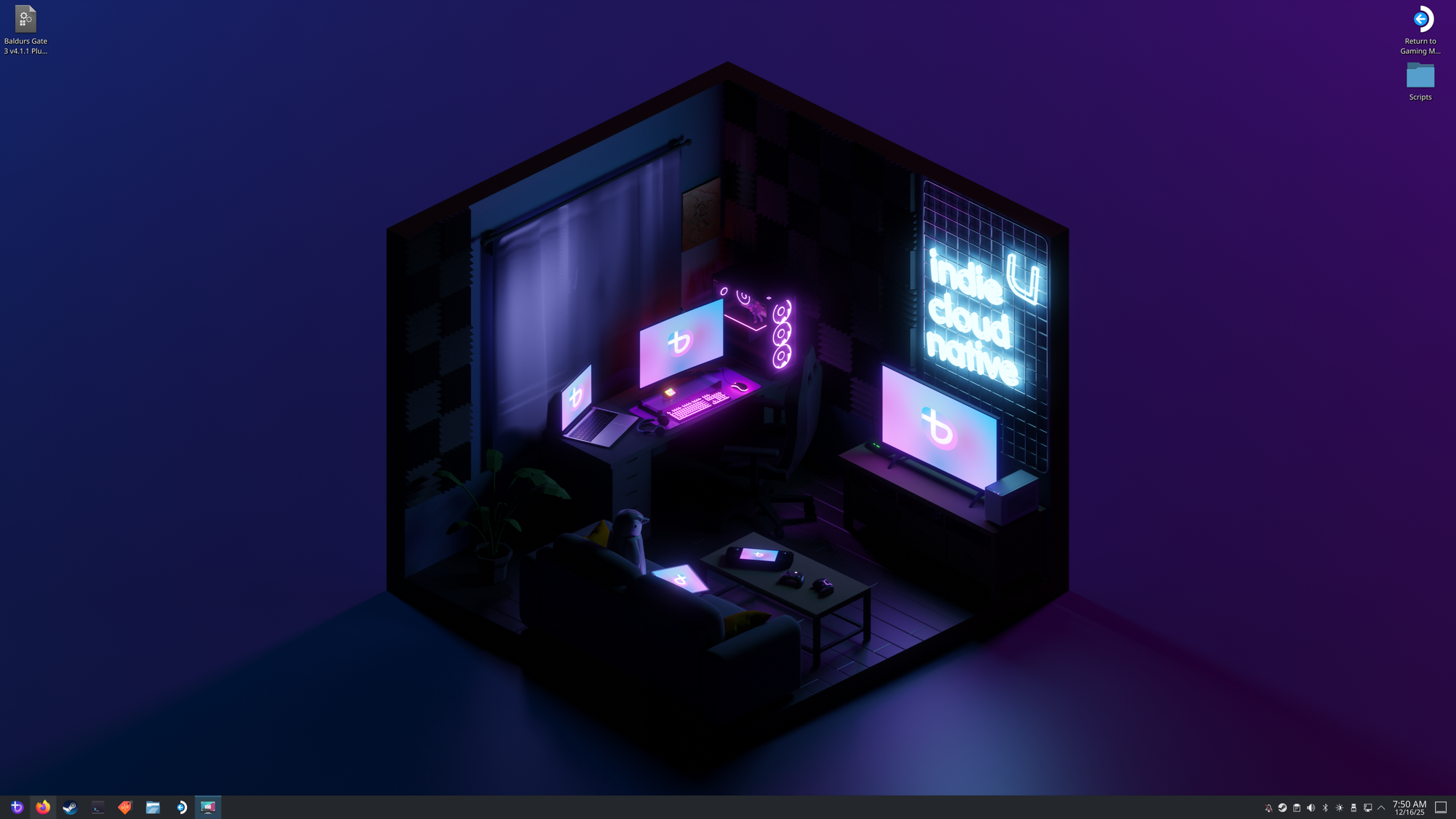
So here I am, sitting on a fresh install of Bazzite, Steam Game Mode gleaming with potential and anticipation.
Hear me, O’Father. For I have come.
TL;DR for people with non-functioning attention spans
- Bazzite is excellent at being a clean, console-like Steam Game Mode experience on a desktop PC.
- AMD GPUs: This is basically the promised land.
- NVIDIA GPUs (RTX 5080 included): expect weirdness, performance loss in modern APIs, and in my case, 4K UI artefacts plus a CPU “Proton tax”.
- I loved the OS. I hated what it did to my temps and next-gen performance. I went back to Windows. Like a coward with stable frame times.
Prelude: Gemini, You Dumb Wit
Now, to be fair, I had tried installing Bazzite a week or so before all of that. But it wouldn’t install on my system. The moment I clicked on “install” on the bootloader screen, it kernel panic’ed and gave me an error. I searched online, on Reddit threads, on GitHubs, on forums but nothing.
So I turned towards AI. I sought Gemini’s wisdom and it told me Secure Boot in BIOS probably needed to be turned off. So I did. No joy. Same error.
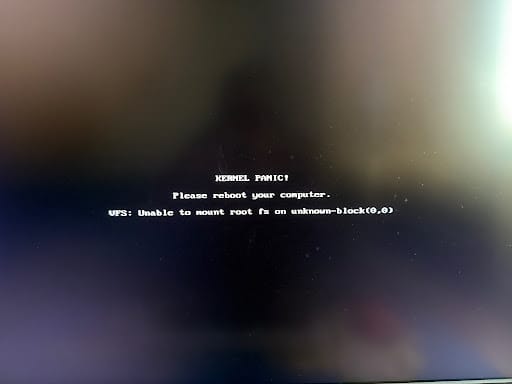
I flashed the Bazzite ISO again, on different USB drives with different apps, but nothing. Kernel panic. I asked Gemini again, and it would suggest things that didn’t work. It took me around and around different troubleshooting methods but nothing worked. It even told me to turn off VDM, an Intel RAID thingy, that would most certainly break my Windows installation.
On a whim, I asked ChatGPT about it, and it went like, “oh yeah, you need to turn off TPM”. And it was right. Sam Altman might be panicking over OpenAI right now, but sometimes ChatGPT does indeed show signs of higher intelligence.
I am not sure if Secure Boot even needed to be turned off. But anyway, Bazzite was finally installed.
My PC Specs and Why I Wanted Bazzite
Before I dive into my experience with Bazzite, I want to lay down my PC specs, as well as why I wanted to install it in the first place.
Specs, ladies and gentlemen:
- Intel i9-13900K
- RTX 5080 FE
- 64GB DDR5 Corsair Dominator RAM
- Asus Maximus Hero Z790 Motherboard
- Bazzite installed on an SSD USB drive, not internal NVMe (it’s super fast, don’t worry!)
The RTX 5080 is key here because historically, NVIDIA has cared very little about Linux and its driver support and compatibility with the OS. It has improved over the years, but it is still far inferior to AMD. Suffice to say, and as you will read below, if you want to build a Bazzite system or a Steam Machine of your own, it’s Team Red all the way.
Why Bazzite at all?
A console-like setup. I have my desktop PC connected to my LG OLED TV and use it purely for gaming. I wanted to turn on the PC, boot into a console-like UI, and launch my games off it.
I can do that in Windows with Playnite Fullscreen Mode, but it’s still Windows. It still rears its head from time to time, and it’s just not as good as Steam Game Mode / Gamescope.
I also wanted to seamlessly control cheat trainers with the controller, which worked marvellously well with the CheatDeck plugin for Deckyloader (download the zip from GitHub and not from Deckyloader itself!).
My requirements are simple: despite the slightly beefy PC, I play games at 1440p @ 90fps for the best performance, visual fidelity and temperatures. 90fps is plenty smooth for my needs, especially on a large TV that supports VRR. I don’t need more.
Bazzite got there, but there are two major issues that will have me going back to Windows.
First Encounter: It Didn’t Sell Me Anything (But I Was Sold)
When was the last time you installed Windows, and:
- Went straight to the Desktop, ready to be used
- Didn’t update mid-way through the installation
- Didn’t try to sell you Microsoft 365
- Didn’t insist on creating a Microsoft account
- Didn’t insist on OneDrive or your system would be at risk of not being backed up (oh no! rolls eyes)
- Didn’t try to get you on Game Pass
- Didn’t showcase its many useless AI features
- Didn’t stop you from using the damn PC, for Christ sake
Not Bazzite.
Installed within minutes, and I was right to the desktop. No adverts, no account creation, no software to sell, and very minimal bloatware. Who would have thought?
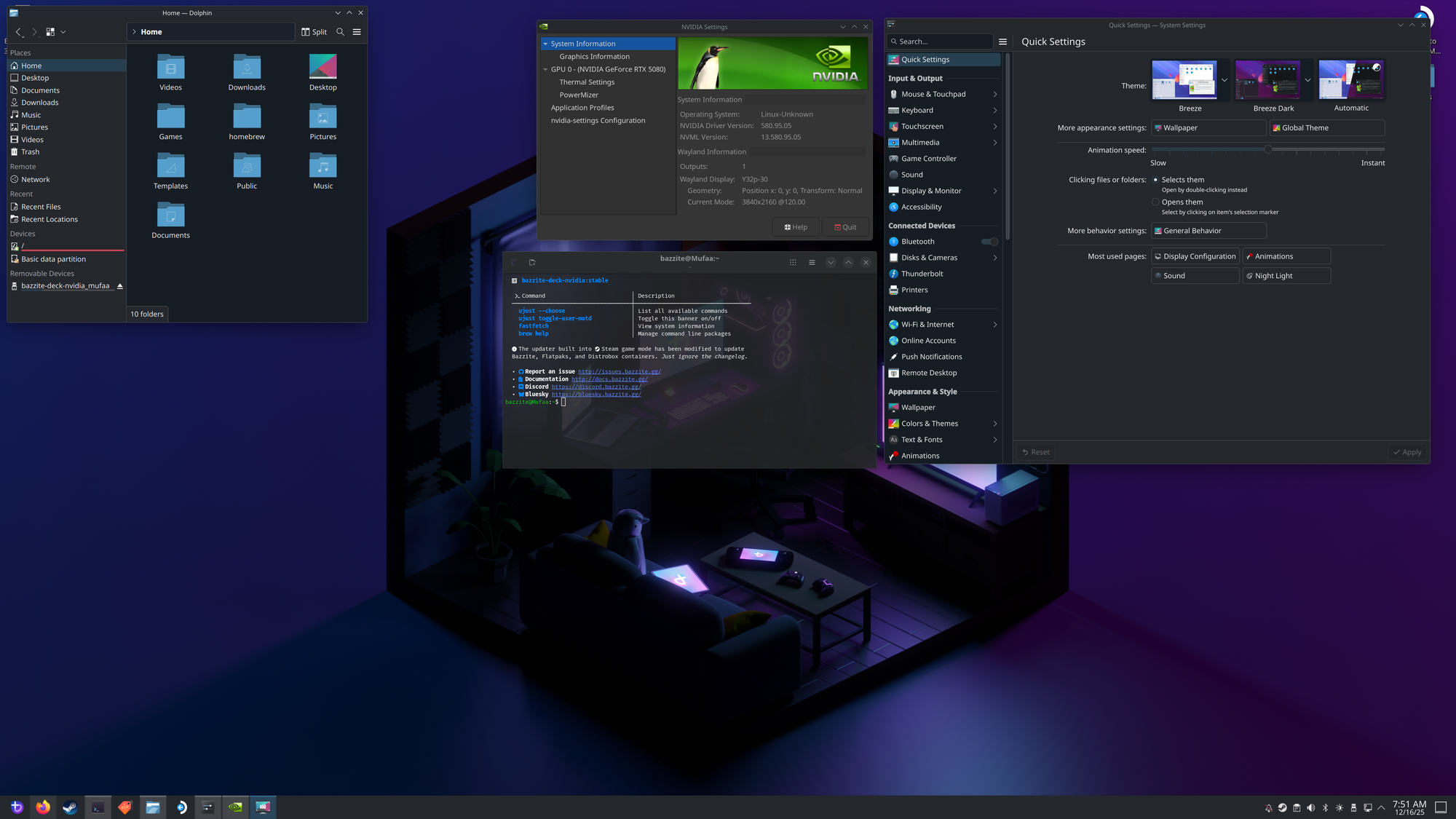
With a gorgeous purple and black wallpaper and a sleek dark theme, Bazzite’s desktop welcomes you with open arms. There are no driver updates to be done, Windows Update isn’t honking at the corner either, no OneDrive grumbling to be used, no CoPilot icon in the taskbar against your will, no adverts, news and weather in the Start bar, nothing.
Just silence. It’s just you and Bazzite.
The UI will be immediately familiar. There is a Start button that lets you access all your apps, an app store called Bazaar (you can also download Discovery for more options), Firefox for immediate web access, and a few other apps, like Lutris, to access other gaming storefronts like Epic, GoG, etc.
Surprisingly, it picked up each and every connected device perfectly. My 8BitDo controller worked, so did the little USB hub/switch that I use to switch the mouse and keyboard between my desktop PC and macOS. My SteelSeries Arctis Nova Elite headset was up and running. All USB ports worked. Everything was in order. No compatibility issues in sight.
Even VRR and HDR worked properly.
If you are someone who wants an OS to game on, you probably don’t even have to contend with the desktop at all. Bazzite loads into Steam Game Mode by default: sign in, download games, play.
But if you do want to contend.
Oh boy.
Terminal - Commander General, Bazzite Unit
In the world of Linux, the Terminal is your best friend. Think of it as the Command Prompt from Windows, but unlike it being ignored like the middle child of the family, it can be the primary way you do everything on Bazzite.
You can download and install apps, perform updates and reboots, launch services and stop them, track your temperature sensors, all sorts of things. Lots of command lines, which, to the undiscerning among us, would make you seem like you are hacking a secure system.
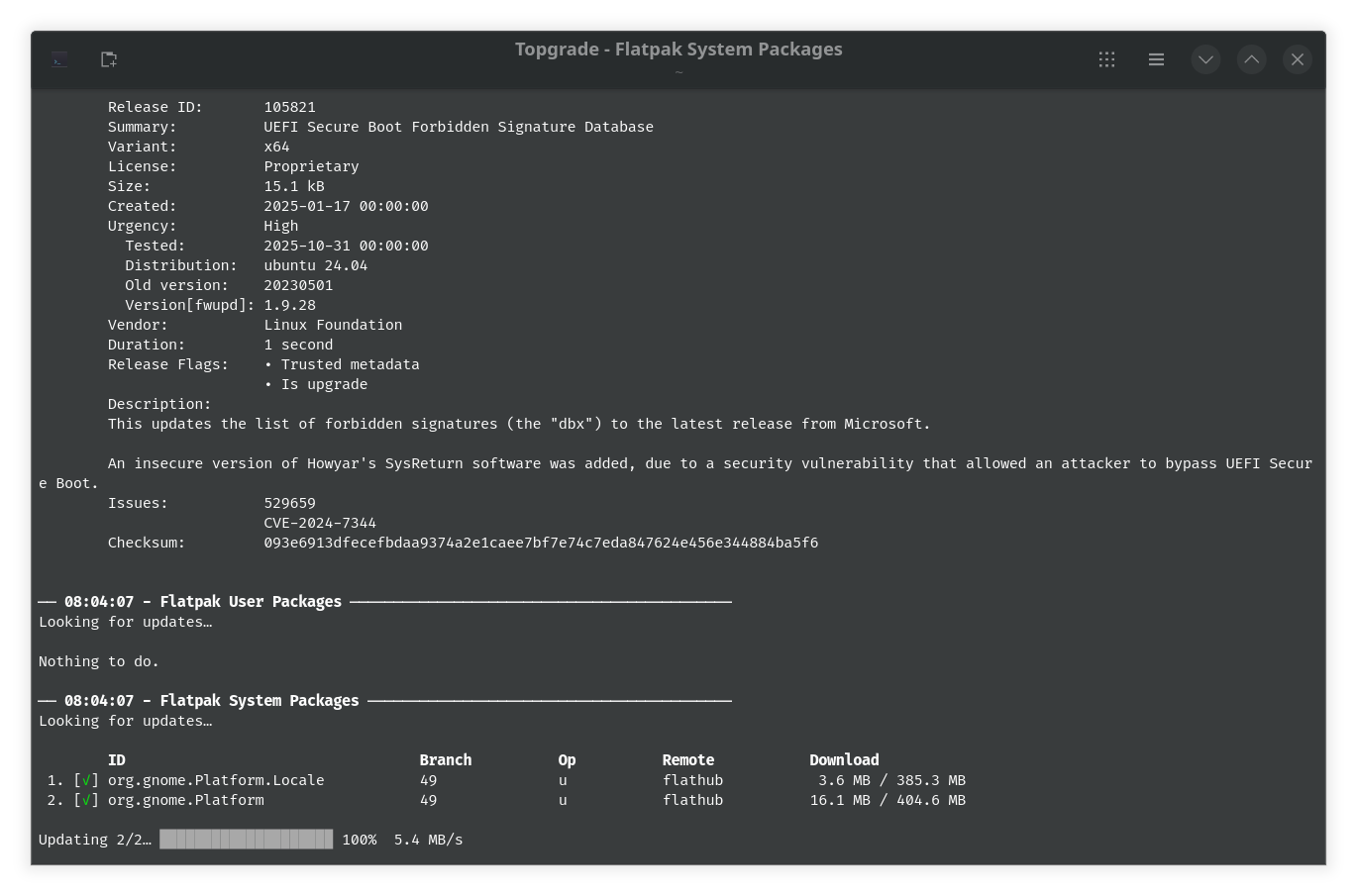
Unlike Windows, where apps are wrapped in easy-to-use .exe installers, in Bazzite you have to download AppImages, which I have learned are not installers but work like portable versions of them. You will also find various flavours of packages catering to different Linux families: Arch, Fedora, Debian, etc.
I have no clue how they are different. My brain’s capacity to research is running low. So I was entirely reliant on AI to get me through. I recommend Gemini for faster responses.
Fan control: my first real wall
Once Bazzite was installed, my first order of business was to get the AIO and GPU fans under control. And that is where I hit my first major roadblock.
The most recommended app for fan control is CoolerControl and an add-on called liquidctl. The latter must be installed via Terminal, while CoolerControl does have an AppImage, but it’s only a background service. The UI is actually a weblink that connects to the service.
Understanding all of that as a Windows user who is used to installing an app and having a UI ready to use, this was a bit of a head juggle. Again, Gemini guided me through each and every step, especially with the Terminal command lines I had to bash in order to download them in the first place.
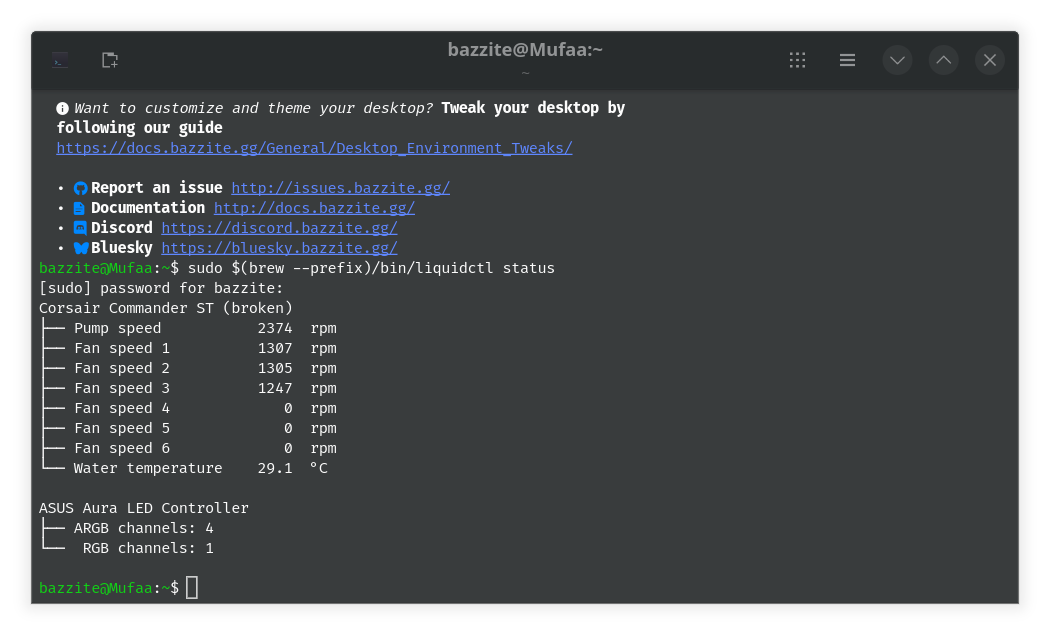
With both of these installed, CoolerControl also needs a daemon service to run in the backend. This also requires a Terminal command. The moment I entered that, the LEDs on my AIO started flashing red, taking me back to the Xbox 360 days when the Red Rings of Death were at their peak.
The flashing red lights meant there was a conflict between the AIO’s in-built control and what liquidctl was trying to do. Or something like that. I am still not clear.
Turns out, compatibility with my Corsair Elite H150i LCD XT AIO was an issue. I simply couldn’t control the fan curves and pump speed from the software, or the LEDs (hence the flashing lights). The AIO’s Commander Core showed “broken” in the app, and I had to turn off its attempt to read from there to solve the disagreement and return the LEDs to their calm and glowy state.
Thankfully, CoolerControl can still read core temperatures off the CPU, but I chose to entirely remove it as well as liquidctl (which again required numerous Terminal commands) and switch to a software called LACT.
LACT is only meant for GPUs, and I could set the fan curves I liked so the RTX 5080 wasn’t burning up while idle. This worked flawlessly.
If you do want to track CPU sensors, you can run ‘watch sensors’ in Terminal. This is the only command line I could memorise, and you can see why.
Dual-Screen Setup: Same Same, But Different
Since I plug my desktop PC into my LG TV, I also want to retain the connection to the monitor in the off chance that I want to install something, change something, or curse at Windows for something.
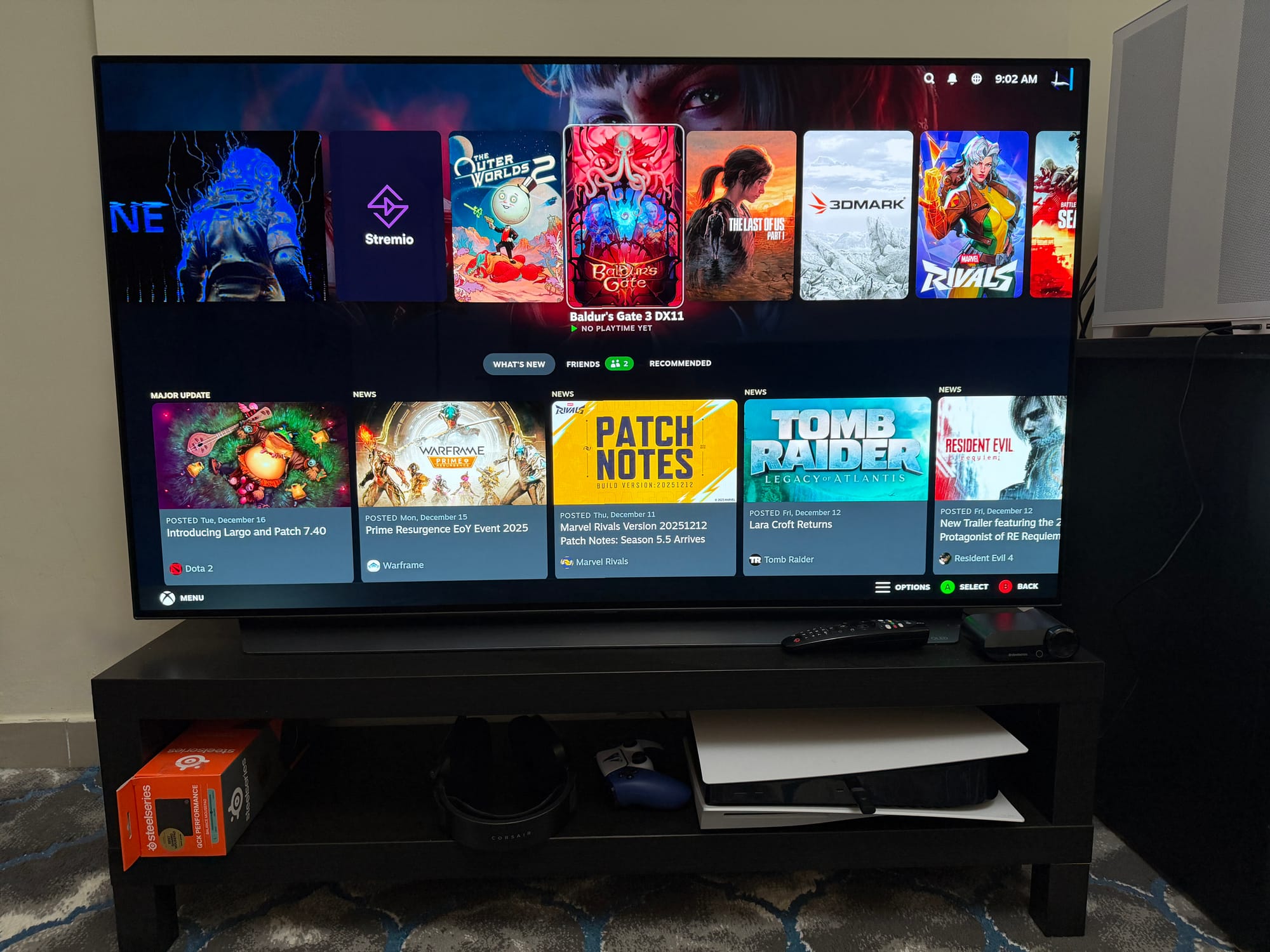
In Windows, switching between two screens is easy: press Win + P, and you get the options to switch to the primary/secondary display, or extend or duplicate the screens. Bazzite, too, works in the same way with the same key combinations.
It was when I launched Steam Game Mode after I switched the desktop to the LG TV that the similarities fell apart.
Awkwardly, Steam Game Mode only launches on the primary display (the monitor in this case), and there is no UI-based way to change this. So, I turned towards Gemini. And yes, there is a way. And yes, it requires Terminal commands.
Thankfully, you can turn these commands into scripts and have Game Mode launch on the TV or the monitor.
First, you need the connector names:
for f in /sys/class/drm/*/status; do
echo -n "$(basename "$(dirname "$f")"): "
cat "$f"
Done
Once you have the connector names of your monitor and TV, you create two script files: one to set Game Mode to TV, and one to set it to the monitor.
Game Mode set to TV:
#!/bin/bash
mkdir -p ~/.config/environment.d
echo "OUTPUT_CONNECTOR=HDMI-A-1" > ~/.config/environment.d/10-gamescope-session.conf
Game Mode set to Monitor:
#!/bin/bash
mkdir -p ~/.config/environment.d
echo "OUTPUT_CONNECTOR=DP-1" > ~/.config/environment.d/10-gamescope-session.conf
Replace HDMI-A-1 / DP-1 with your actual connector names.
This is a very ungainly approach, and I am not sure how I would figure this out without AI (this article is quickly becoming an advertisement for AI chatbots, isn’t it?), and my only other option would be to unplug and replug the monitor to the GPU every time I wanted to use it.
On the other hand, I also kind of prefer it this way? When I want to play games, I click Return to Steam Game Mode, and it automatically switches to the TV. When I want to return to the monitor, I choose Switch to Desktop from Steam. Convenient.
You win some, you lose some.
Speaking of losing…
NVIDIA Runs Poor, CPU Runs Hotter
The very first issue if you have an NVIDIA card in Bazzite is that you can forget about 4K gaming in Steam Game Mode. The moment you set Game Mode’s resolution to 4K (regardless of refresh rate), the entire UI glitches, with green and purple artefacts that tear the screen apart, just like your hopes and dreams.
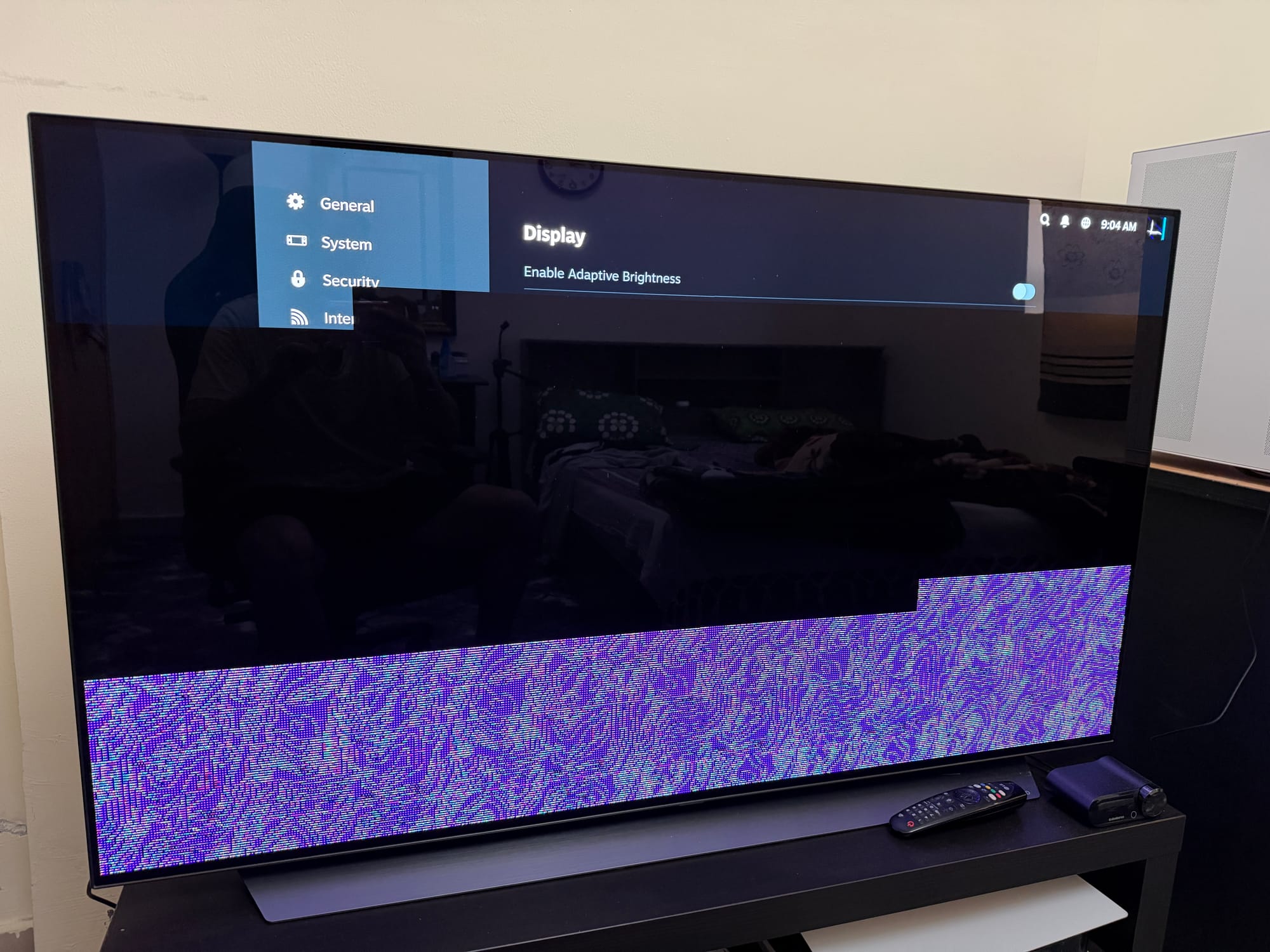
Luckily for me, I do not want 4K. And at 1440p/120Hz, Steam Game Mode runs flawle… oh wait. It’s laggy. Very, very laggy.
But there is a fix:
Desktop Mode → Steam → Settings → Interface → turn ON Hardware Acceleration
So as I was saying: at 1440p/120Hz, Steam Game Mode runs flawlessly.
What if you don’t care about Steam Game Mode and just use the desktop? Then it’s totally fine. 4K away.
Game test 1: Pragmata demo (it refused to live)
Time for some games. Excitement and hope rendered in my heart, I downloaded the Pragmata demo. I had played some of it on Windows and it ran beautifully, so it was going to be a good comparison.
Was.
The game simply refuses to run. I tried all sorts of Proton compatibility packs (a thing you have to do for pretty much every game): Proton Experimental, Proton-GE, Proton-CachyOS, etc.
Sometimes it would crash during loading, other times the moment it detected controller input. On AMD hardware, I have read, it runs fine. This is probably an outlier, but it’s telling.
Game test 2: Baldur’s Gate 3 (Vulkan sad, DX11 better)
So I shifted gears and installed Baldur’s Gate 3, which I have poured roughly 20 hours into and know how well it performs on Windows: rock solid 90fps at 1440p High with NVIDIA DLSS set to Quality.
BG3 has two rendering modes: Vulkan and DX11.
- Vulkan (native): ran quite poorly for me. Same settings, same area, frame rates fluctuated 70–90fps and sometimes dipped mid-60s.
- DX11: Windows-like performance, rock-solid 90fps.
This is entirely an NVIDIA-on-Linux issue. Performance varies from acceptable to 20–30% worse than Windows depending on game/API. I even rebased Bazzite’s NVIDIA closed drivers to the open driver set (how cool is it that you can change a part of the entire kernel?) and it didn’t help performance. It also broke Game Mode entirely.
I had to rollback Bazzite, with a simple Terminal command, and within moments I was back to the OS’s previous state.
It seems, as the Internet will confirm, DX11 games run best on NVIDIA cards, but anything that sniffs around Vulkan or DX12, performance tanks considerably. Not good for next-gen games, then. Not yet. AMD doesn’t have this problem in the same way.
The second strike: the “Proton tax” (aka my CPU ran 10–15°C hotter)
I was willing to live with the performance loss and even force DX11, if not for the CPU to run at least 10–15°C hotter.
In BG3, same settings, same area:
- Windows: ~58°C
- Bazzite: 65–70°C
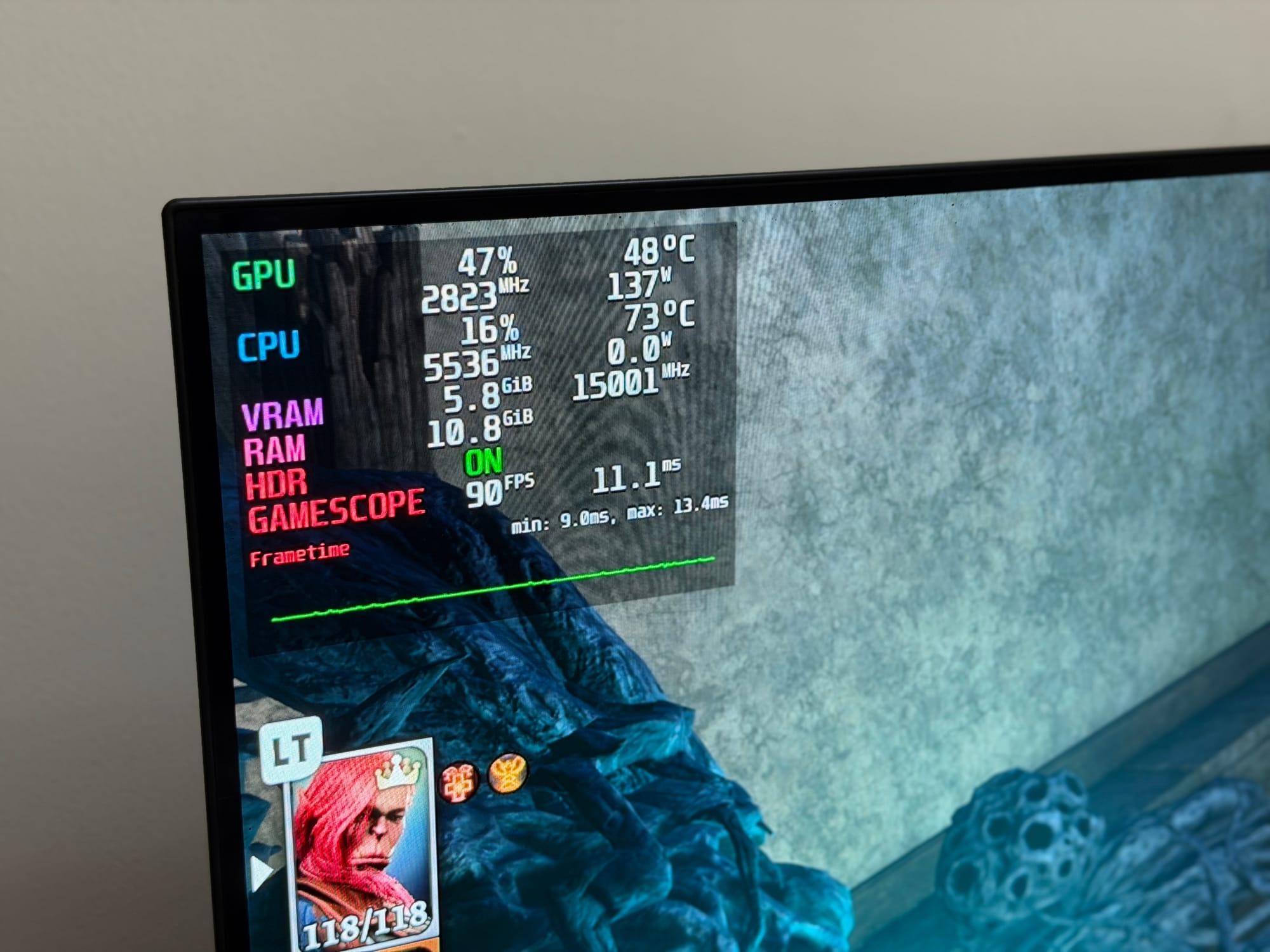
I tried everything: increased AIO pump speed to 100% (from 80%), radiator fans to 70% (from 50%), and even disabling IA CEP and SA CEP in BIOS (to reduce undervolt friction). Marginal difference.
This is what I call the Proton tax. Proton is an additional compatibility layer that translates Windows games for Linux. The CPU works harder, so it produces more heat. Unless you’re playing Linux-native titles that don’t need Proton, this is part of the deal.
Conclusion - Back to Windows, It Is
Bazzite is a wonderful OS, and if you have an AMD GPU, I wholeheartedly recommend giving it a go. It truly is a system that can be installed and instantly be ready to go for gaming. There is a huge community for Bazzite and other distros (a fancy name for different OS versions; am I cool yet?) to solve any lingering questions.
For NVIDIA owners, things are a bit complex. If you have a high-end card, you are most likely going to leave massive amounts of performance on the table, and there is no guarantee from NVIDIA that things will improve in the foreseeable future. Not to mention the inability to game at 4K/120Hz in Steam Game Mode (at least in my experience) and the occasional incompatibility with recent games.
For me, the poor performance and the high CPU temps were enough strikes against it. I know 70°C is hardly the end of the world, but I am weird about temperatures, and I simply can’t live with that.
And so, I came crawling back to Windows.
Forgive me, O’Father, for I have sinned.
FAQ: things people will absolutely search at 2am
Do you need to disable TPM to install Bazzite?
In my case, yes. Disabling TPM was the thing that stopped the kernel panic during install.
Does Bazzite work with NVIDIA GPUs?
It works, but the experience can be messy: Steam Game Mode 4K issues (for me), and performance variability depending on API (DX11 better, Vulkan/DX12 worse).
Can you use Bazzite like a console on a desktop PC?
Yes. That’s basically the point: boot into Steam Game Mode, use Gamescope, treat your PC like a Steam Machine.
Why does the CPU run hotter on Bazzite?
Likely the extra overhead from Proton translating Windows games to run on Linux, meaning more CPU work, meaning more heat.
How do you force Steam Game Mode to launch on the TV instead of the monitor?
By setting OUTPUT_CONNECTOR in a Gamescope environment config (and yes, it’s done via Terminal/scripts, because Linux).
Written by

Subscribe to our newsletter
Subscribe to our newsletter to get the latest updates and news







Member discussion