Quick Answer: The Asus ZenBook Duo 2026 is the first dual-screen laptop that earns its form factor. Two 14-inch 144Hz OLEDs, Intel’s Core Ultra X9 388H, and Asus’ ScreenExpert software combine into a properly polished multitasking machine. At AED 10,999 it’s expensive, and the trackpad and webcam disappoint at the price — but for video editors, photographers, and serial multitaskers, this is the dual-screen laptop to buy.
The dual-screen laptop has been one of those ideas that sound better than they work, for a while at least. Asus has been at this concept for a few generations now, and each time there has been a reason to temper enthusiasm — whether it was the screen configuration, the hinge gap, or software that couldn’t quite keep up with the hardware’s ambition. The 2026 ZenBook Duo is not that. It’s the version of this product that seems most fully realised — well-built, smooth to operate, with two proper OLED displays and software that largely keeps pace with how you want to use them.
The constraints that do exist are mostly on Windows’ end, not Asus’, and Asus can only do so much within what the operating system allows for a dual-display setup. To its credit, ScreenExpert — the company’s dual-screen management software — competently fills most of the gaps.
At AED 9,599 for the entry Core Ultra 7 355H configuration and AED 10,999 for the Core Ultra X9 388H unit I tested, it’s expensive. But it also offers something no single-screen laptop does, which makes comparing it to one or evaluating its true value a bit more difficult. All I can say is that the Duo is a great laptop, a great multitasker, and if you want such a device and have deep pockets, this is one of the most refined products out there.
Design and Build: Ceraluminum Feels Premium, But Watch the Hinge Gap
The ZenBook Duo is built from Ceraluminum — Asus’ proprietary material that is essentially aluminium treated to achieve a smooth, matte, ceramic-like finish. It’s the same material used on the ExpertBook Ultra, and if you have handled that machine, the ZenBook will feel familiar: solid, smooth to the touch, and noticeably well put together.

It doesn’t have the cold, weighty feel of a fully machined aluminium chassis, but it’s a clear step above the plasticky finish of most laptops at any price point. The Moher Gray colourway is understated and works well in a professional environment, and the surface does a good job resisting fingerprints.
There is a slight looseness to the overall feel because of the movable parts — the detachable keyboard and the kickstand, but this doesn’t say anything about the structural integrity of the machine. The laptop body itself is rigid; there’s no flex in the screens, and nothing creaks when you hold it.

Being a dual-screen machine, the ZenBook Duo is chunkier than your typical ultrabook. Two OLED panels, a kickstand, and a detachable keyboard all add to the thickness, and there’s no way around that. But it carries reasonably well, sits within a compact footprint on a desk, and if the dual-screen is something you will actually put to use, the added bulk stops registering fairly quickly.

There is one design quirk, though: when the keyboard is attached, the hinge closes flush, and the two screens sit neatly against each other with no visible gap. Remove the keyboard, however, and folding the laptop reveals a noticeable gap between the screens. It’s pretty wide — enough to let dust in if the machine goes into a bag without a sleeve, not to mention headphones, keys, or anything else that might sneak into the gap and, horror of horrors, scratch the nice OLED.
Keyboard and Ports: Comfortable Typing, Connectivity Falls Short
The detachable keyboard connects via Bluetooth and stays paired whether it’s attached to the laptop or sitting separately on a desk — the pogo pins are for charging only, not for connectivity. Switching between the two modes is seamless, with no latency or drop in connection detected.

Typing on it is comfortable enough for general use. Keys are soft, quiet, well-spaced, and backlit, with 1.7mm of key travel that feels adequate without being particularly generous. It starts to show its limits during longer sessions. The actuation point has a hard landing, and the rebound is quite springy, which adds up over time and leaves your fingers more fatigued than with a keyboard like the MacBook Pro’s, which absorbs keystrokes more gently. It’s not a dealbreaker, but it’s noticeable during extended typing work.

The trackpad handles everyday navigation without issue, but loses accuracy under anything more demanding — precise editing, fine cursor work. It’s not fully haptic either, which is an odd omission at this price point.

On ports, the selection is reasonable for a dual-screen machine: two Thunderbolt 4 USB-C ports, one USB-A 3.2 Gen 2, HDMI 2.1, and a 3.5mm audio jack.

An additional USB-A port would have been welcome, and the absence of an SD card slot is a genuine frustration given how well this laptop suits photographers and video editors. A hub will be necessary for anyone with more demanding connectivity needs.
Displays and Dual-Screen: Two Excellent OLEDs That Actually Work Together
Both panels are 14-inch OLEDs running at 2880×1800 resolution, 144Hz, with up to 1,000 nits of peak brightness and 100% DCI-P3 colour coverage. The two screens are practically identical in calibration — colour accuracy and brightness measure almost the same on both — and there’s no noticeable difference between them in use. They are PANTONE-validated, making them a reliable reference for colour-sensitive work like photo and video editing. They look excellent, of course. Deep blacks, accurate colours, smooth motion — the usual hallmarks of an OLED.

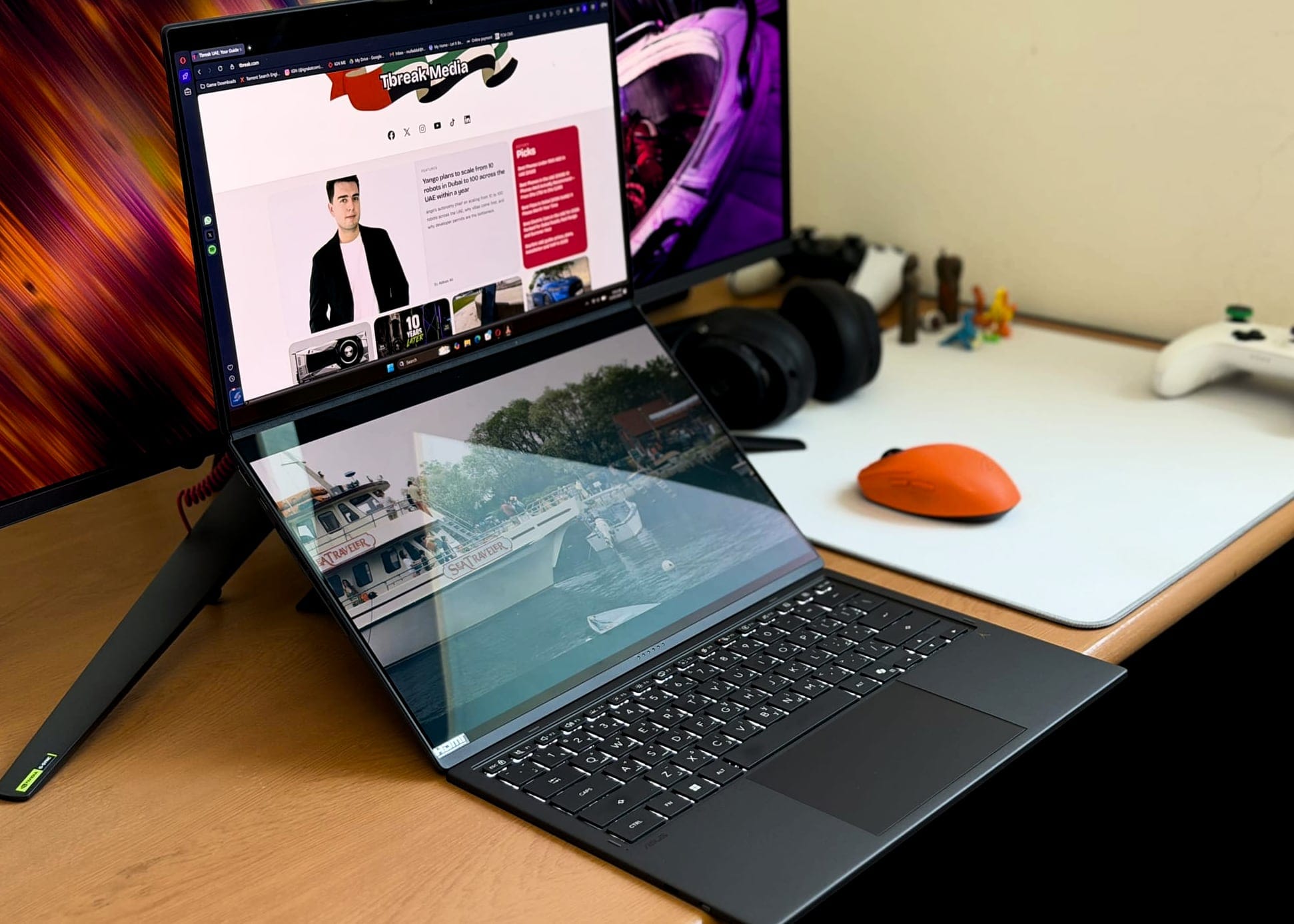
The ZenBook Duo operates primarily in two configurations: laptop mode, with the keyboard magnetically attached to the lower screen via pogo pins, or desktop mode, with the keyboard detached and placed in front of the two screens propped vertically on the kickstand. You can also use it as a notebook of sorts if you want to read on massive 14-inch screens or just want the vertical space. The second screen activates the moment the keyboard is pulled off — no settings to toggle or anything like that.
Asus’ ScreenExpert software handles window management across the two displays, and it does this better than expected. The moment you drag a window, a small overlay appears, letting you snap it to Screen 1, Screen 2, or split across both. It’s a quick process, albeit somewhat intrusive if you just want to drag a window around within the same screen — there have been many times when I plopped an app to the other screen without meaning to, so maybe it can relax a little. At the very least, moving apps between screens produced no bugs or glitches throughout testing.

I’m not much of a dual-screen guy, to be honest, but I did employ it on the ZenBook Duo whenever I was at a desk. My main browser window lived on the top screen while the bottom handled chats, research tabs, YouTube, and file access — removing the constant need to alt-tab between things. In Premiere Pro, it worked particularly well: timeline at the bottom, the viewer and tools taking up the top screen. For anyone who regularly juggles multiple apps and windows, this will feel like a real upgrade over any single-screen laptop setup.
The Windows side of things introduces unavoidable friction. Windows designates Display 1 as the primary regardless of where your active window is, which means dialog boxes occasionally appear on the wrong screen. It’s more annoying than disruptive, but this is OS-level behaviour, and Asus can’t do anything about it.
Speakers and Webcam: One Punches Above, the Other Misses at the Price
The ZenBook Duo has six speakers — tweeters and woofers — firing from the sides and bottom of the chassis, and the results are impressive for a laptop. Volume output is substantial, and there’s a noticeable sense of spatial spread to the sound that most laptop speakers don’t manage.
The mid-range is reasonably forward, keeping vocals and instruments present without getting muddied, and the high-end carries enough detail to make music and dialogue feel clear and defined. Bass is thin, as it always is at this size and form factor, but there’s enough of it to give the sound some weight and impact. For casual listening, watching TV episodes, or keeping something on in the background, these speakers punch well above what you would typically expect. For anything more serious, headphones remain the better call.
The webcam doesn’t hold up as well. The 1080p IR unit is grainy, struggles in anything short of direct light, and produces poor image quality. It gets by for low-stakes meetings and little else. At this price, that’s a miss.
Software Experience: ScreenExpert Carries the Whole Setup
The ZenBook Duo ships with two dedicated apps built around the dual-screen setup — ScreenExpert and Asus Dial & Control Panel — alongside a built-in virtual keyboard accessible directly through the touchscreen. Together, they form the backbone of what makes this machine more than just a laptop with an extra display.
ScreenExpert
ScreenExpert was touched on earlier in the context of window management — dragging apps between screens, snapping them to either display (this can also be done by pressing the extra key on the keyboard), or splitting across both. But it handles a broader set of controls beyond that. From within the app, you can adjust brightness for each screen independently, switch between battery and performance modes, manage fan profiles, and monitor the detachable keyboard’s battery level without digging into Windows settings.

The Share Display mode is also present, which flips the orientation of the two screens so that Display 1 faces one person and Display 2 faces the other — useful if you are sitting across from a client and want both parties to interact with their own screen simultaneously.
ScreenExpert also includes a Handwriting widget, where you can input text by writing directly on the screen with your finger or the included pen. It converts handwriting to text with reasonable accuracy and works well enough for short inputs, though it’s not something you would want to rely on for anything lengthy.
Asus Dial & Control Panel
The Asus Dial & Control Panel is a separate app that adds a layer of customisable controls to the second screen — dials, buttons, and sliders that can be tailored for each application. You can assign volume controls, mute toggles, cut/copy/paste shortcuts, vertical zoom scroll wheels, YouTube timeline and playback sliders, tab management, and a range of other functions depending on what you are working on. The controls come in different formats — regular dials, buttons, vertical and horizontal sliders — in varying sizes, and their placement on screen is fully adjustable.

In practice, the widgets work well and add utility to the second screen when you are deep in a specific app. Getting there, however, requires patience. The app is noticeably slow, and arranging the widgets exactly how you want them is more cumbersome than it should be. Once it’s set up to your liking, you largely forget about the friction, though, and the panels shift and change according to the app on screen quite quickly. One other thing: all of this requires the second screen to be active, of course.
Virtual Keyboard
Tap eight fingers on the second screen, and a virtual keyboard appears, along with a trackpad beneath it. The trackpad can be expanded to span the full width of the screen if needed, and it does have haptic feedback — a small but appreciated detail. Typing also triggers keyboard click sounds through the speakers, adding an audio cue that the keys are indeed pressed, which is especially useful since the flat glass surface provides no tactile feedback.

That said, the virtual keyboard has its limits. Fast typing isn’t realistic — the response is slow, and you will make plenty of errors until muscle memory catches up. It’s best treated as a fallback for when the physical keyboard is detached and out of reach, not as a permanent alternative. There are a few useful options within it: language switching, an emoji bar, and a half-screen mode that shrinks the keyboard to make room for the Dial & Control Panel widgets, though this removes the trackpad entirely.
Asus Pen 3.0: A Premium Stylus, Bundled In
The Asus Pen 3.0 that ships in the box is a well-built accessory. It has the heft and feel of a quality writing instrument — premium enough that it doesn’t feel like an afterthought bundled in to tick a box. It’s comfortable to hold, and the matte finish keeps it secure in the hand.

Writing on either screen with it is a smooth experience. There’s no detectable lag between pen and stroke, and the 4,096 levels of pressure sensitivity actually register — press harder and the stroke thickens, ease off, and it thins. Artists and note-takers will find it more than capable. The handwriting recognition in apps like OneNote picks up even messier penmanship without much trouble.

Flipping the pen upside down automatically activates the eraser tool in whatever app is open — the pen detects the orientation change and switches modes without any button press. It works flawlessly, though it does rely on the app supporting an eraser function. Most writing and drawing apps do, but it won’t work across the board. The top end of the pen is smooth and rounded, so there’s no risk of it scratching or damaging the display.
The screens themselves are built to handle regular pen and touch use. Asus puts both panels through tribotesting — rubbing the same surface area repeatedly and drop testing from multiple angles. For daily use with the pen, the displays are durable.

On the buttons: the top button works as programmed, and can be assigned to any shortcut or app you prefer through Windows Settings under Pen & Windows Ink. The side button, which should function as a right-click, did not register on our unit.
Haptic feedback is present but limited. You’ll feel a subtle response during window management and menu interactions, nothing beyond that. There’s no pen-on-paper sound or haptic effect during actual writing in OneNote or Paint.
Battery life is listed by Asus as all-day use, though no specific hour figure is published for the Pen 3.0. The wireless charger handles top-ups, but it’s a separate piece of kit that you’ll need to carry if you want to charge away from home. The laptop also has no magnetic attachment point for the Pen, and the only way to ‘store’ the Pen is to use the included laptop sleeve, which works well enough but means one more thing to keep track of.
Specifications
| Component | ASUS ZenBook Duo (2026) |
|---|---|
| CPU | Intel Core Ultra X9 388H |
| GPU | Intel Arc B390 (integrated, 12 Xe3 cores) |
| RAM | 32GB LPDDR5X 9,600MT/s |
| Storage | 1TB PCIe Gen 4 SSD |
| Display | Dual 14-inch 2880×1800 OLED, 144Hz, 1,000 nits peak, 100% DCI-P3 |
| Battery | 99Wh (dual cell) |
| Ports | 2x Thunderbolt 4, 1x USB-A 3.2 Gen 2, 1x HDMI 2.1, 3.5mm audio jack |
| Connectivity | Wi-Fi 7, Bluetooth 5.4 |
| Webcam | 1080p IR with Windows Hello |
| OS | Windows 11 Home |
| Weight | 1.65kg (body only) |
| Dimensions | 310 x 209 x 19-22mm |
| Price | AED 10,999 |
Performance: GPU Beats Apple, Single-Core Still Lags
The ZenBook Duo runs on Intel’s Core Ultra X9 388H — the top chip in the Panther Lake lineup — paired with 32GB of LPDDR5X RAM and an integrated Intel Arc B390 GPU with 12 Xe3 graphics cores. The benchmarks tell a nuanced story.
| Benchmark | ZenBook Duo X9 388H |
MacBook Air M5 |
MacBook Pro M4 Pro |
|---|---|---|---|
| Cinebench 2026 Multi-Core | 3,550 | 3,285 | 3,829 |
| Cinebench 2026 Single-Core | 513 | 733 | 646 |
| Geekbench 6 CPU Single-Core | 2,836 | 4,155 | 3,713 |
| Geekbench 6 CPU Multi-Core | 16,096 | 16,928 | 15,453 |
| Geekbench 6 GPU * | 37,817 | 76,126 | 58,642 |
| Geekbench 6 AI | 7,862 | — | — |
| 3DMark Steel Nomad Light | 5,956 | 5,019 | 4,201 |
| 3DMark Solar Bay Extreme | 4,460 | 4,198 | 3,020 |
| 3DMark Wild Life Extreme | 10,665 | 10,795 | 9,618 |
* Geekbench GPU uses OpenCL on Windows and Metal on macOS — not a direct comparison. Refer to 3DMark results for cross-platform GPU performance.
On CPU, Apple Silicon’s single-core advantage is consistent. The M5 Air scores 733 in Cinebench 2026 single-thread against the ZenBook’s 513, and 4,155 in Geekbench 6 single-core against the ZenBook’s 2,836. For anything leaning heavily on single-core speed, Apple Silicon still leads.
Multi-core is a closer fight. In Cinebench 2026, the ZenBook scored 3,550 — ahead of the M5 Air’s 3,285 and behind the M4’s 3,829. Geekbench 6 multi-core tells a similar story: 16,096 for the ZenBook, 16,928 for the M5 Air, and 15,453 for the M4. All three sit in the same band for multi-threaded work.
GPU is where the X9 388H separates itself. On 3DMark Steel Nomad Light, it scores 5,956, compared to the M5 Air’s 5,019 and the M4’s 4,201. Solar Bay Extreme follows the same pattern: 4,460 for the ZenBook versus 4,198 and 3,020, respectively. Wild Life Extreme is essentially tied between the ZenBook and the M5 Air. The Arc B390 handles low to mid-range gaming at 1080p without much trouble. The native 2880×1800 resolution is a different matter — games struggle there, and dropping to 1080p is the only practical approach.
Day-to-day, the machine is smooth and consistently responsive. There’s no performance drop on battery, which isn’t always a given on Windows laptops. Under heavier load, the fans become audible — not aggressively loud, but noticeable enough in a quiet room. The chassis gets warm all around; nothing uncomfortable, but noticeable. For gamers, one thing to keep in mind is that the exhaust vents are on the sides of the machine. With a mouse in hand, your palm sits directly in the airflow path and gets warm and toasty real quick.
Battery Life: 7 to 9 Hours of Real Mixed Use
The 99Wh battery is split across the two halves of the chassis — one cell behind each screen — which Windows treats as a single unit. It’s the largest battery capacity legally permitted on commercial flights. Fast charging brings it to 60% in around 49 minutes.
Pinning down a single battery life figure for this machine is harder than it is for most laptops. There are variables that don’t exist on a standard machine: whether one or both screens are active, whether the detachable keyboard is attached and drawing power to charge, brightness across two displays, and workload intensity. All of it compounds and changes the equation.
In mixed use — a combination of single and dual-screen across browsing, writing, and video — it delivered between 7 and 9 hours. Under medium use that covers a full working day. Light users can push further, stretching into a second day without much effort. Run both screens hard on demanding tasks and expect to land at the lower end of that range.
For a machine powering two OLED panels, the battery holds up well.
The Verdict: Worth It If You’ll Actually Use Both Screens
The ZenBook Duo drops points in specific areas: it’s expensive, the trackpad undersells the rest of the package, the webcam is poor for the price, and the side exhaust vents make extended mouse use under load uncomfortable. At AED 10,999 for the reviewed configuration, none of that is easily dismissed.
But for the right person, what Asus has built here is hard to fault. The dual-screen format works — not as a novelty or a compromise, but as a properly realised solution. Stacking the two displays, swapping windows between them, the keyboard connecting and disconnecting cleanly, ScreenExpert managing everything without drama, the Dials working reliably per app, the Pen adding utility that actually gets used. Everything ticks along with a consistency that previous generations couldn’t manage.
For those who always wanted two screens on a portable machine and kept waiting for a version that made sense, the new ZenBook Duo comes closer than anything before it. Video and photo editors, multitaskers constantly juggling several windows, professionals who want a dual-monitor setup without carrying two monitors, and university students would love it too. If that’s you, the ZenBook Duo delivers, and delivers in spades.
Buy if:
- You’re a video or photo editor who’ll actually benefit from a second timeline or preview display
- You’re a serial multitasker juggling browser, chats, and documents constantly
- You want a portable dual-monitor setup without lugging an external display
- You can absorb the AED 10,999 price without flinching
Don’t buy if:
- You’re a single-screen user — the form factor and price are wasted on you
- You game heavily with an external mouse — the side exhaust vents push hot air directly onto your hand
- You’re shopping under AED 8,000 — the MacBook Air M5 or a standard ZenBook will serve you better
Frequently Asked Questions
How much does the Asus ZenBook Duo 2026 cost in the UAE?
The Asus ZenBook Duo 2026 starts at AED 9,599 for the Core Ultra 7 355H configuration, with the top Core Ultra X9 388H model priced at AED 10,999.
Is the Asus ZenBook Duo 2026 worth buying?
Yes, for video editors, photographers, and serial multitaskers who’ll actually use both screens. The dual-screen format is properly realised here, but at AED 10,999, single-screen users are better served by a standard ZenBook or the MacBook Air M5.
How long does the Asus ZenBook Duo 2026 battery last?
In mixed use across browsing, writing, and video, the 99Wh battery delivers between 7 and 9 hours. Fast charging brings it to 60% in around 49 minutes.
What chip does the Asus ZenBook Duo 2026 use?
The reviewed unit uses Intel’s Core Ultra X9 388H, the top chip in the Panther Lake lineup, paired with an integrated Intel Arc B390 GPU with 12 Xe3 cores. A Core Ultra 7 355H configuration is also available at AED 9,599.
Can I take the Asus ZenBook Duo 2026 on a plane?
Yes. The 99Wh battery is the largest capacity legally permitted on commercial flights, so it complies with airline carry-on rules worldwide.