
Asus ROG Swift PG32UCDM3 Gen 3 Review: The Best 32" OLED You Can Buy — Just Don't Tell Gen 2 Owners
Asus refines its flagship with BlackShield and DP 2.1a. The best 32" QD-OLED you can buy — unless you already own the Gen 2.

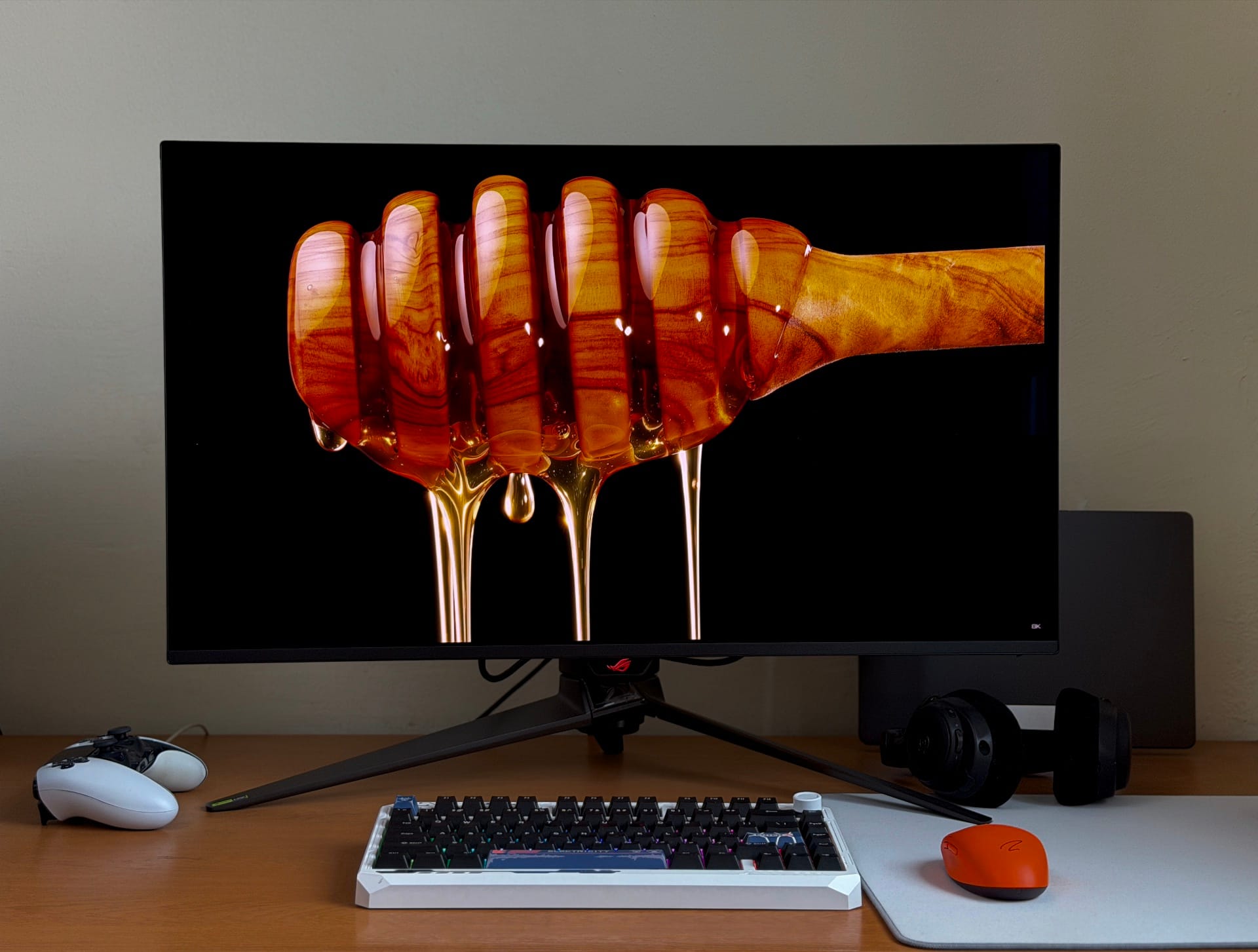
The ROG Swift PG32UCDM3 Gen 3 is Asus quietly admitting the Gen 2 was already nearly perfect, and with the Gen 3, Asus isn't reinventing the wheel so much as refining it. At its core, this is a 32" QD-OLED panel running at 4K resolution with a 240Hz refresh rate - the same foundational recipe as the Gen 2 - but a handful of meaningful additions separate this generation from its predecessor. Priced at $1299 (roughly AED 4,799–4,999 depending on local retail), it's undeniably steep, but in line with what you would expect from the top of the market.
💡
Looking for a Gaming Monitor for your PS5? Here are the best ones.
The most notable of these is the BlackShield film, a proprietary coating Asus has applied to the screen surface that serves two purposes: it increases scratch resistance by 2.5x compared to a standard OLED panel, and it reduces perceived black levels by around 40% in ambient lighting conditions. Alongside that, Asus has introduced proper DisplayPort 2.1a support at full 80 Gbps UHBR20 bandwidth, USB-C with 90W power delivery, Dolby Vision support in addition to HDR10, the Neo Proximity Sensor, and the OLED Care Pro suite.
For someone coming in fresh, the PG32UCDM3 Gen 3 is about as complete a flagship gaming monitor as you can buy right now. The image quality is exceptional, and the feature set is thorough. For Gen 2 owners, the calculus is different. The panel itself is essentially the same, and unless you specifically need the BlackShield coating, the update is hard to justify. This is very much a monitor for new buyers or those coming from an older generation.
Specifications
| Specification | Detail |
|---|---|
| Panel Type | QD-OLED |
| Panel Size | 31.5 inches |
| Resolution | 3840 x 2160 (4K UHD) |
| Aspect Ratio | 16:9 |
| Refresh Rate | 240Hz |
| Response Time | 0.03ms (GTG) |
| Brightness (SDR) | 500 cd/m² |
| Brightness (HDR Peak) | 1,000 cd/m² |
| Contrast Ratio | 1,500,000:1 |
| Color Coverage | 99% DCI-P3 |
| Color Depth | 10-bit (1.07 billion colors) |
| HDR Support | HDR10, Dolby Vision, DisplayHDR 500 True Black |
| Variable Refresh Rate | AMD FreeSync Premium Pro, G-Sync Compatible |
| Display Surface | Anti-Reflection (BlackShield) |
| Ports | 1x DisplayPort 2.1a (80Gbps), 2x HDMI 2.1, 1x USB-C (DP Alt, 90W PD) |
| USB | 1x USB-B Upstream, 3x USB 3.2 Gen 1 Type-A Downstream |
| Audio | 3.5mm Headphone Jack (No Speakers) |
| Tilt | -5° to +20° |
| Swivel | ±15° |
| Height Adjustment | 0 - 80mm |
| VESA Mount | 100 x 100mm (adapter included) |
| Dimensions (with stand) | 71.8 x 53.1 x 27.6 cm |
| Weight (with stand) | 8.7 kg |
| Warranty | 3 years (including burn-in) |
Design and Features
The PG32UCDM3 Gen 3 looks the part from the moment you pull it out of the box. Asus has kept the ROG Swift's established aesthetic here - the front of the monitor is clean and minimal, with a nearly edge-to-edge flush bezel measuring between 8 and 14mm on all sides. There's a small backlit ROG logo beneath the panel that also doubles as the indicator for the joystick and buttons hidden just behind it, but beyond that, the front face is free of any aggressive cuts or branding.
The OLED panel itself is mounted to a metal backing plate, which helps with passive cooling - there are no fans anywhere on this monitor, and it stays quiet and relatively cool.
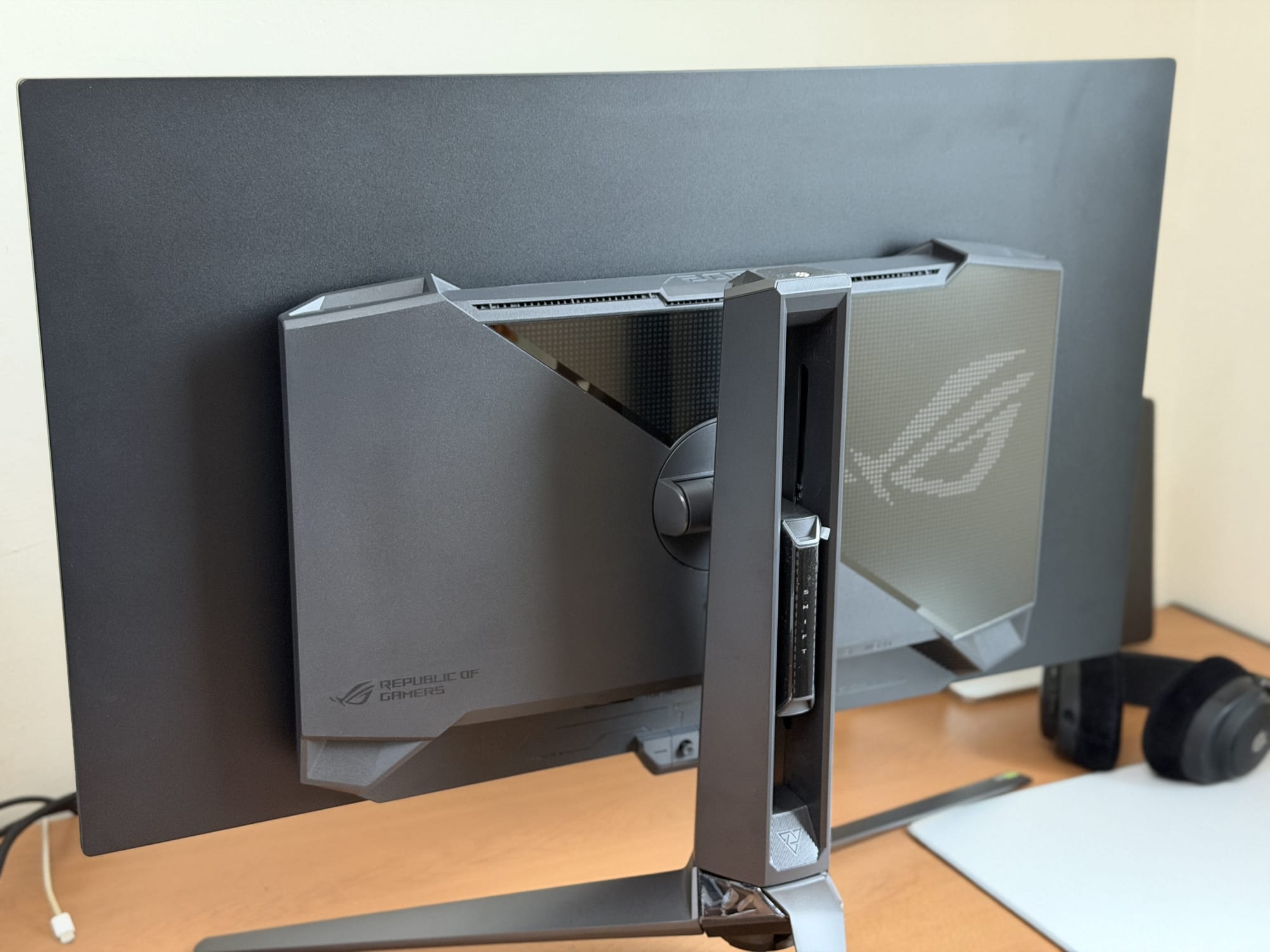
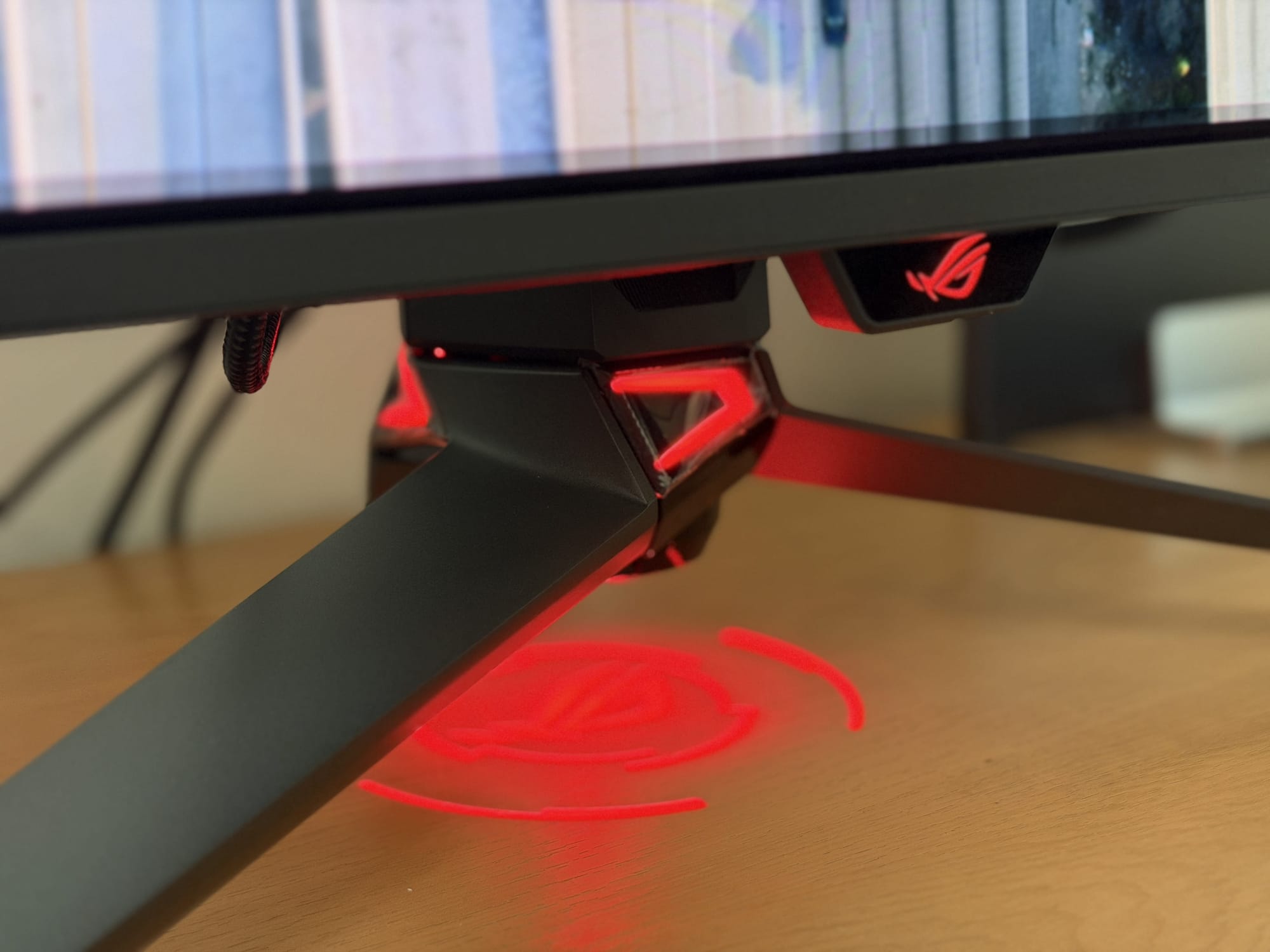
Turn it around, though, and the ROG character comes out in full. The back features a large Lite-Brite ROG logo, and where the upright meets the base, angular cuts in the housing glow with RGB lighting, giving the stand a sharp, geometric look from behind.
There’s also a downward-facing logo projector at the base that casts a ROG graphic onto your desk surface. Asus includes several interchangeable projector plates in the box, each producing a different design, which swap in and out magnetically. However, once you have set up the display on the stand, it will take dismounting all of that to replace the plates. Not the kind of effort I would put into it, to be honest. So I simply turned off all RGB lighting and pretended it didn't exist.
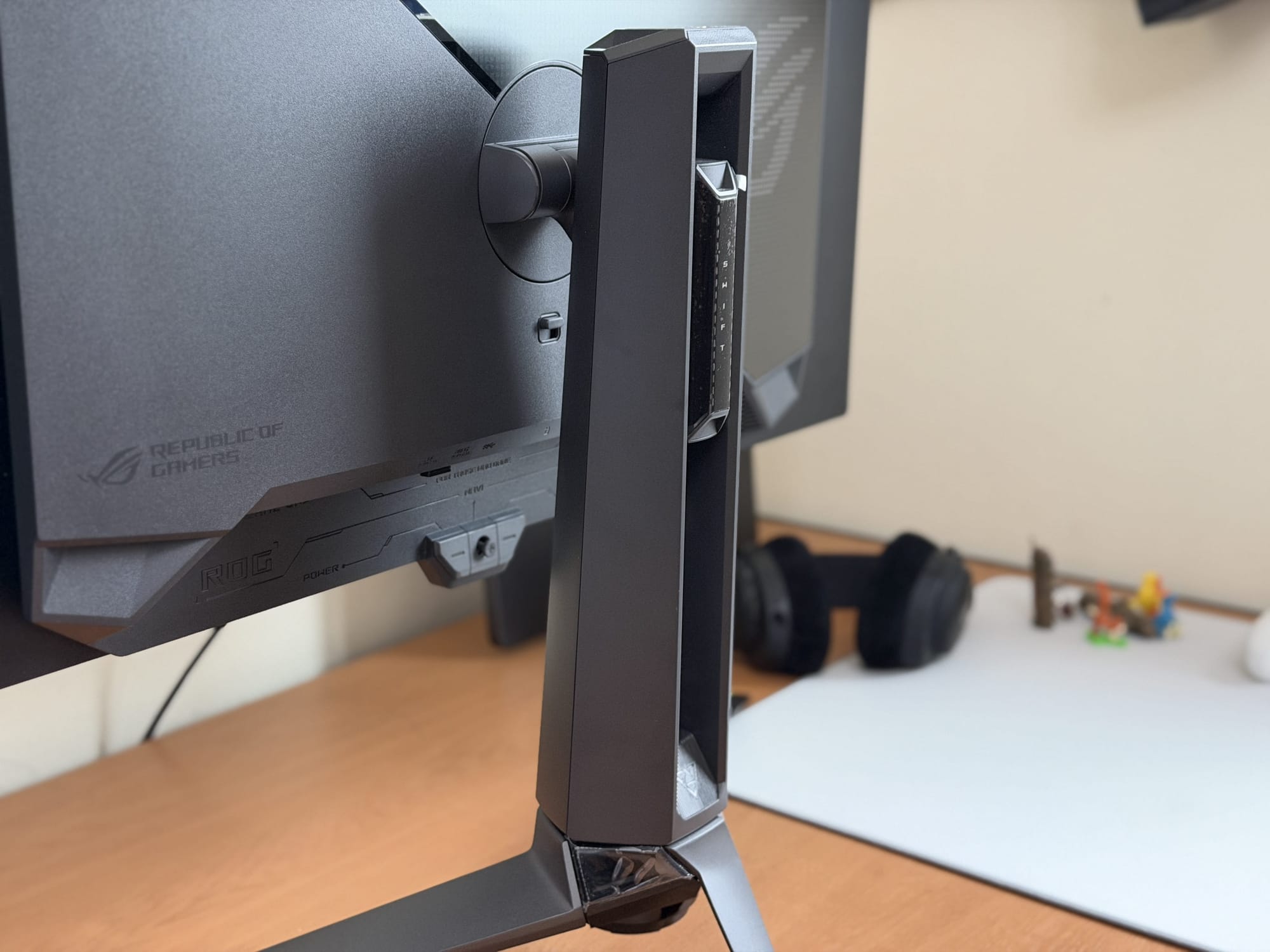
The stand, however, is where things get a little more complicated. It’s unmistakable premium in build - the base is wide cast aluminium, solid and heavy, and there’s absolutely no wobble or flex to speak of. The upright provides tilt (-5° to +20°) and swivel (±15°), and height adjustment of 0-110mm, which covers most positioning needs comfortably (although I do wish it would go down slightly more). What it doesn't offer is portrait mode rotation, which some users at this price point might expect.
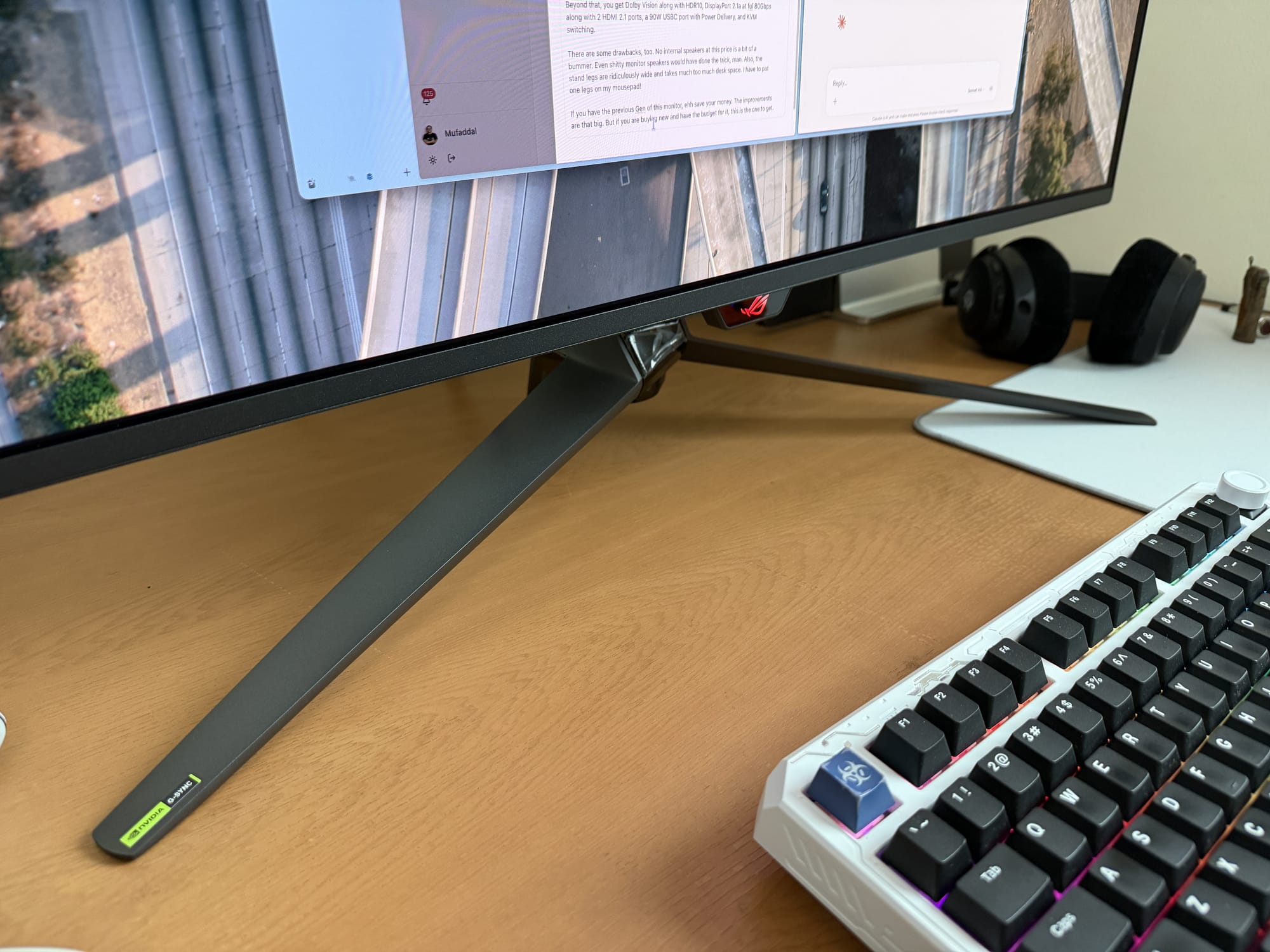
More practically, the three-pronged base design is the standard's biggest ergonomic drawback. The two forward-facing legs splay out wide, and depending on your desk size, they can eat up a significant amount of real estate.
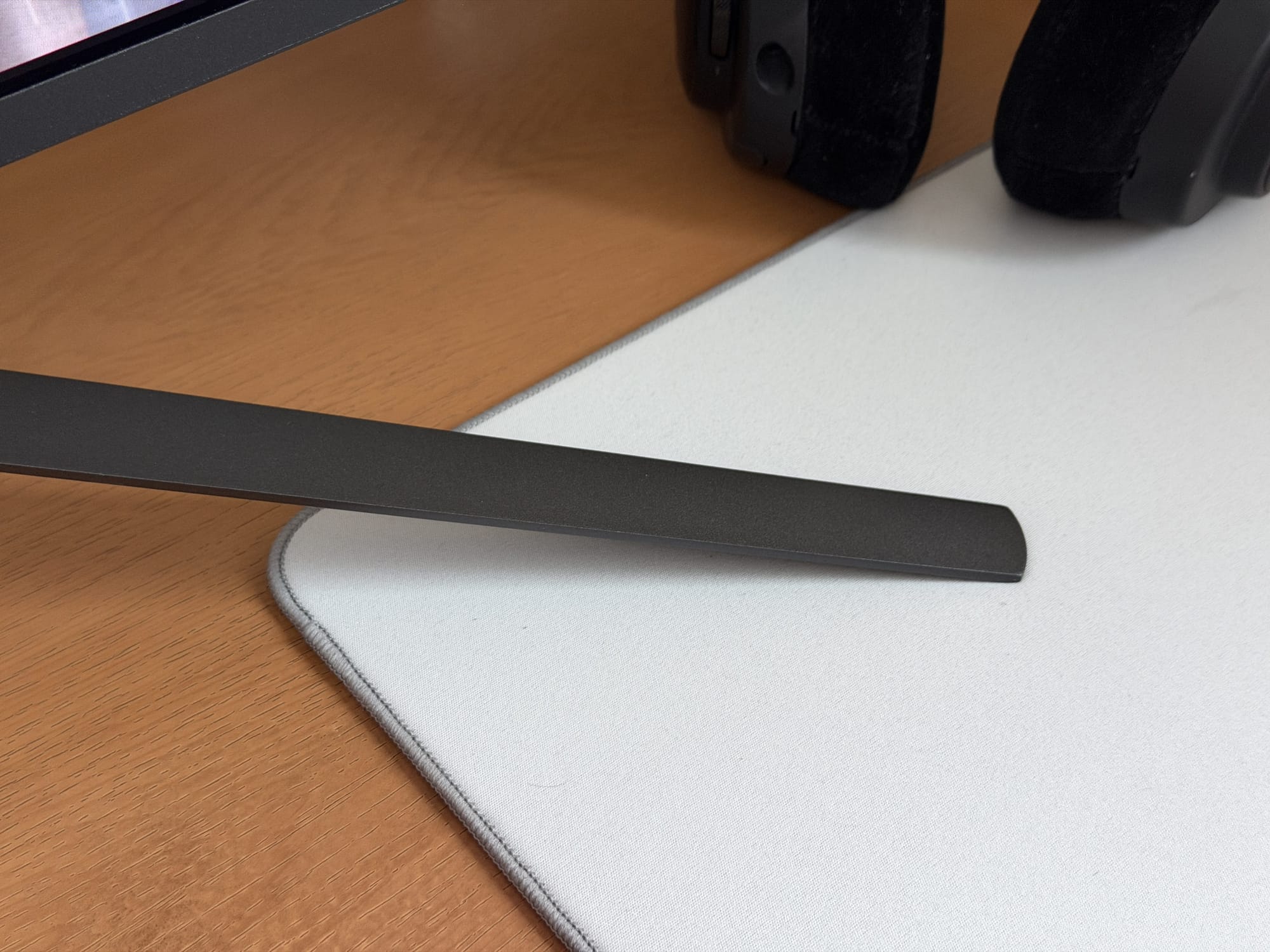
If you are working with a large mousepad like me, or a tighter desk setup, you may find one of those legs sitting right in your way.
Asus, my dear friend, just introduce a normal stand, please? Something with a flat base so we can keep things on it. Functionality over aesthetics, mate. I promise the monitor won't look ugly.
Thankfully, Asus includes a VESA mount adapter in the box with 100mm lug compatibility, so if you are tight on desk space or prefer to have the monitor on an arm for a closer, more immersive setup, swapping to a monitor arm is a completely viable and worthwhile solution.
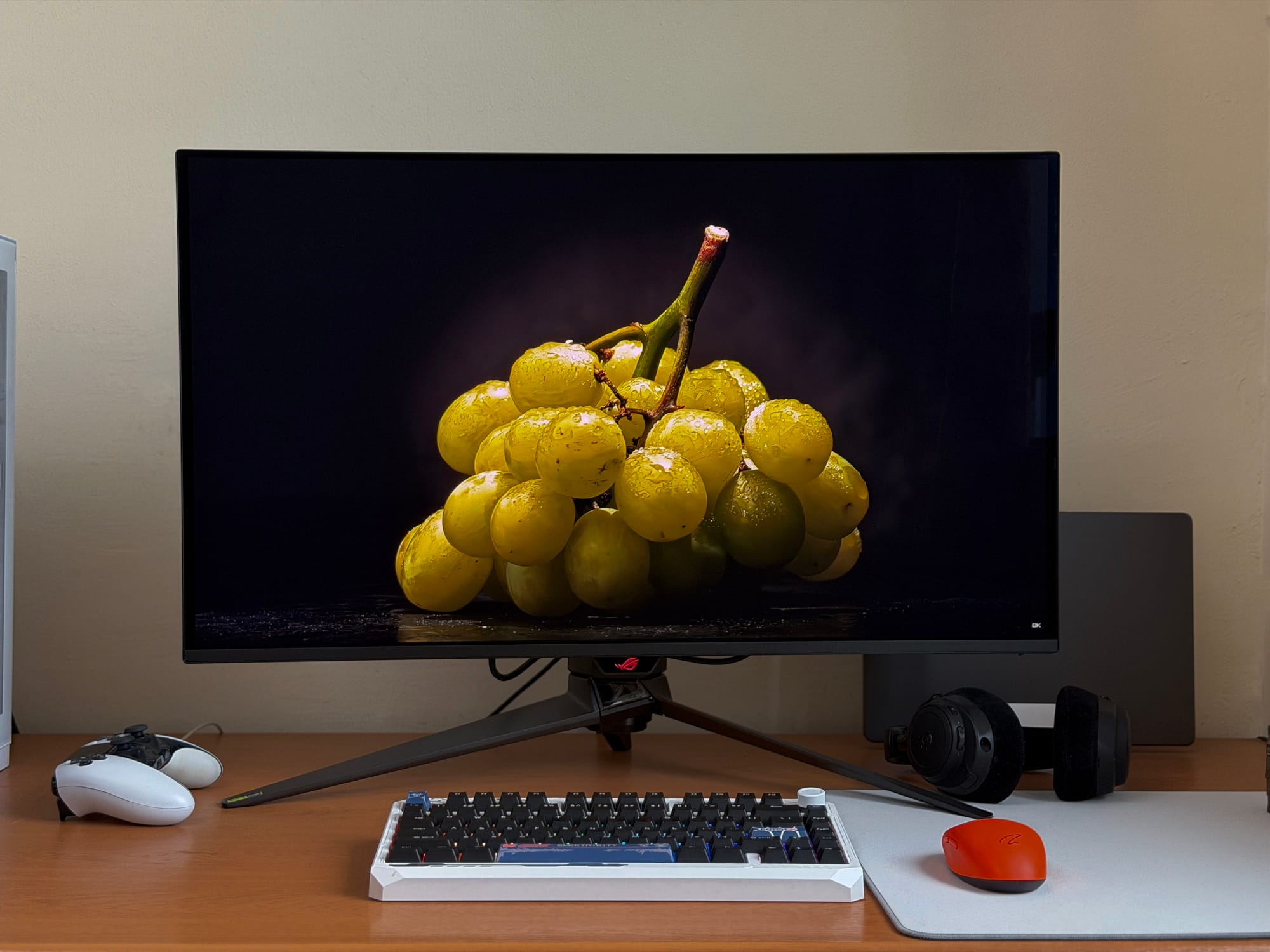
On the display itself, the QD-OLED panel is where the PG32UCDM3 Gen 3 earns most of its reputation. The 3840x2160 resolution across 31.5” gives you a pixel density of around 140 pixels per inch - crisp enough that at normal viewing distances, text and fine details are enough, although you can see some purple fringing if you dig your nose inside the screen.
The 240Hz refresh rate is supported across all inputs, and the 0.03ms GTG response time means motion is essentially a non-issue. Combined with G-Sync compatibility and FreeSync Premium Pro certification, tearing and stuttering are well handled. There's also ELMB (Extreme Low Motion Blur), which is rare among OLED monitors (and maybe kind of…pointless?). It works by strobing the display - inserting brief dark periods between frames - which significantly sharpens the appearance of fast-moving objects on screen. But it halves the brightness and locks the refresh rate to 120Hz. Considering OLED panels are near instantaneous, unless you really see a difference with ELMB, it would be best to keep this setting turned off.

Now, the BlackShield coating is probably the most discussed new feature on the Gen 3, and it genuinely does make a difference - with some caveats. Asus claims it improves perceived black levels by 40% in ambient light and provides 2.5x better scratch resistance than a standard OLED surface. In moderate lighting, the deep blacks hold up well, and cleaning the screen with the included microfiber cloth doesn’t leave marks or visible surface damage.
Under direct sunlight or harsh overhead lighting, however, you may still notice a slight greying or lifting of blacks. This isn't a failure of the BlackShield coating specifically - it's just how QD-OLED panels are, which lack a polarising layer in order to achieve their wide colour gamut and brightness. Without that polariser, ambient light can raise black levels regardless of any surface coating applied. The BlackShield film meaningfully reduces this effect, but it doesn't eliminate it entirely. If you are coming from the previous generation, the difference will be massive, but WOLED would be a better option, and Asus should think about that for the next generation of this monitor.
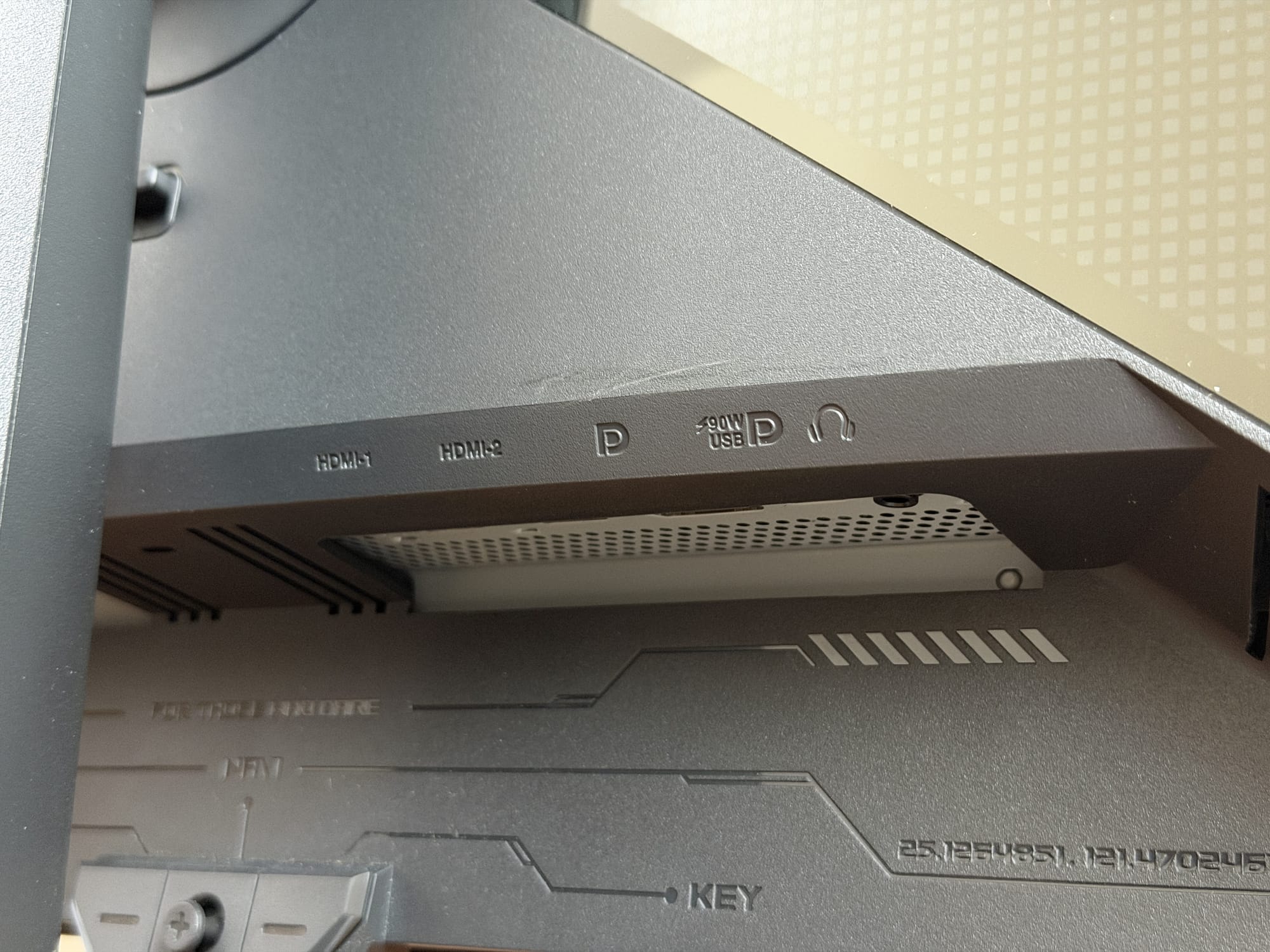
On the connectivity front, the PG32UCDM3 Gen 3 is well stocked. You get a DisplayPort 2.1a input running at the full 80 Gbps UHBR20 bandwidth, which is the current ceiling for display connectivity and future-proofs the monitor for upcoming GPU generations. Two HDMI 2.1 ports round out the video inputs, both capable of 4K at 240Hz, so there is enough space to plug in two consoles.
There's also a USBC port that mirrors DisplayPort functionality and provides 90W of PD - particularly useful for laptop users who want to consolidate their cables into a single connection. I connected my MacBook Pro M4 without any issues, and while 4K on this monitor is considered LowDPI in macOS due to Apple's weird scaling rules, it works well. USB 3.2 is supported via one upstream port and three downstream Type-A ports, and a 3.5mm headphone jack handles audio passthrough.
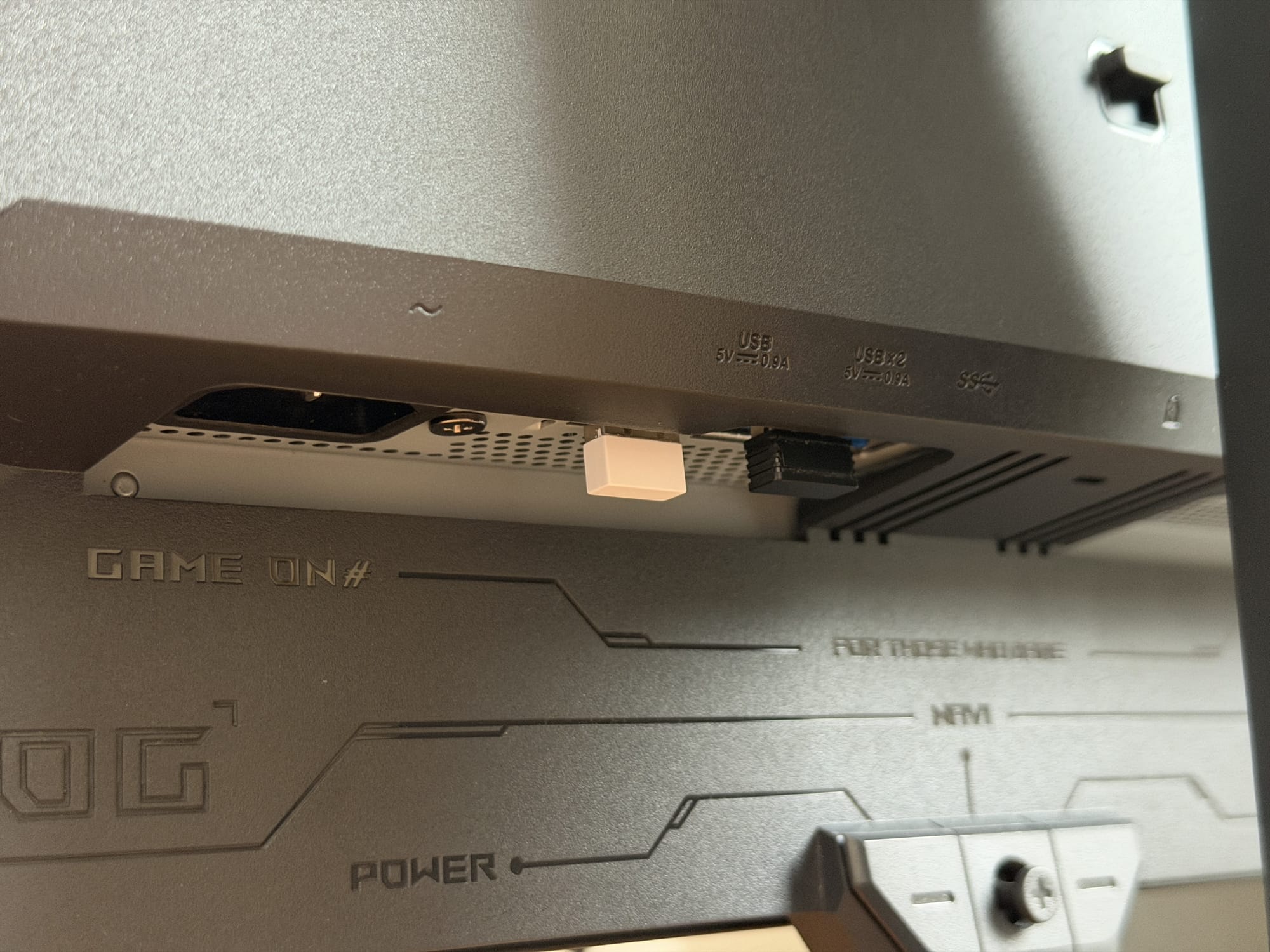
That headphone jack, though, is the only audio output the monitor has. There are no internal speakers - and at $1299, that's a bit of a bummer. Even a pair of mediocre built-in drivers would serve a purpose - system sounds, quick video calls, background audio without any extra hardware. But alas, here we are.
OSD Menu and OLED Care
The OSD is accessed via a five-direction joystick tucked behind the proximity sensor in the middle, with two programmable shortcut buttons alongside it. Navigation is fast and intuitive - a quick press brings up the menu, and flicking through the sub-menus feels responsive with no lag or sluggishness.
The joystick directionals also double as instant shortcuts without opening the full menu: left triggers KVM switching, right opens GamePlus, down handles input selection, and up cycles through GameVisual picture modes. For those who prefer software control, Asus' DisplayWidget Center desktop app mirrors the full OSD on both Windows and Mac, which is handy if you would rather not reach behind the monitor at all.
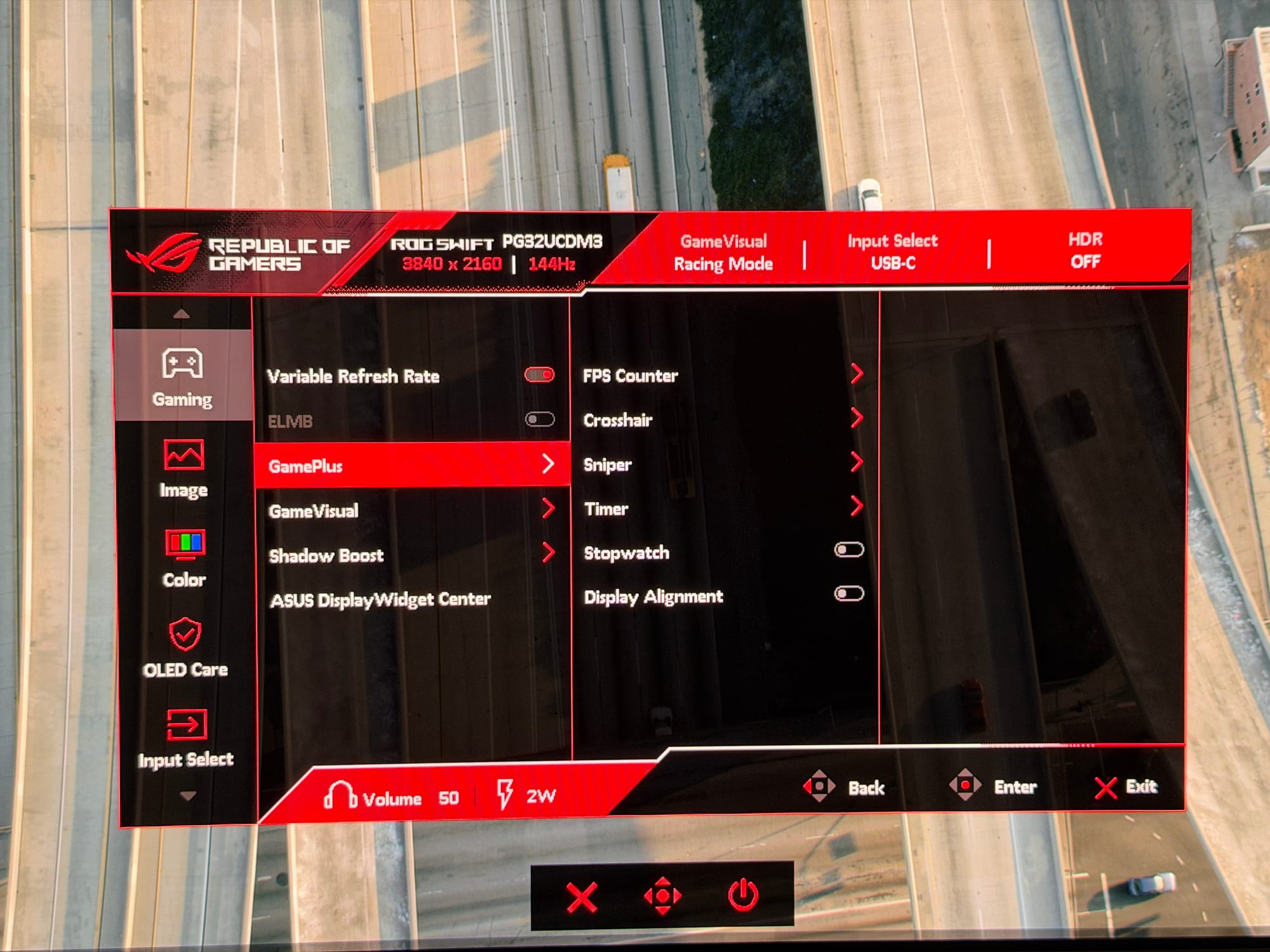
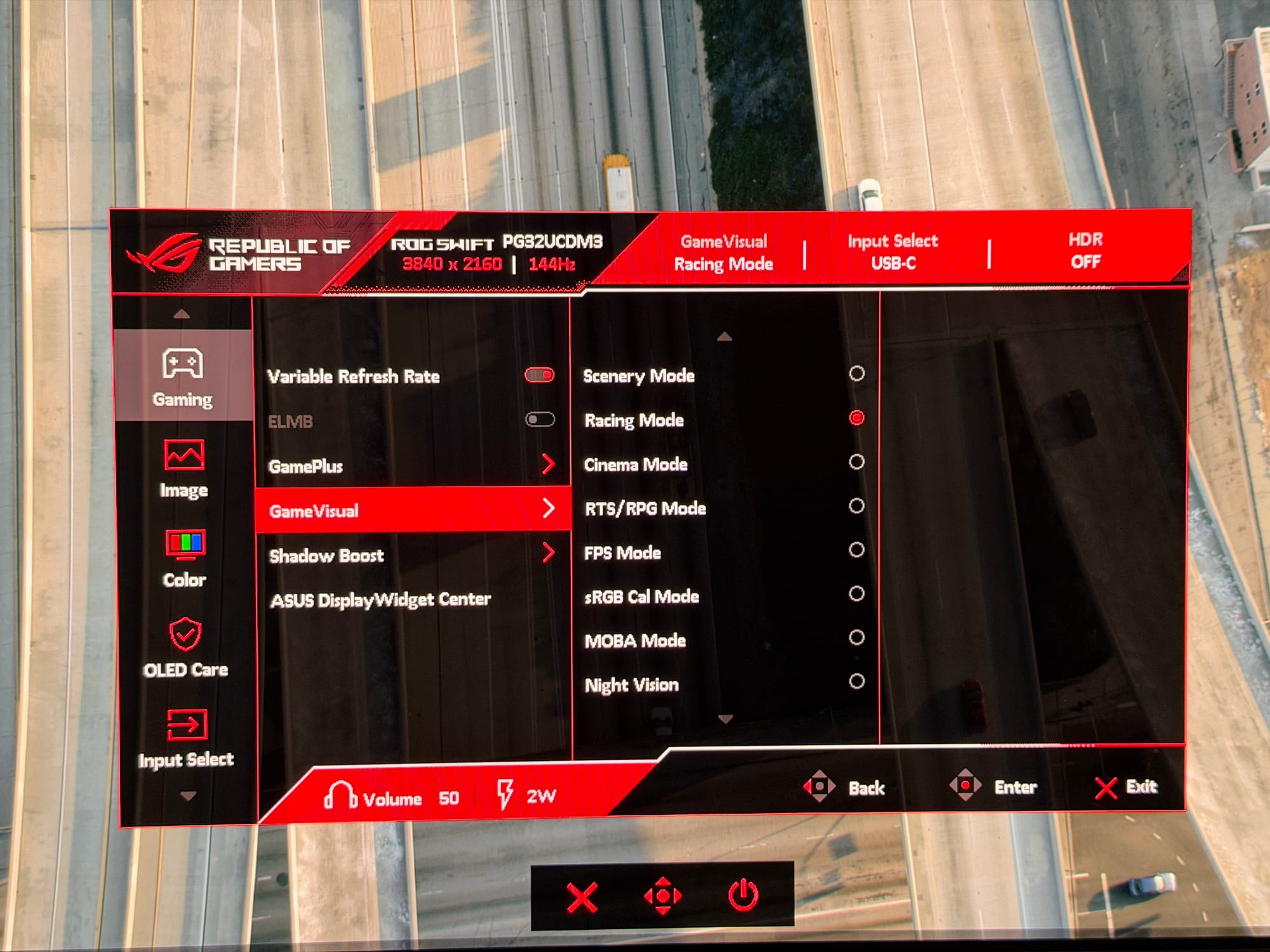
The gaming menu covers Adaptive-Sync, ELMB, GamePlus overlays (crosshairs, timers, sniper mode, FPS counters), and GameVisual picture modes. There are nine picture modes in total, with Racing as the default. An sSRGB mode is available for SDR work, and it's worth selecting via the Display Colour Space menu rather than the dedicated sRGB Cal Mode, as the former still allows full calibration access.
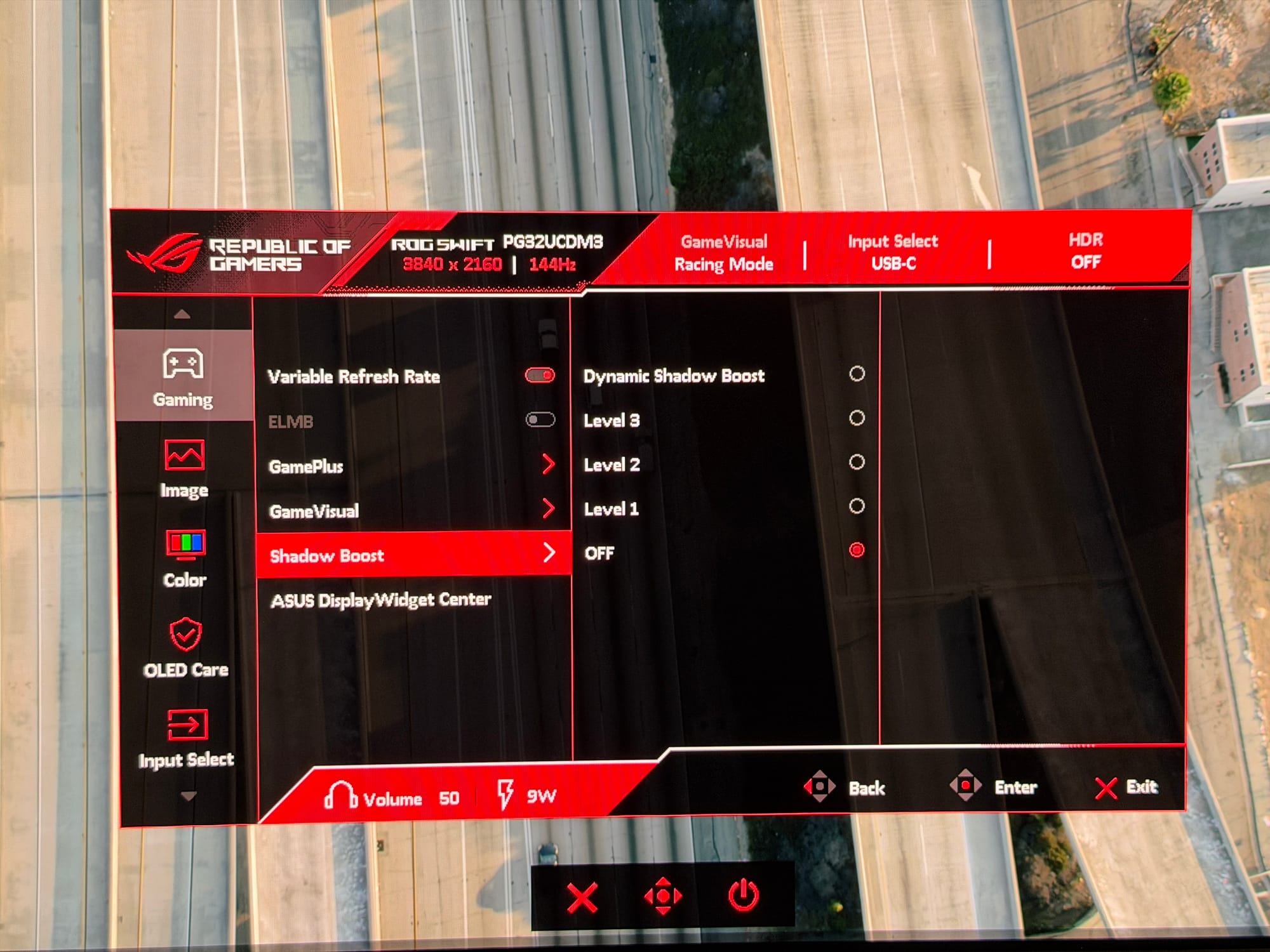
The AI features - Dynamic Crosshair, AI Shadow Boost, etc - are also housed here and do what they say, though their value will vary depending on how seriously you take competitive play.
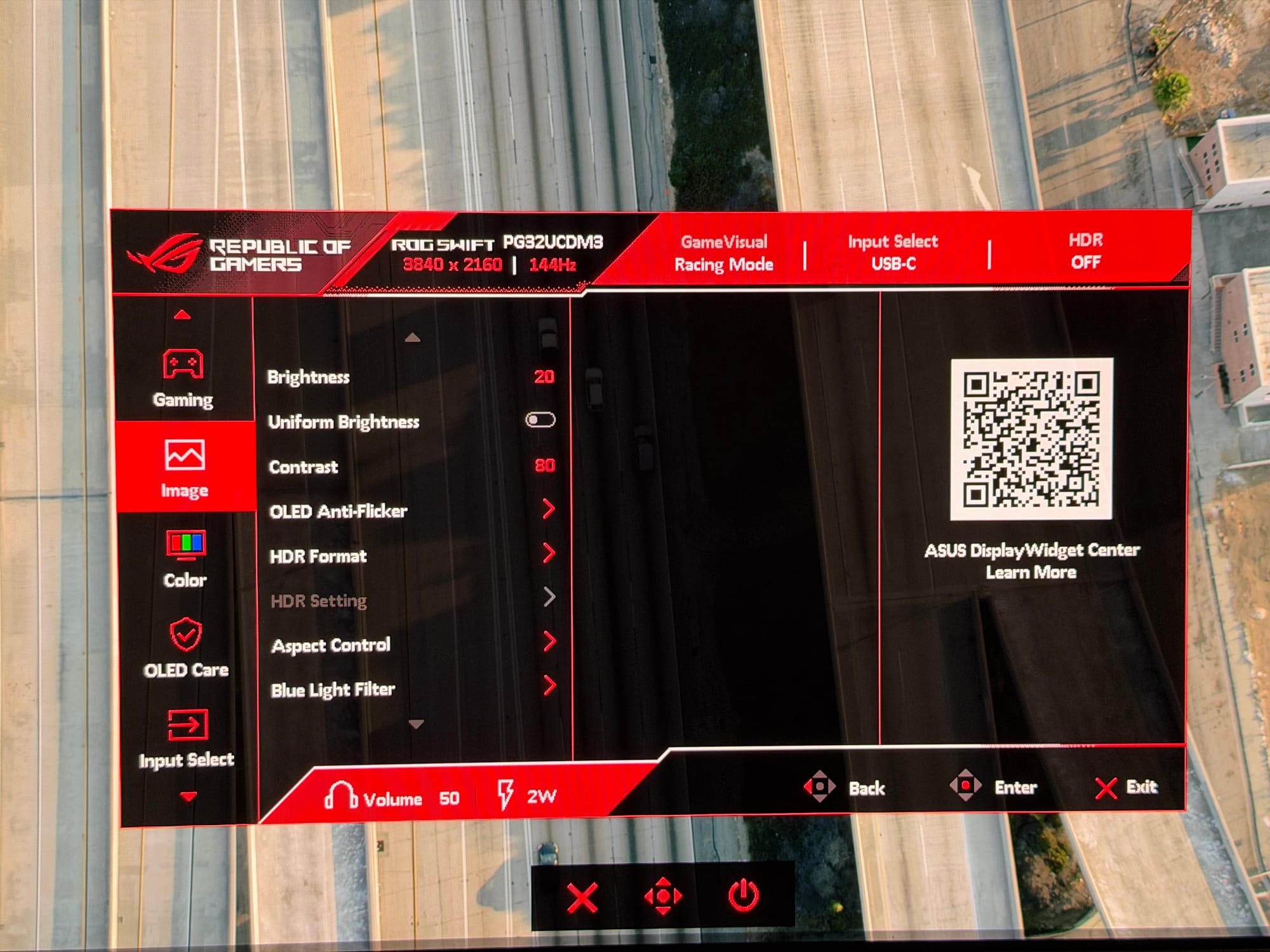
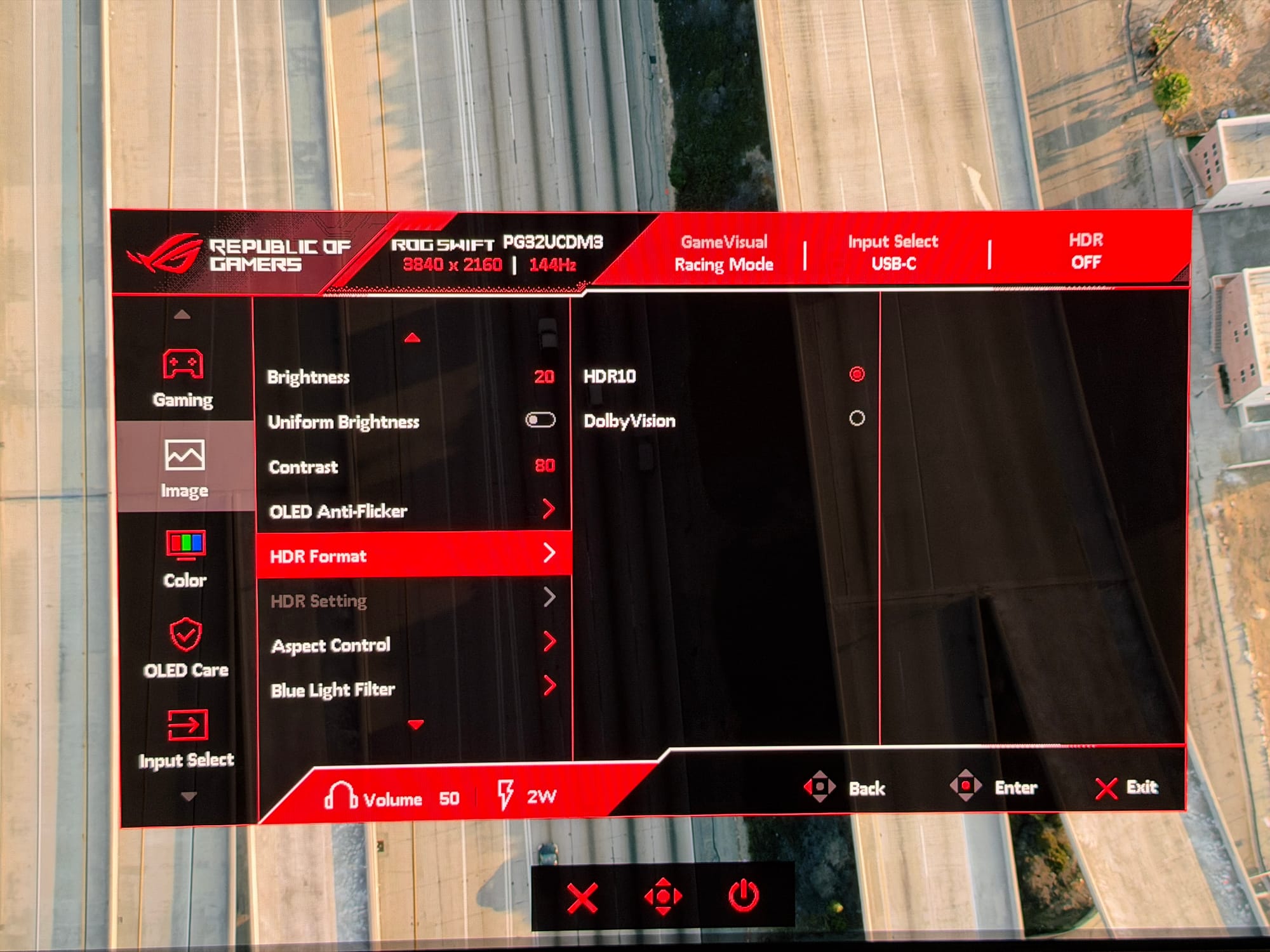
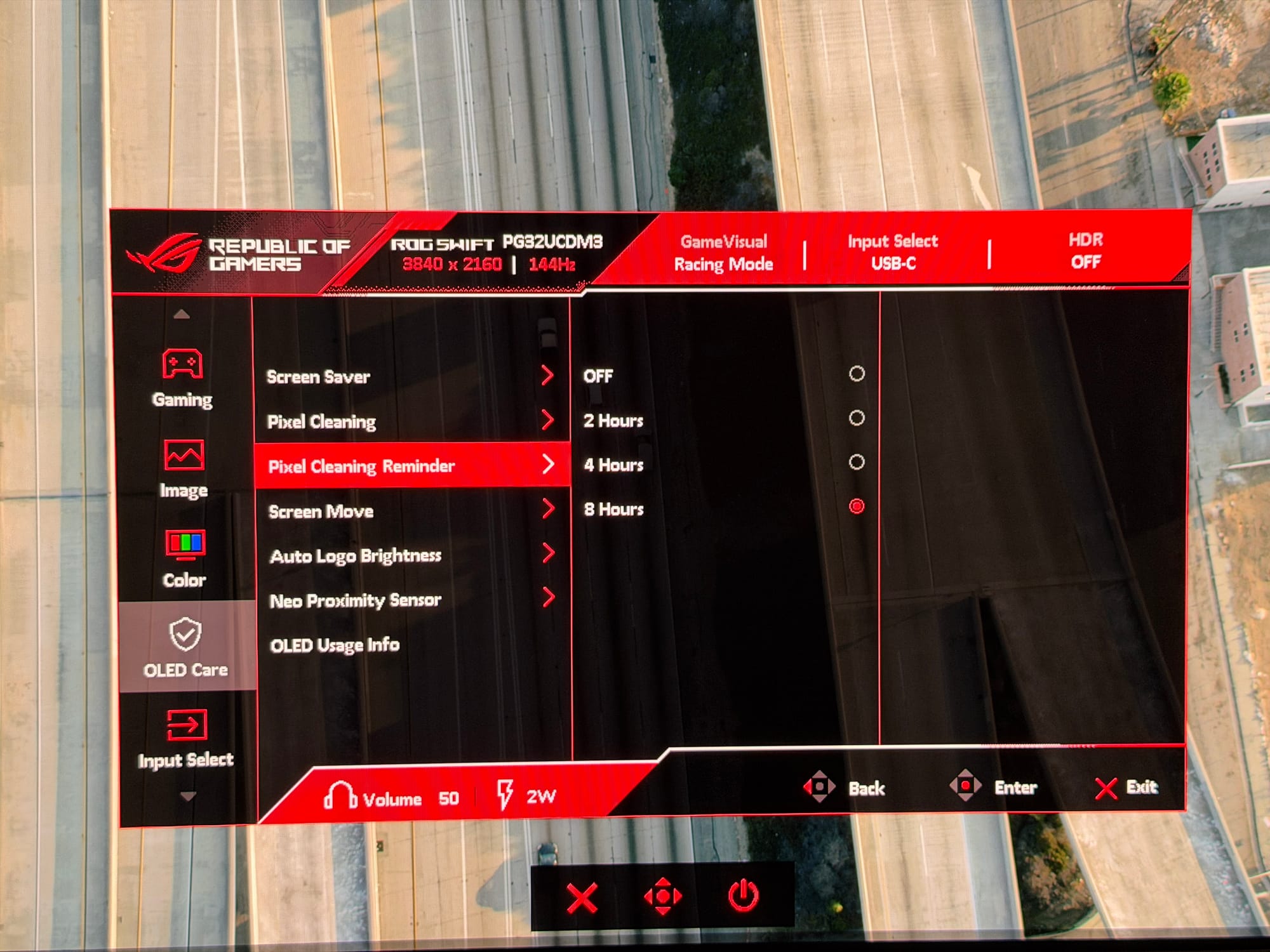
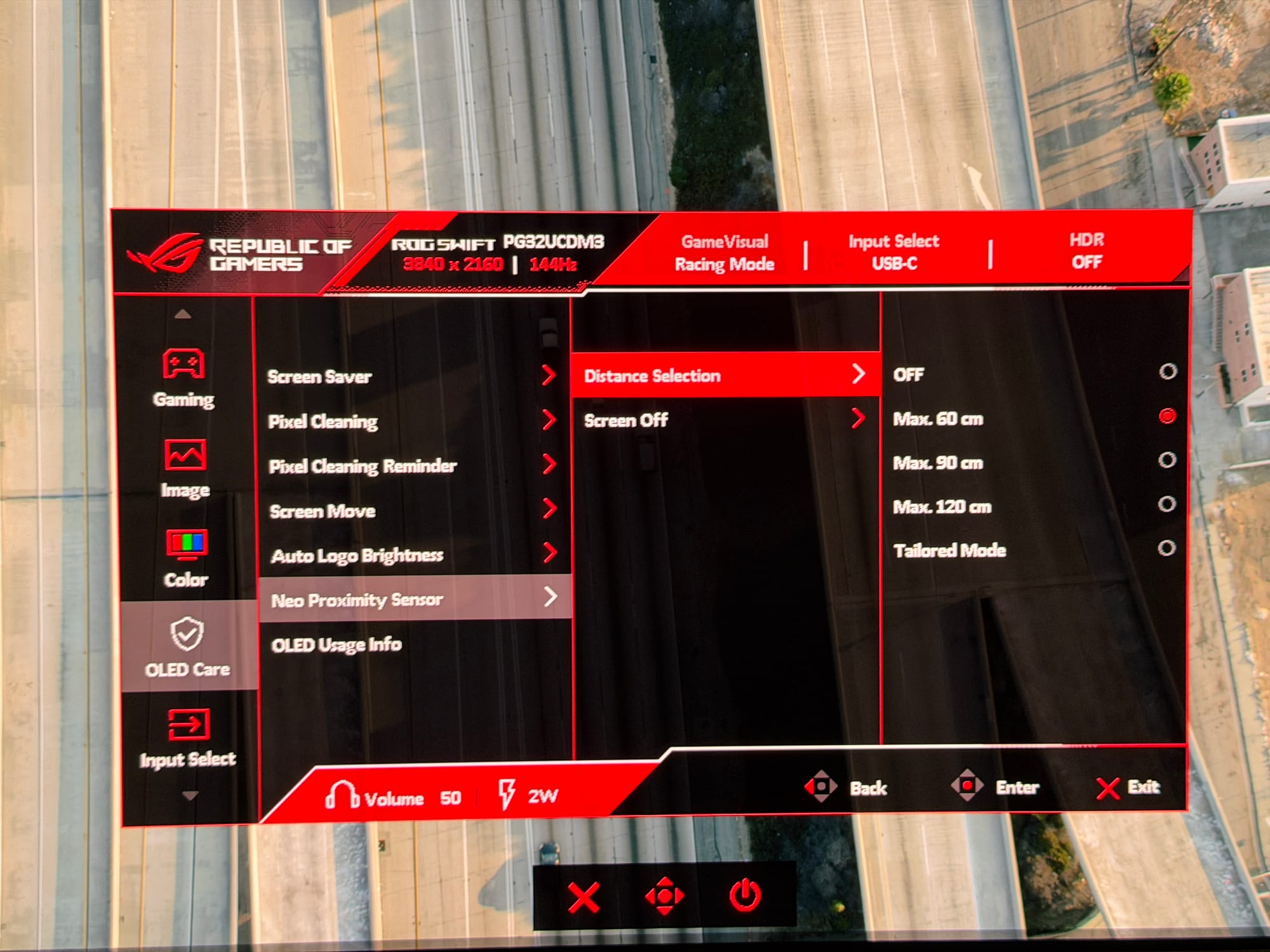
The OLED Care Pro suite, which debuted on the PG32UCDMR, covers pixel refreshing, pixel orbiting, static logo detection, and screen saver timers, all aimed at keeping the panel in good shape over the long term. The standout feature here is the Neo Proximity Sensor, an infrared sensor in the bottom bezel that blacks out the screen when you step away, resuming when you return. It offers three fixed detection presets - 60cm, 90cm, and 120cm - as well as a Tailored Mode where the sensor measures your actual sitting distance and calibrates itself accordingly. In practice, it works well and reliably, and Tailored Mode in particular is a nice touch that removes any guesswork.
The one thing worth flagging, though, is the screen-off delay timer. Your options are 5, 10, or 15 minutes, and if you would prefer the display to blank out closer to the moment you leave your desk - say, within 20 to 30 seconds - that's simply not an option here. Five minutes is objectively not a long time, but for users who want the panel protected as quickly as possible when unattended, or who simply find a screen left on in an empty room wasteful, the lack of a shorter interval feels warranted.
It's a minor gripe - and a very “me” thing - in the grand scheme of things, but one that feels like an easy firmware fix Asus should address down the line.
Image Quality and Performance
On paper, the PG32UCDM3 Gen 3 is built around a 31.5” QD-OLED panel running at 3840x2160 with a 240Hz refresh rate and a 0.03ms GTG response time. Colour coverage is rated at 99% DCI-P3, contrast ratio is 1,500,000:1, and peak HDR brightness is rated at 1,000nits. Those are strong numbers on their own, but numbers only tell part of the story - what matters is how the monitor actually behaves in front of you, and in that respect, this is one of the finest displays you can sit in front of right now.
Out of the box, the Racing GameVisual preset is the default, and it's well-calibrated - colour accuracy sits at a Delta below 2, meaning most users can get straight to work or play without touching a single setting. That said, if you are willing to spend a few minutes in the menu, the User profile offers the most flexibility and allows you to get the most out of the panel.
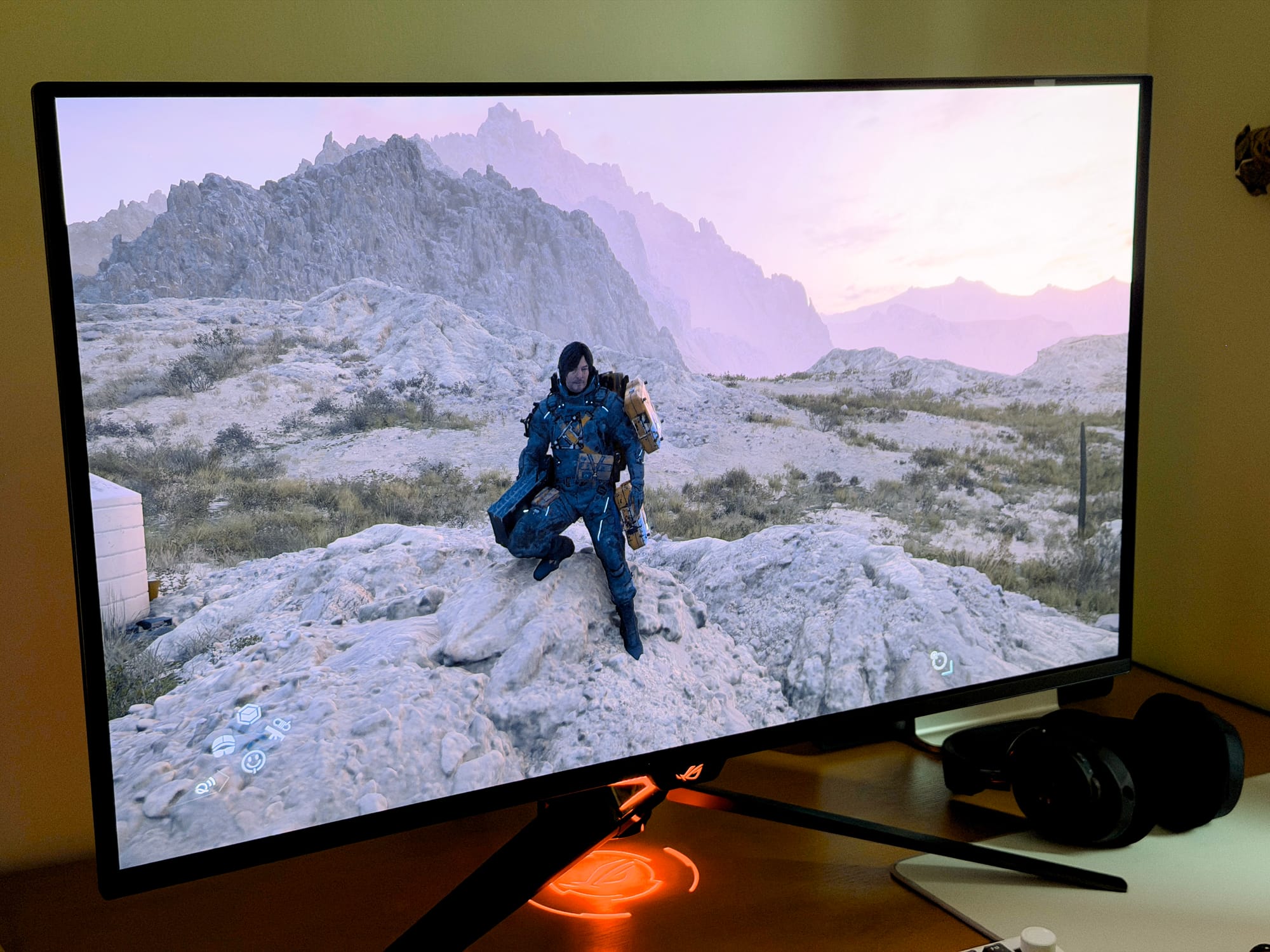
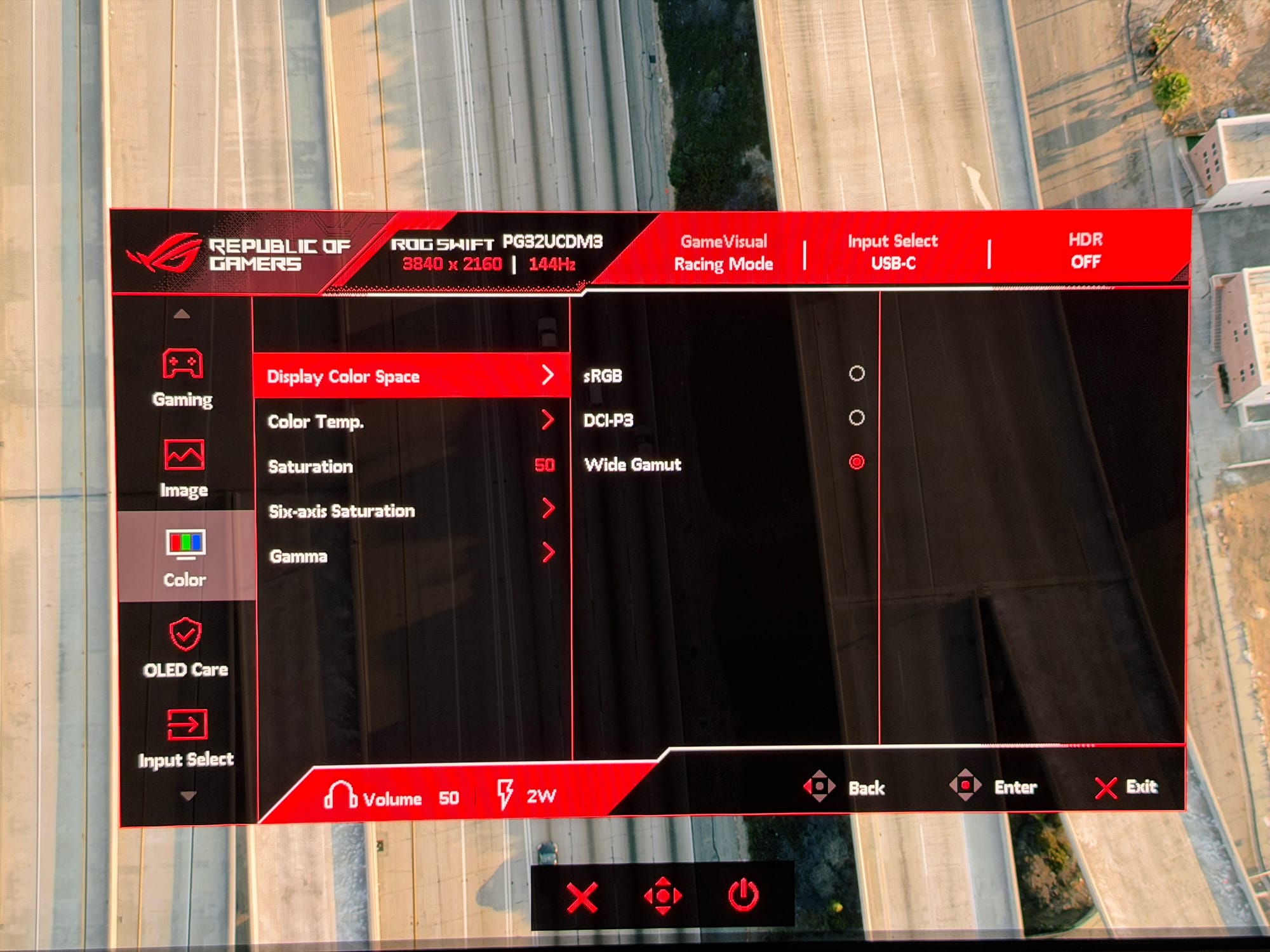
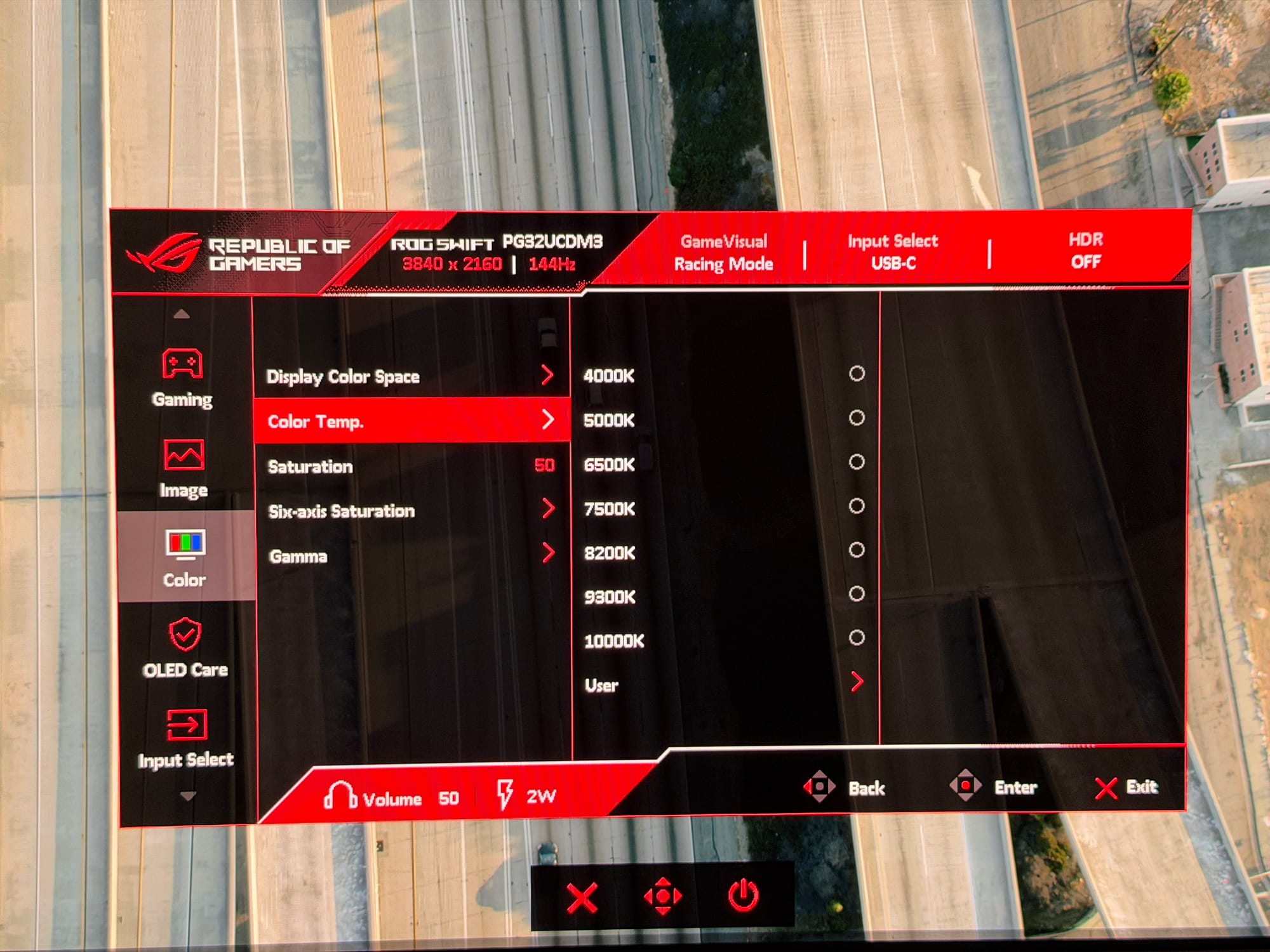
For SDR content on Windows, a solid starting point is the User GameVisual preset with ShadowBoost at Level 1, brightness adjusted to your preference (80% for me), and the Display Colour Space set to Wide Gamut. Under Colour Temp, switch to User mode and set RGB to 98/100/98, then set Gamma to 2.2.
One more setting worth considering is Windows ACM - turning it off means the display won't attempt to manage colour output at the OS level (hence, no sRGB clamp), and allows the OLED’s naturally vivid, saturated colours to come through unfiltered. Technically, this means colours are less strictly sRGB-compliant, but in practice, especially in games, it makes the image look punchy and alive.
If you would rather keep things accurate, leave ACM on and select sRGB from the Display Colour Space menu instead. The difference between the User profile and the default Racing preset is subtle rather than dramatic - you are not correcting something broken so much as nudging an already good image in the direction you prefer.
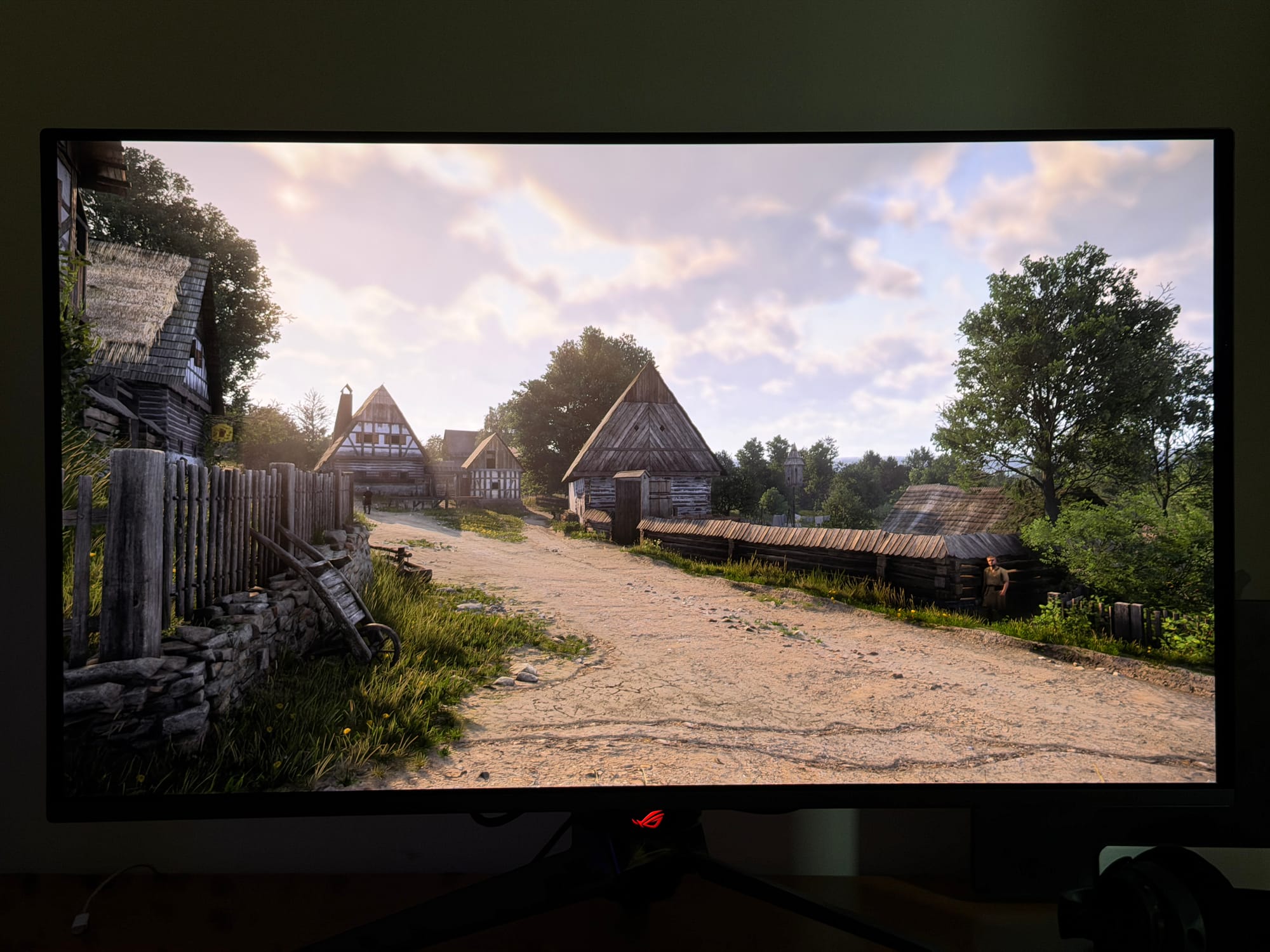
For HDR, the monitor offers several modes: Gaming HDR, Console HDR, Cinema HDR, DisplayHDR 500 True Black, and Adjustable HDR. If you want the display running at full capacity, Gaming HDR is the one to use - it unlocks the maximum peak brightness and doesn't apply any of the brightness clamping that the other modes introduce.
DisplayHDR 500 True Black is also there for those who find HDR tone mapping too aggressive - it caps brightness at 500 nits to keep things more uniform and predictable, which some users find less jarring during scene transitions. In practice, though, the brightness variation in the other modes does not call attention to itself during normal use. The Adjustable HDR option, meanwhile, unlocks manual sliders for brightness and other parameters for granular control over presets.
There's also a Uniform Brightness setting worth understanding: when enabled, it locks the panel's output level regardless of how much bright content is on screen, which is better for productivity and anything where consistent luminance matters. When turned off, the monitor can dynamically push highlights harder, making gaming and video content look punchier and more dramatic. For gaming and media, off is the better choice; for colour-sensitive work, on gives you a more predictable baseline.
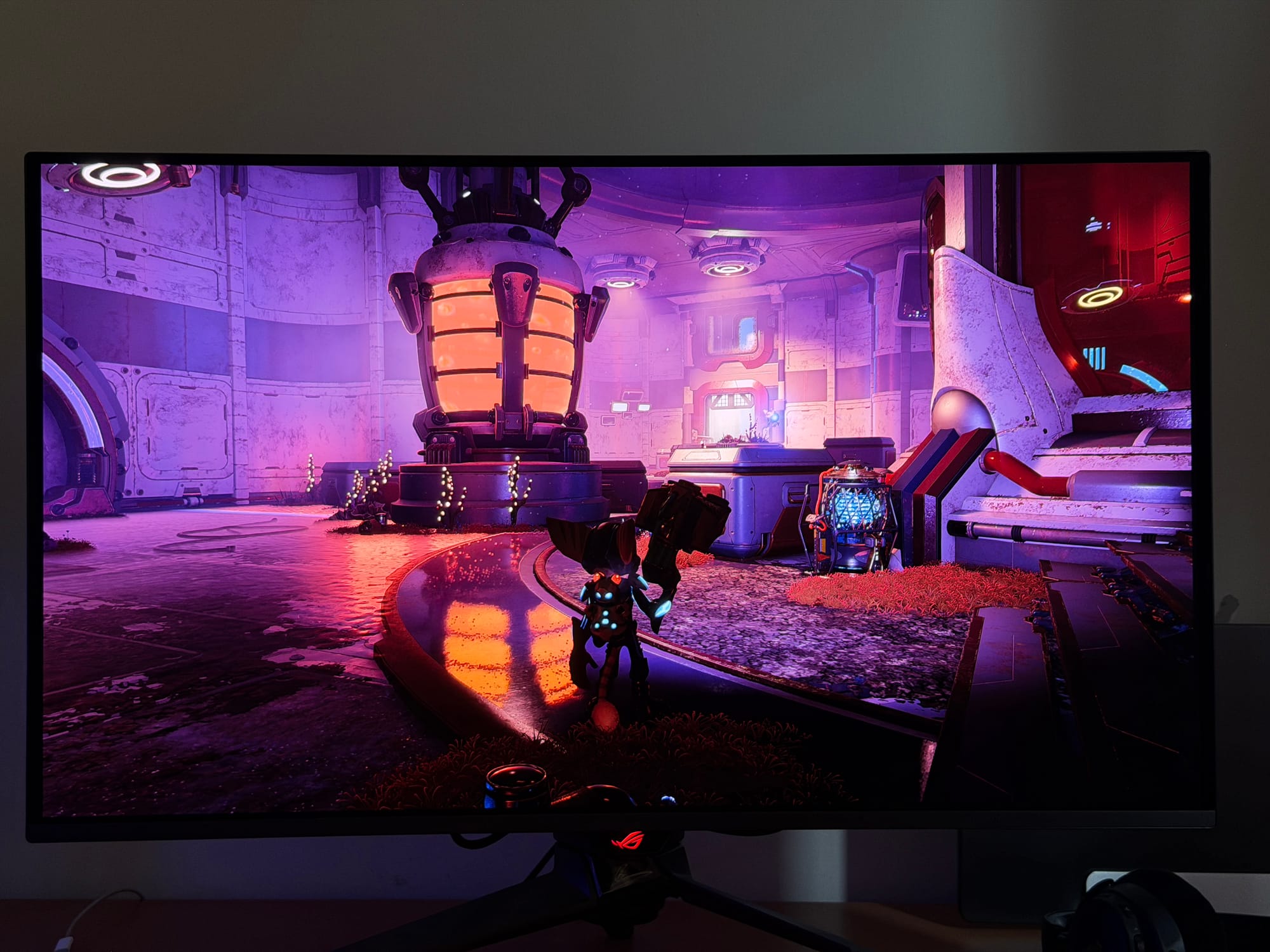
As for the image itself, this is one of the finest OLED displays available in this size and class, and that's not a difficult conclusion to reach. The HDR performance, in particular, is exceptional: the panel gets bright enough on highlights to genuinely impress, bringing out specular reflections, light sources, and environmental details, while the blacks stay absolutely inky within the same frame.
In games like Ratchet and Clank: Rift Apart and Kingdom Come Deliverance 2, the combination of rich, saturated colours, deep shadow detail, and natural-looking highlights makes HDR feel purposeful rather than gimmicky. It's worth noting that 1,000 nits is not the ceiling for OLED monitors right now - newer WOLED panels from other manufacturers are reaching closer to 1,500 nits - but within the 32" 4K QD-OLED category, this is right there at the top, and the brightness on offer here is more than enough to make HDR content feel genuinely impactful.
One frustration that surfaces in day-to-day use, particularly for anyone running multiple inputs, is the lack of per-input profile memory. If you set GameVisual to User on DisplayPort and then switch to HDMI, the monitor doesn't remember that you had a different profile configured on that input - it carries whatever was last active across to the new source.
For a single-source setup, this is a non-issue. But if you are switching regularly between, say, a MacBook on USB-C and a desktop PC on HDMI - each of which might benefit from different brightness and colour settings - you will find yourself manually reapplying your preferred profile every time you switch. This seems to be an expected behaviour among many OLED monitors, so I don't think this will change with a firmware update, but here's hoping.
Speaking of USB-C and MacBooks, the PG32UCDM3 Gen 3 handles macOS connectivity well overall. The single USB-C connection carries both video and audio, and the 90W power delivery is enough to charge a MacBook Pro while in use, making it a genuinely clean single-cable solution.
The limitation is on Apple's side: due to macOS's resolution and scaling requirements, you are limited to 144Hz rather than the full 240Hz, and 4K resolution will render at LowDPI rather than the HiDPI Retina-style scaling Mac users are accustomed to. This means the text appears smaller on screen and may exhibit some fringing and slight jagginess in fine details. At 140 pixels per inch on a 31.5” panel, the pixel density is high enough that legibility holds up reasonably well in practice, and after a short adjustment period, most users should find it perfectly workable.
The KVM functionality nicely rounds out the multi-source experience. The monitor supports auto-KVM switching tied to input source - so USBC can be mapped to KVM USBC and HDMI to KVM USB-B, and the monitor will automatically reroute your connected peripherals when you switch inputs. I have my mouse and keyboard connected to the monitor and noticed no jitter in wireless communication or input latency. It works exactly as it should, and for a dual-source setup, it removed the need for a separate KVM switch entirely.
Should You Buy the Asus PG32UCDM3 Gen 3?
The Gen 3 is a refinement rather than a reinvention, and that's fine - the PG32UCDM was already a strong monitor, and Asus has added things that actually matter rather than just reshuffling the spec sheet.
The BlackShield coating is the most meaningful addition in day-to-day use, particularly if your setup isn't in a perfectly darkened room. The other pillars of the package - DP 2.1a at full 80Gbps, USB-C with 90W PD, Dolby Vision, the Neo Proximity Sensor, and OLED Care Pro - were introduced with the Gen PG32UCDMR and represent a generational step up from the original PG32UCDM, which launched with only DP 1.4 and lacked the proximity sensor entirely. The Gen 3 inherits all of that and adds BlackShield. It's a complete package, but it's also an honest one - if you already own a Gen 2, the delta is slim.
The image quality is excellent, the HDR performance is the best you will find in this category right now, and the build quality is solid. The missing speakers are an annoying omission for a $1,299 monitor (AED 4,799–4,999). The stand legs are too wide for many desk setups, and the lack of per-input profile memory should have been addressed by now. None of these are dealbreakers on their own, but they add up to a monitor that comes close to being perfect, but misses.
For Gen 2 owners, there isn't a compelling case to upgrade unless the BlackShield coating specifically solves a problem you have. For everyone else shopping in this segment today, the Gen 3 is the version to buy.
Written by

Subscribe to our newsletter
Subscribe to our newsletter to get the latest updates and news










Member discussion